
Google Classroom Standards Based Grading: Workaround Guide
If you’ve tried setting up Google Classroom standards based grading, you’ve probably already hit the wall: it doesn’t exist as a built-in feature. Google Classroom handles points, categories, and weighted averages just fine, but it has no native option for tracking student mastery by standard. That’s frustrating when your school or district is moving toward standards-based grading (SBG) and you’re expected to make it work with the tools you’ve got.
Here at The Cautiously Optimistic Teacher, we spend a lot of time figuring out how to make classroom tech actually serve teachers, not the other way around. So we built this guide to walk you through practical workarounds that let you track standards, report mastery levels, and keep your grading workflow inside Google Classroom. No expensive add-ons required, no switching platforms, just smart use of what’s already available.
You’ll learn how to structure your Google Classroom topics, rubrics, and gradebook settings to mirror an SBG system. We’ll also cover how to pair Classroom with Google Sheets for more detailed mastery tracking and how to communicate proficiency levels to students and parents. Whether you’re piloting SBG on your own or rolling it out school-wide, these steps will give you a functional system you can start using this week.
What standards-based grading looks like in Google Classroom
Before you start building, it helps to understand what a functional SBG setup actually looks like inside Google Classroom. The platform gives you three tools you can repurpose: Topics, Rubrics, and Grade Categories. None of them were designed for SBG, but together they create a system that tracks mastery by standard instead of by points.
How the gradebook shifts
In a traditional Google Classroom gradebook, every assignment carries a point value and everything feeds into one percentage average. With a google classroom standards based grading workaround, you shift the focus from points to proficiency levels. Instead of "17 out of 20," you record "Approaching Standard" or "Meets Standard" on a 1-4 scale. That requires you to change how you set up assignments, rubrics, and grade categories from the start.
Once you commit to scoring by proficiency rather than points, your whole gradebook structure needs to reflect that choice, or the numbers will mislead both you and your students.
What the structure looks like in practice
Think of each standard you teach as its own container in Google Classroom. Topics become your standards, assignments inside each topic connect directly to that standard, and rubrics attached to each assignment define what mastery looks like. Here is a simple mastery scale you can use across all your assignments:
| Score | Label | What it means |
|---|---|---|
| 4 | Exceeds Standard | Applies the skill independently and beyond grade-level expectations |
| 3 | Meets Standard | Demonstrates full understanding of the standard |
| 2 | Approaching Standard | Shows partial understanding; needs some support |
| 1 | Beginning | Shows limited understanding; needs significant support |
This four-point scale maps directly to Google Classroom’s rubric builder, which means you build it once and reuse it across every assignment tied to that standard. The table above also gives you a shareable reference you can post for students and parents so everyone reads scores the same way.
Step 1. Set your class settings for SBG
Before you create a single assignment, you need to adjust two settings in Google Classroom that will define how your gradebook behaves going forward. Getting these right from the start prevents you from spending hours cleaning up a grading structure that fights against your SBG goals. Open your class and click the gear icon in the top right to get started.
Turn off the overall grade calculation
Go to your class, click Settings (the gear icon in the top right), and scroll to the "Grade calculation" section. Set it to "No overall grade." This removes the percentage average that Google Classroom calculates by default, which is exactly what you want for google classroom standards based grading. A single percentage average does nothing useful when your goal is to report mastery by standard.
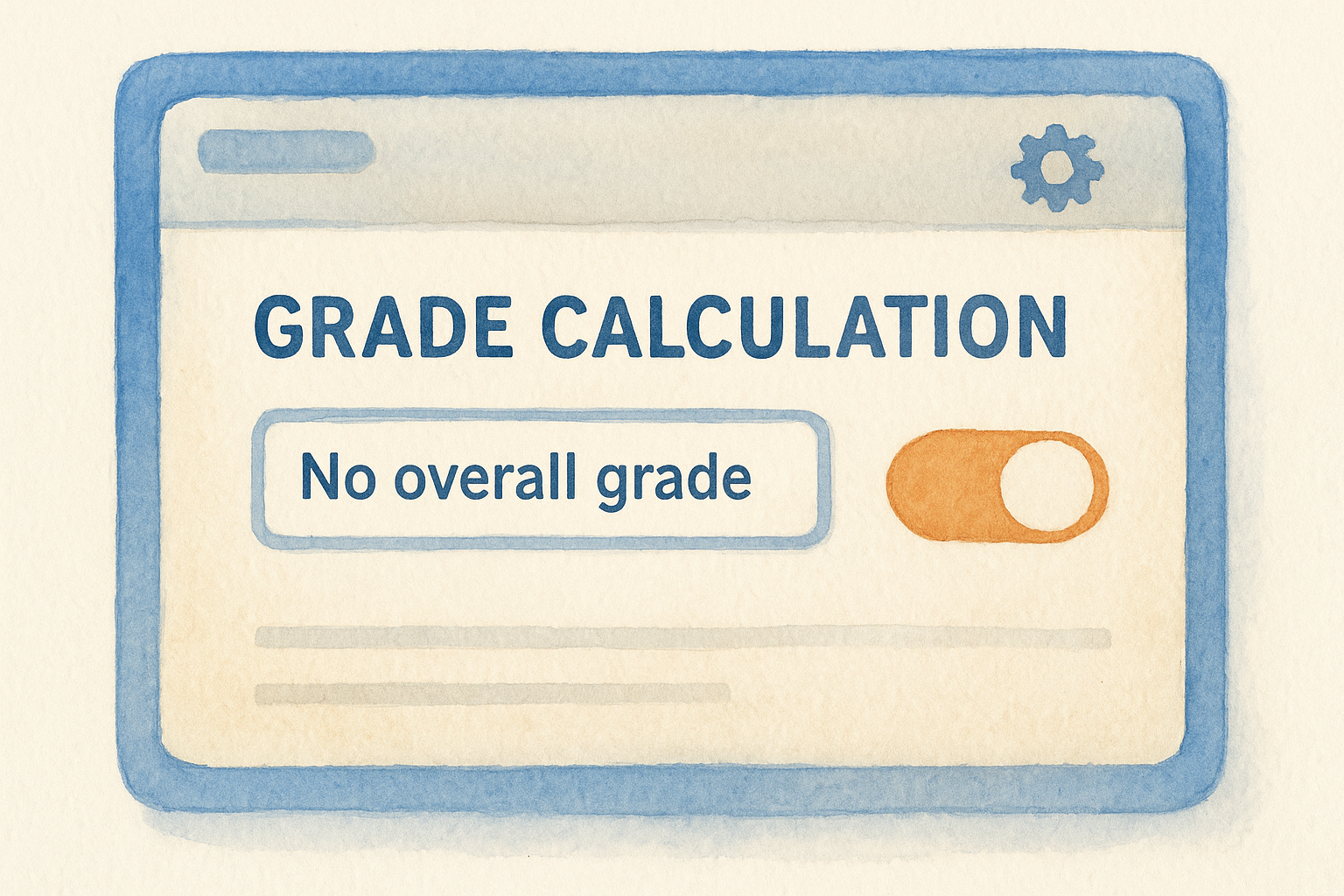
Turning off overall grade calculation is the most important first step because it prevents misleading percentage averages from appearing in the gradebook before you finish setting up your system.
Set your default point scale
Still in Settings, set your "Default points" for new assignments to 4. This aligns every new assignment with your four-point mastery scale automatically. You can always override individual assignments when needed, but starting at 4 means your rubric scores (1, 2, 3, or 4) map cleanly to the point values Google Classroom records without any manual adjustment each time.
Step 2. Map standards to topics and assignments
With your settings locked in, you can start building the structure that makes google classroom standards based grading actually readable. The goal here is a one-to-one relationship: one Topic per standard, and every assignment inside that Topic connects to that standard only. This keeps your gradebook organized by what students know, not by when they handed something in.
Use Topics as standard containers
Topics in Google Classroom function like folders, and that’s exactly how you’ll use them here. Create one Topic for each standard you’re actively teaching this unit. Name each Topic with the standard code and a short description so it’s scannable at a glance.
Here’s a naming format that works well:
RL.7.1 – Citing Text EvidenceRL.7.3 – Character AnalysisW.7.1 – Argument Writing
Link assignments to one standard at a time
When you create an assignment, assign it to exactly one Topic. Resist the urge to cover multiple standards inside one task. If an essay touches three standards, break the feedback into three separate scored rubric categories rather than lumping them together.
Keeping each assignment tied to a single standard is what makes your gradebook readable when you review mastery data later.
This structure lets you scroll through any standard’s Topic and instantly see all the evidence you’ve collected for that skill.
Step 3. Score mastery with a simple rubric scale
This is where google classroom standards based grading starts to feel real. Google Classroom’s built-in rubric tool lets you attach a mastery scale directly to any assignment, and students can see exactly what each score means before they submit. Building your rubric inside Classroom rather than on a separate document keeps everything connected and cuts down on extra questions at grading time.
Build the rubric inside Google Classroom
When you create or edit an assignment, click "Rubric" at the bottom of the assignment panel, then select "Create rubric." Add one criterion called "Standard Mastery" and set four rating levels that match the scale below. Use this same template for every assignment you create:
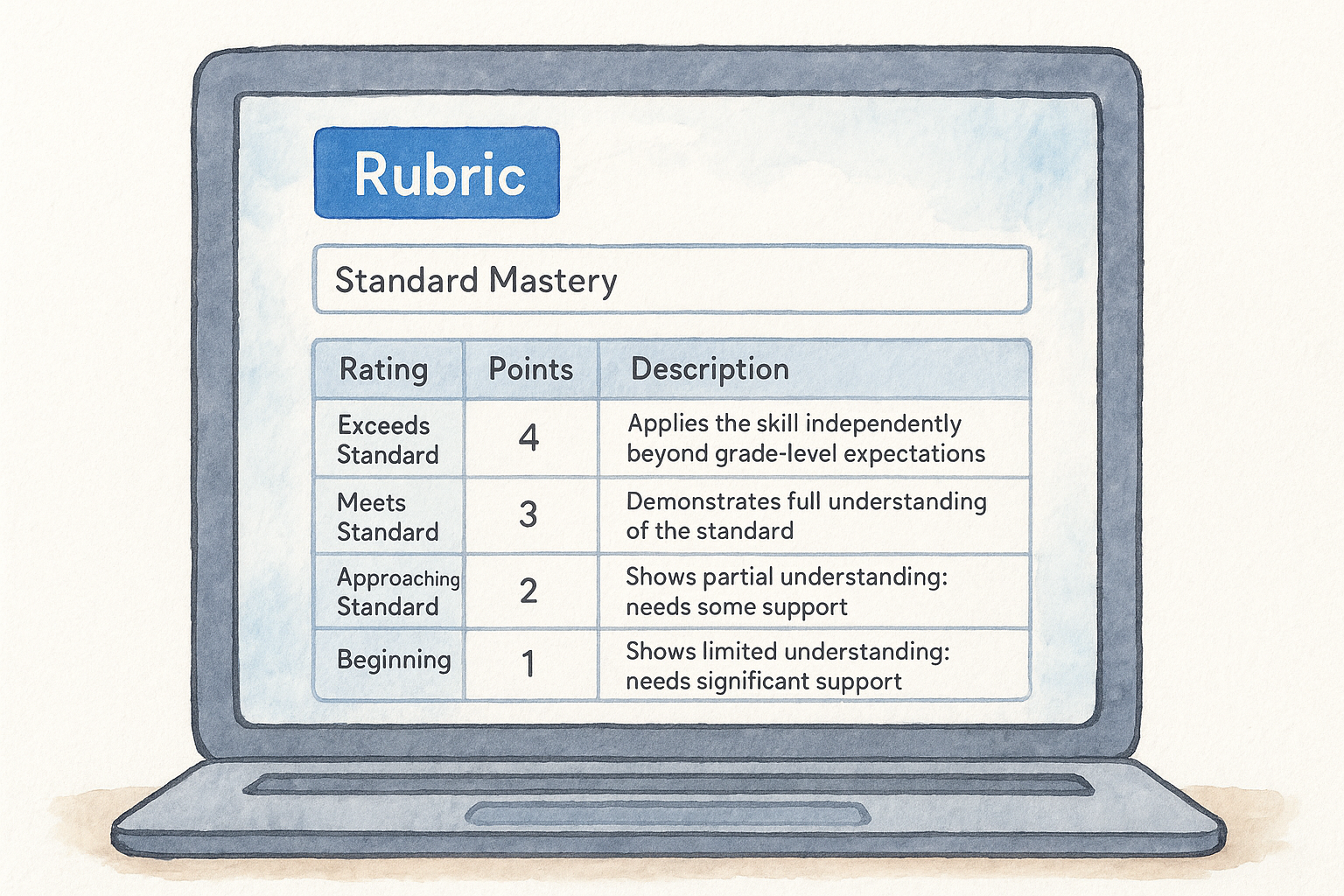
| Rating | Points | Description |
|---|---|---|
| Exceeds Standard | 4 | Applies the skill independently beyond grade-level expectations |
| Meets Standard | 3 | Demonstrates full understanding of the standard |
| Approaching Standard | 2 | Shows partial understanding; needs some support |
| Beginning | 1 | Shows limited understanding; needs significant support |
Once you save this rubric, you can import it into future assignments using the "Import from Classroom" option, so you never rebuild it from scratch.
Reuse the rubric across assignments
After you save a rubric on one assignment, importing it into the next one takes under a minute. Open a new assignment, click "Rubric," select "Import from Classroom," and choose your saved version. This keeps your mastery scale consistent across every task tied to that standard’s Topic.
Step 4. Track, update, and report without averaging errors
Your Google Classroom gradebook shows scores by standard, but it doesn’t automatically highlight growth over time or flag which students have fallen below mastery on a specific skill. To get that visibility, you need to pair Classroom with Google Sheets and build a simple mastery tracker that you update alongside your regular grading workflow.
Build a mastery tracker in Google Sheets
Open a blank Google Sheet and add one column per standard, with each row representing one student. Record the most recent score (1-4) for each standard after every grading cycle. Then apply conditional formatting to color-code each cell so you can read the whole class’s mastery at a glance:
- Red: score of 1 (Beginning)
- Orange: score of 2 (Approaching Standard)
- Yellow: score of 3 (Meets Standard)
- Green: score of 4 (Exceeds Standard)
Update your Sheet after every grading round so the data always reflects where students stand right now, not three weeks ago.
Replace old scores, don’t average them
When a student resubmits or retakes an assessment, record the new score and delete the old one in both Classroom and your Sheet. In google classroom standards based grading, the most recent evidence is what matters, not a mathematical average of past attempts.
Averaging a 1 and a 3 to produce a 2 misrepresents what your student currently knows and can do. Report the most recent score only, and your gradebook stays accurate when you share it with students or parents.
Next steps for a smoother grading routine
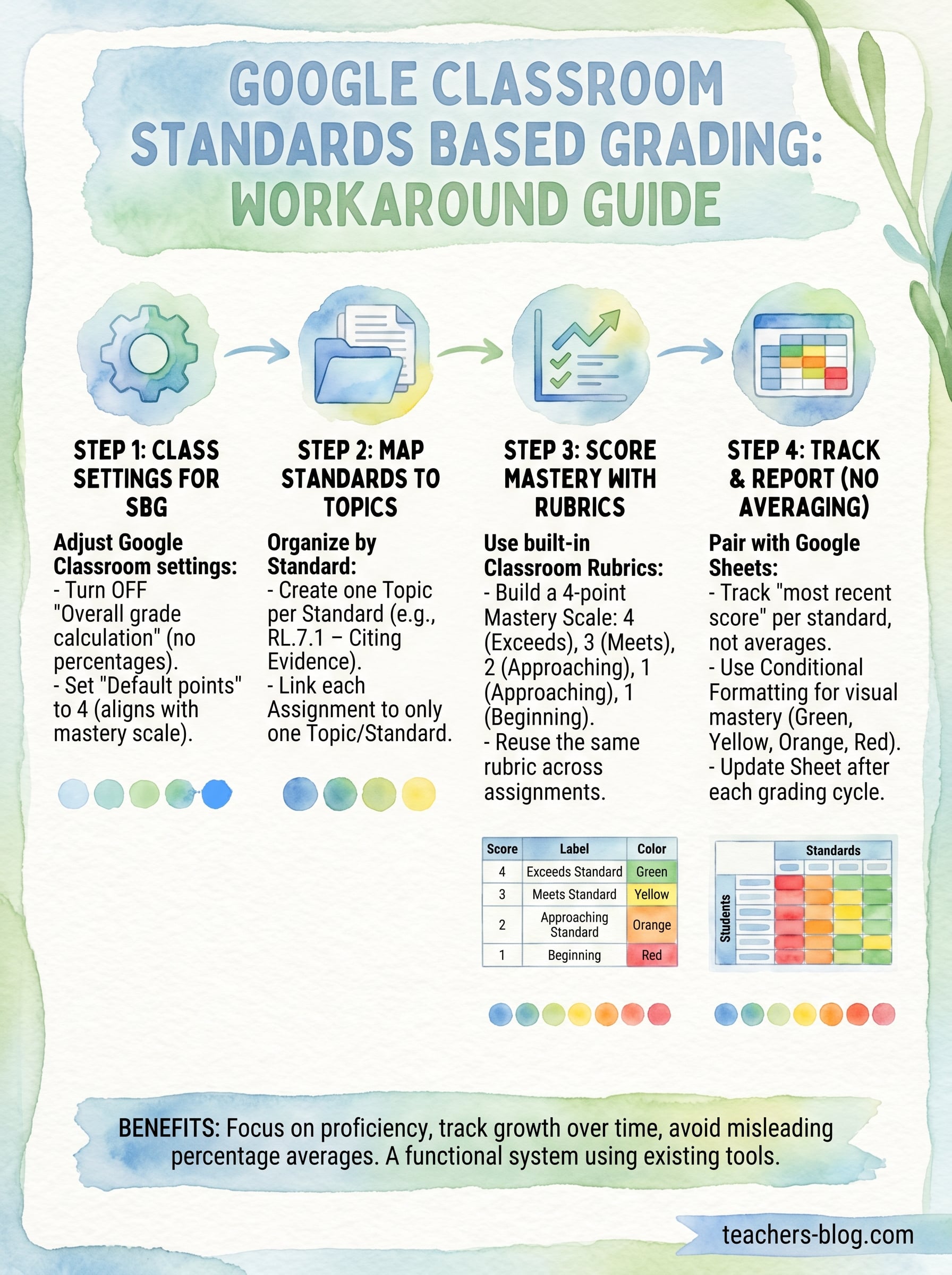
You now have a complete google classroom standards based grading system built from tools you already use every day. The four steps above give you a structure you can put into practice this week: adjust your class settings, organize Topics by standard, attach a consistent rubric, and track mastery in a linked Google Sheet. Start with one unit and one set of standards before you scale the system across your whole class.
Once the structure feels natural, focus on your feedback habits. Write one specific comment per assignment that tells the student exactly what they need to do to move from their current score to the next level up. That habit, more than any tool or setting, is what makes grading meaningful for students.
If you want more strategies and ready-to-use resources to support your classroom practice, visit The Cautiously Optimistic Teacher for tools built with real teachers in mind.