
Infinite Campus Standards-Based Grading: Setup & Tips
Setting up Infinite Campus standards-based grading can feel like navigating a maze of dropdowns, score groups, and alignment settings, especially when you’re doing it for the first time. If your district has made the shift to SBG (or you’re about to), getting the platform configured correctly is half the battle. The other half is actually using it in a way that gives students and families meaningful feedback.
Here at The Cautiously Optimistic Teacher, we’re all about helping educators work smarter with the tools they’ve been handed, whether that’s AI-powered lesson planning or wrangling a student information system into shape. This guide walks you through the essential setup steps for standards-based grading in Infinite Campus, from score group configuration to gradebook alignment, plus practical tips to keep your workflow clean once everything is live.
What you need before you start in Infinite Campus
Before you touch a single setting, you need to confirm a few things are in place. Infinite Campus standards based grading requires a specific combination of admin permissions, pre-loaded standards, and district-level configuration that teachers alone typically cannot control. Skipping this checklist is the most common reason setup stalls mid-process.
Admin access and district permissions
You cannot configure score groups, grading tasks, or standard alignments without the right system roles assigned to your account. In most districts, these settings live at the district or school admin level, not the teacher level. Before you open the Grade Book Setup tool, reach out to your campus administrator to confirm you have access to the Grading, Curriculum, and Standards modules.
If you try to build your gradebook without the correct permissions, you will hit dead ends fast, and some changes made at the wrong level can break other teachers’ setups too.
The key roles to verify are Grading Admin, Standards Bank access, and Section Edit rights. Your IT or SIS coordinator can grant these in Campus Tools under User Account settings.
Your standards list and course structure
Having a finalized list of the standards you plan to track before you start building is essential. Entering standards mid-setup creates alignment gaps that are tedious to fix later. Pull your state or district standards document and organize them by course and grade level before opening Infinite Campus.
Your course sections also need to be active and correctly rostered in Infinite Campus before you align any grading tasks. An empty or incorrectly assigned section causes score entry problems down the line. Confirm your sections are live in the Scheduling module before moving forward.
Step 1. Set up standards, tasks, and sections
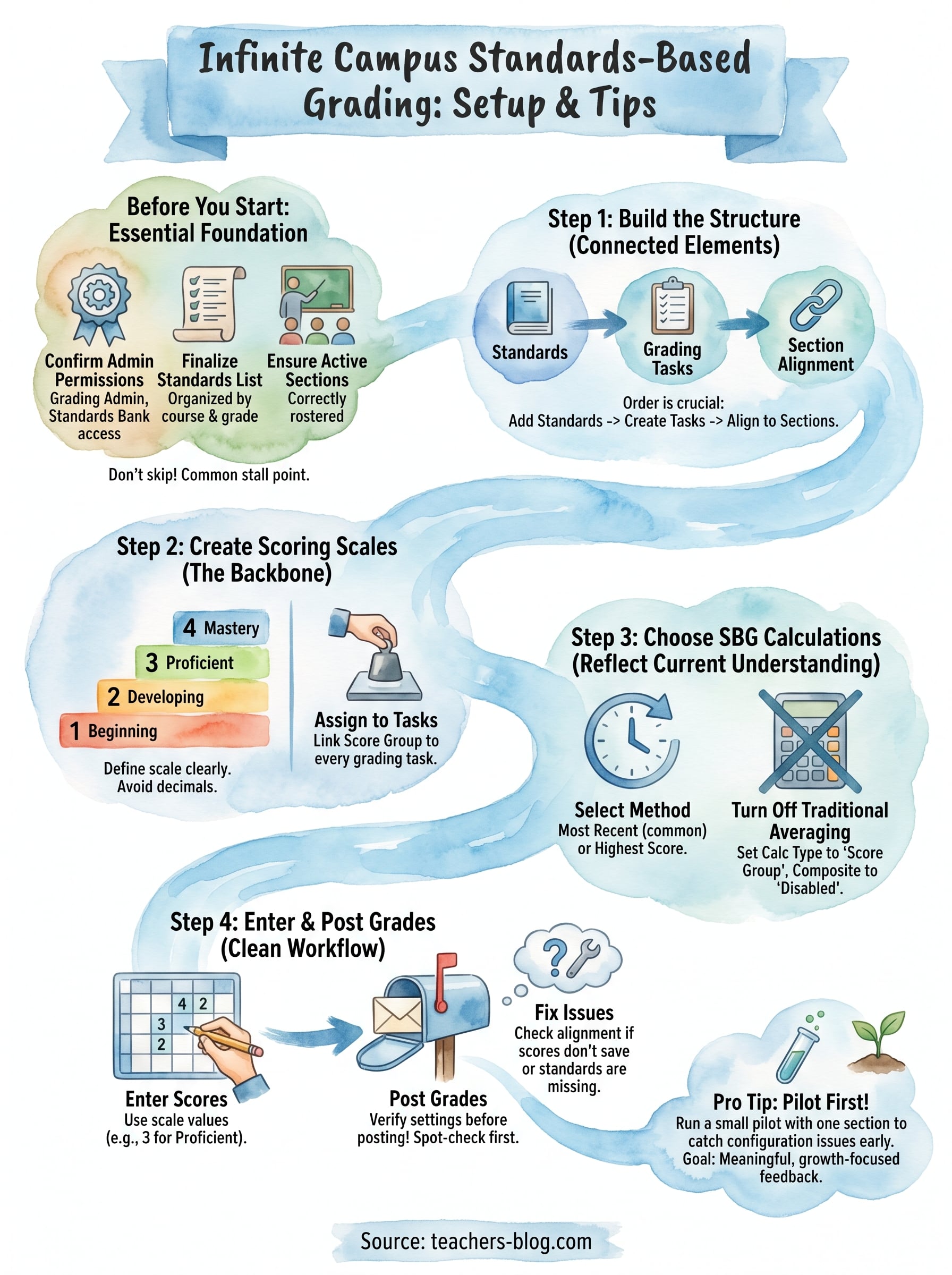
With your permissions confirmed and standards list ready, you can begin the actual build. In Infinite Campus standards based grading, everything starts with three connected elements: standards, grading tasks, and section alignment. Getting these in the right order means the rest of the setup clicks into place without confusion.
Add your standards to the Standards Bank
Navigate to Curriculum > Standards in the Campus toolbar. From here, you can either import a pre-loaded state standard set or manually enter your own. Select your grade level and subject area, then add each standard with a clear, short label, such as "RL.8.1," so it is easy to identify inside the gradebook later.
Always double-check that each standard is assigned to the correct course before moving on, since reassigning standards after section alignment is time-consuming to fix.
Create grading tasks and align them to sections
Go to Grade Book Setup > Grading Tasks and create one task for each standard you plan to assess. Once your tasks are saved, open your active course section, select "Align Grading Tasks," and map each task to the matching standard. Repeat this process for every section you teach before you enter a single score. Missing even one alignment means scores will not connect to the right standard in the gradebook.
Step 2. Create scoring scales that match your standards
Scoring scales are the backbone of Infinite Campus standards based grading. They define what each score value means, such as 4 for mastery or 1 for beginning, and they connect directly to how scores display to students and parents.
Build your score group in Campus
Navigate to Grading & Standards > Score Groups and click "Add." Name your score group clearly, for example "SBG 4-Point Scale," so it is easy to identify when assigning it later. Enter each score value with a short, meaningful label. Below is a sample four-point scale you can adapt:
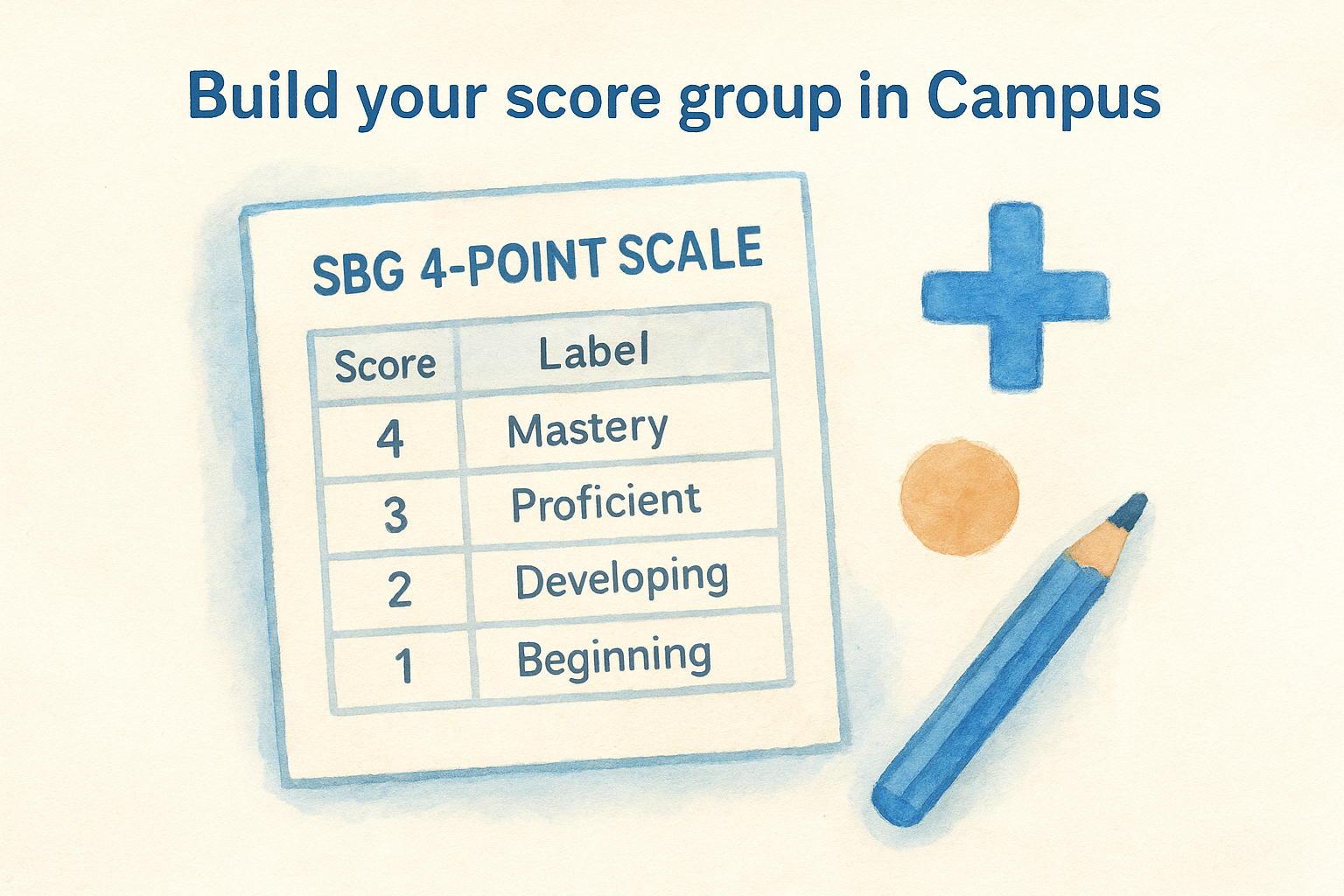
| Score | Label | Description |
|---|---|---|
| 4 | Mastery | Exceeds standard independently |
| 3 | Proficient | Meets standard consistently |
| 2 | Developing | Approaching the standard |
| 1 | Beginning | Limited evidence of the standard |
Avoid using decimals in your score group if your district reports whole-number proficiency levels, since mixed formats create confusion in parent-facing reports.
Assign the score group to your grading tasks
Open Grade Book Setup and select each grading task you created in Step 1. In the task settings, locate the Score Group field and select the scale you just built. Confirm the assignment for every task before moving to calculation settings.
Step 3. Choose grade calculation options that fit SBG
With your score groups assigned, the next decision is how Infinite Campus standards based grading calculates a final score for each standard. Traditional percentage-based averaging works against SBG, since it drags down a student’s score when they struggled early but demonstrated mastery later. You need to select a calculation method that reflects current understanding, not a running average of every attempt.
Select the right calculation method
Open Grade Book Setup and locate the Calculation Options for each grading task. Infinite Campus gives you several methods, but the two most common for SBG are Most Recent and Highest Score. Most Recent works well when you want the gradebook to reflect where a student stands right now. Highest Score works better when you want to reward demonstrated mastery at any point in the term.
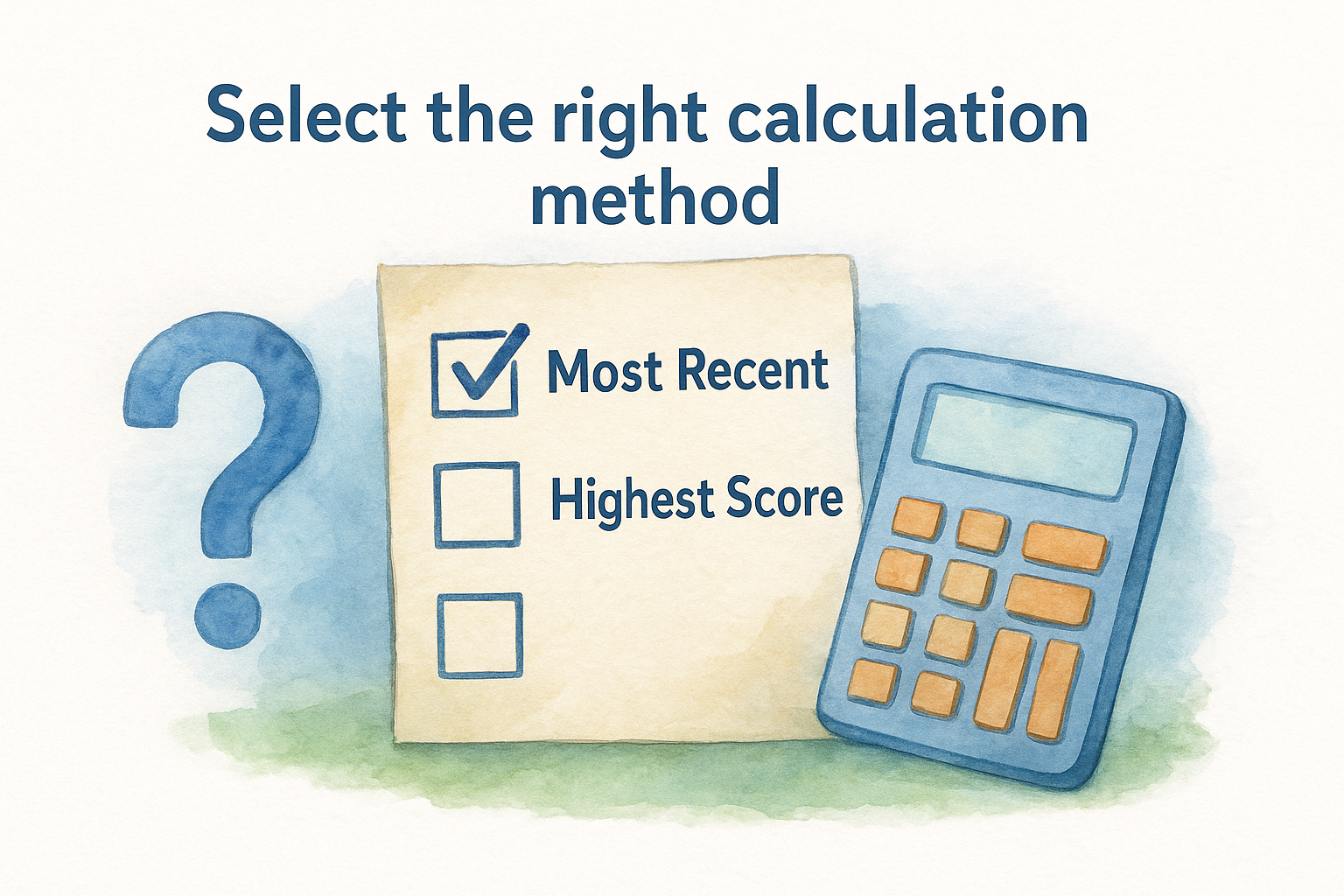
Most teachers using SBG find that Most Recent, paired with regular reassessment opportunities, gives the clearest picture of student growth.
Turn off traditional averaging
Go to your section settings and confirm that point-based or percentage averaging is disabled. Check these two settings before you post any grades:
- Calculation Type: set to Score Group, not Points
- Composite Scoring: disabled or set to None
If traditional averaging stays on, it overrides your score group logic and produces misleading final scores that undermine the whole SBG model.
Step 4. Enter scores, post grades, and fix common issues
With your calculation settings locked in, you’re ready to start scoring student work inside Infinite Campus standards based grading. Open your Grade Book and select your configured section. Click any score cell, enter the numeric value from your score group, such as 3 for Proficient, and Campus automatically applies the label you defined earlier.
Post grades without losing your setup
Once you’ve entered scores for a grading period, navigate to Grade Book > Post Grades and select the correct term and task. Confirm that each task shows Score Group as the calculation type before you click Post, since posting with incorrect settings is difficult to reverse and may require admin intervention to fix.
Always spot-check three or four student records before posting to the full section, since errors are far easier to correct before they appear on transcripts.
Fix the three most common score entry problems
Teachers using standards-based grading in Infinite Campus run into a few predictable issues. Here is how to handle each one quickly:
- Scores not saving: Refresh your session and confirm your section alignment is still active in Grade Book Setup.
- Wrong scale displaying: Reassign the correct score group to the affected grading task in Grade Book Setup.
- Missing standards on posted report: Verify the grading task is properly aligned to your section inside the Curriculum module.
Wrap up and next steps
Setting up infinite campus standards based grading takes real preparation, but once your score groups, grading tasks, and calculation settings are correctly configured, the system genuinely supports meaningful, growth-focused feedback for students and families. Each step in this guide builds on the last, so if something breaks, trace it back to your section alignment and score group assignments first.
Your next move is to run a small pilot with one section before rolling out across all your classes. Test score entry, grade posting, and parent-facing reports with a handful of students so you can catch configuration issues before they affect your entire gradebook. Document any fixes you make along the way so your setup notes serve as a reference the next time you onboard a new course or colleague.
For more practical strategies on teaching smarter and working more efficiently, visit The Cautiously Optimistic Teacher and explore the full library of tools and resources built for educators like you.