
Canvas Standards Based Grading: Setup Guide for Teachers
Standards-based grading makes a lot of sense in theory, grade students on what they actually know, not on how many homework assignments they turned in. But if you’ve ever tried to set up canvas standards based grading in practice, you know it can feel like solving a puzzle with missing pieces. The platform supports it, sure, but figuring out the right configuration takes more trial and error than most of us have time for.
That’s exactly the kind of problem we tackle here at The Cautiously Optimistic Teacher: bridging the gap between great teaching ideas and the practical steps needed to actually pull them off. We build tools and guides that help educators work smarter, and getting your gradebook right is one of the highest-leverage moves you can make for your classroom.
This guide walks you through the full setup process, from enabling Learning Mastery in your course settings to building outcomes, attaching rubrics, and configuring a grading scheme that reflects real student mastery. Whether you’re new to SBG or migrating an existing workflow into Canvas, you’ll have a working system by the end of this article.
What you need before you start in Canvas
Before you touch a single setting in Canvas, you need to confirm a few things are in place. Skipping this preparation step is why many teachers end up halfway through setup only to discover they lack the right permissions or have built outcomes that don’t match their grading scale. Spending 15 minutes on this checklist saves hours of rebuilding later.
Check your Canvas role and account settings
Your ability to use canvas standards based grading features depends heavily on your role within the platform. If you’re a teacher in a district-managed instance, your admin controls which features are enabled at the account level. Learning Mastery Gradebook and Outcomes must both be turned on before you can do anything meaningful with SBG in Canvas.
If you don’t see the Outcomes option in your course navigation, contact your Canvas admin before proceeding. You cannot enable this yourself as a teacher in most district accounts.
Here’s what to verify before you start:
- Learning Mastery Gradebook is enabled at the account level (admin setting)
- Outcomes appears in your course left-hand navigation
- Your Grade Posting Policy is set to manual if you want to control when students see mastery scores
- You hold a Teacher or Designer role in the course, not just TA access
Gather your standards before you open Canvas
The biggest time waster in SBG setup is building outcomes without a clear list of standards in front of you. Open your state or district standards document before you log into Canvas. If your school uses Common Core, NGSS, or a state-specific framework, find the exact standard codes and descriptions you plan to assess this term.
You need three pieces of information for each standard you’ll track:
- The standard code (for example, CCSS.ELA-LITERACY.W.8.1)
- A plain-language description you can paste directly into the outcome title field
- The unit or assignment that will assess that standard
Having this list ready means you can build all your outcomes in one focused session rather than bouncing back and forth between Canvas and your curriculum documents.
Decide your mastery scale upfront
Your mastery scale is the backbone of everything that follows, so lock this in before you build a single outcome. A typical 4-point SBG scale looks like this:
| Score | Label | Meaning |
|---|---|---|
| 4 | Exceeds Mastery | Applies the standard independently and extends it |
| 3 | Meets Mastery | Demonstrates consistent understanding |
| 2 | Approaching Mastery | Shows partial understanding with errors |
| 1 | Beginning | Limited evidence of the standard |
Write this scale down and share it with students before you launch the gradebook. Consistency across every outcome depends on using the same scale from day one, so committing to it now prevents confusion when you start attaching rubrics in the next steps.
Step 1. Define standards, scale, and mastery rules
Now that you’ve confirmed your permissions and gathered your standards list, your first real move inside Canvas is to define your grading scale and mastery threshold at the course level. These two settings control how Canvas interprets every outcome score you create, so getting them right here means you won’t have to retroactively fix dozens of individual outcomes later.
Set up your proficiency scale in Course Settings
Navigate to Settings > Grading Scheme in your course and enable a custom grading scheme if your district hasn’t already assigned one. For canvas standards based grading, you want a scale that mirrors the 4-point mastery model you decided on during preparation. Canvas lets you define custom point thresholds for each performance level directly in this settings panel.
Here’s a template you can paste directly into your Canvas proficiency scale:
| Level Name | Score | Description |
|---|---|---|
| Exceeds Mastery | 4 | Independently applies and extends the standard |
| Meets Mastery | 3 | Consistently demonstrates understanding |
| Approaching | 2 | Partial understanding with notable errors |
| Beginning | 1 | Minimal evidence of the standard |
Set this scale before you create a single outcome. Changing it after outcomes exist can shift your historical mastery data in ways that are difficult to reverse.
Define your mastery cutoff score
Inside Outcomes settings, Canvas asks you to specify the minimum score that counts as "mastered." Most teachers set this at 3 out of 4, which means a student must reach "Meets Mastery" or above before Canvas marks the standard as proficient in the Learning Mastery Gradebook.
You also need to decide how Canvas calculates the outcome score when a student attempts the same standard across multiple assignments. Your three options are highest score, most recent score, or average. Most SBG practitioners recommend most recent score because it reflects current understanding rather than early struggles. Go to your course Outcomes panel to confirm which calculation method is active before you build anything else.
Step 2. Build outcomes and rubrics that match your standards
With your scale and mastery threshold in place, you’re ready to build the actual outcomes that power your canvas standards based grading setup. Each outcome represents one standard you plan to assess, and Canvas links those outcomes to assignments through rubrics, which is the mechanism that actually populates your Learning Mastery Gradebook with real student data.
Create outcomes in Canvas
Navigate to Outcomes in your course left-hand navigation and click the + Outcome button to create your first one. Paste the standard code into the title field and the plain-language description into the description box – the same ones you gathered during preparation. Set the mastery score to 3 and confirm the calculation method matches what you decided in Step 1.
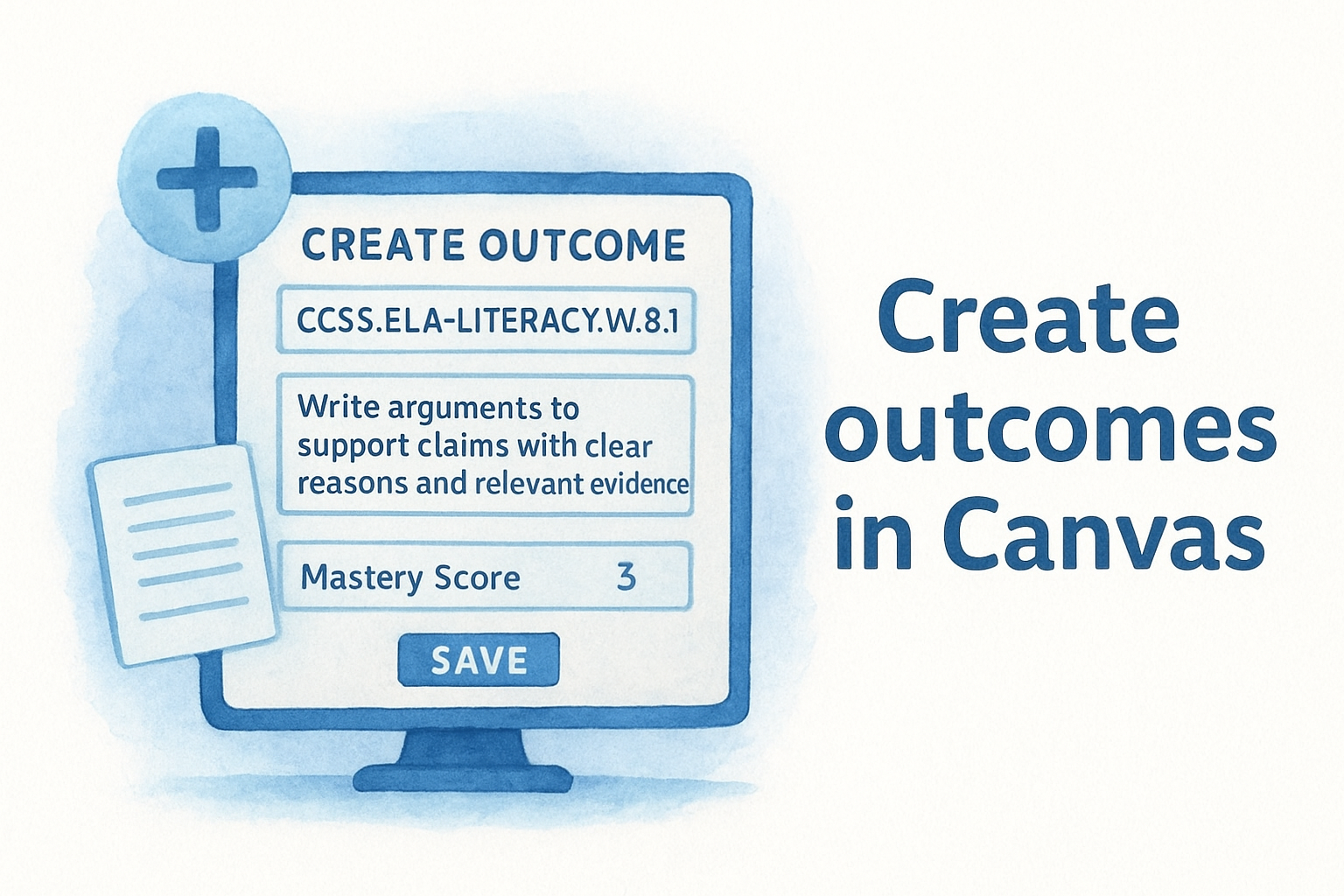
Here’s a template for how each outcome entry should look before you save it:
| Field | Example Entry |
|---|---|
| Title | CCSS.ELA-LITERACY.W.8.1 |
| Description | Write arguments to support claims with clear reasons and relevant evidence |
| Mastery Score | 3 |
| Calculation Method | Most Recent Score |
Once you save an outcome and attach it to a graded assignment, changing its mastery score affects all linked rubrics, so finalize every field before attaching.
Build rubrics that connect to your outcomes
After creating your outcomes, go to Course Rubrics (found under your course Settings or directly inside an assignment) and build one rubric row per outcome you want to assess on that task. Each rubric criterion must be explicitly linked to its corresponding outcome by selecting the outcome from the dropdown when you add the criterion. Canvas won’t pull mastery data into your Learning Mastery Gradebook unless that direct link exists.
Use the 4-point scale you built in Step 1 as the rating scale for every criterion so your rubric scores translate cleanly into mastery levels without any manual conversion on your end.
Step 3. Set up assignments and gradebook to track mastery
Outcomes and rubrics only do useful work when you attach them to actual graded assignments correctly. This step is where your canvas standards based grading setup becomes visible to students and starts populating real mastery data in your gradebook.
Attach your rubric to each assignment
Open any assignment where you plan to track mastery and scroll to the Add Rubric section at the bottom of the assignment creation page. Select the rubric you built in Step 2 from your list of saved course rubrics. Before you save, check the box labeled "Use this rubric for assignment grading" so Canvas uses the rubric scores to calculate the assignment grade. If you skip that checkbox, rubric scores get recorded but won’t feed back into the Learning Mastery Gradebook correctly.
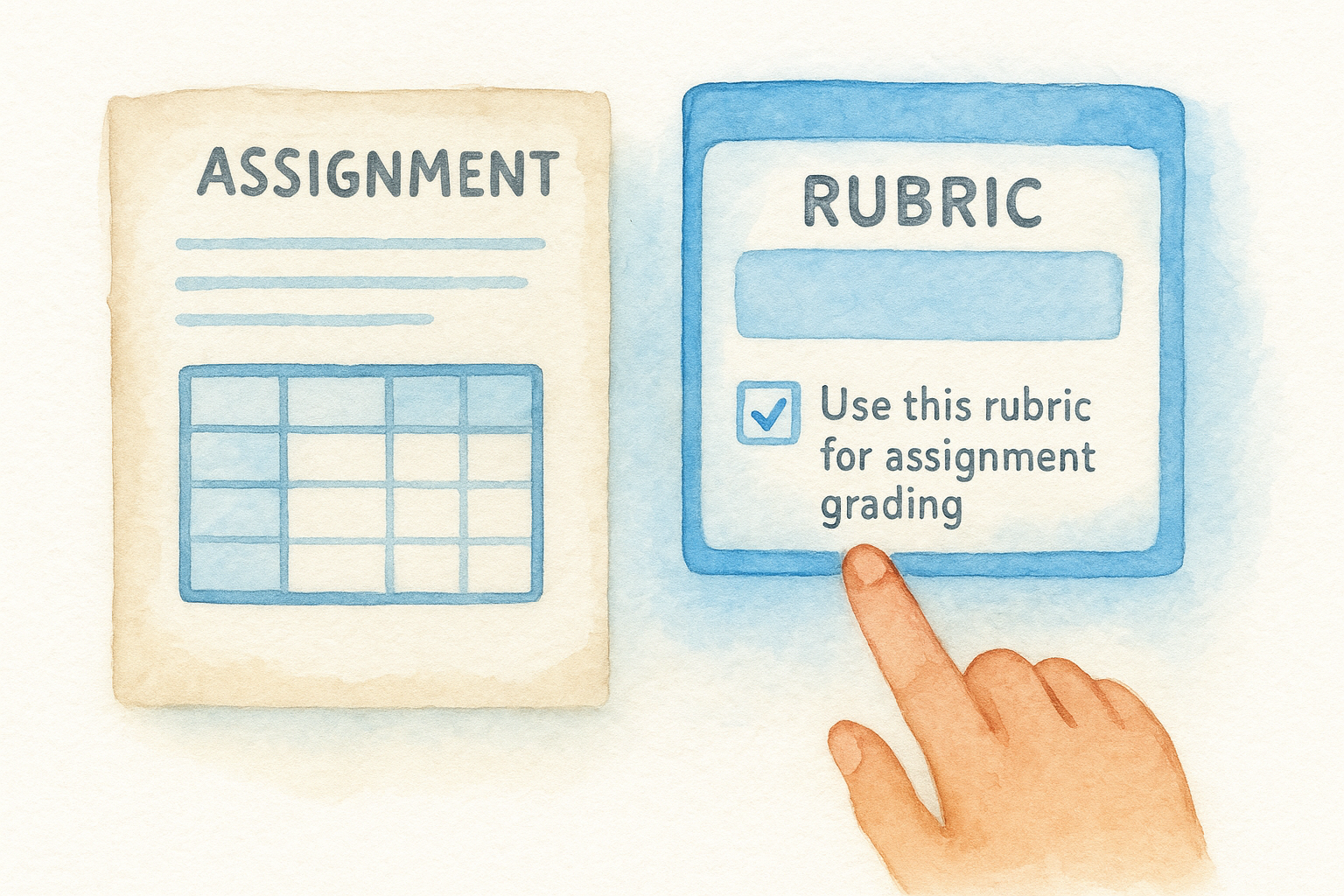
Always confirm the "Learning Outcome" label appears next to each rubric criterion row before publishing the assignment. That label confirms the outcome link is active.
Here’s a quick checklist to run through on every assignment before you publish:
- Rubric is attached and linked to the correct outcome(s)
- "Use this rubric for assignment grading" box is checked
- Assignment is assigned to the correct student group or section
- Point value on the rubric matches your 4-point mastery scale
Turn on the Learning Mastery Gradebook view
Once students submit work and you score rubrics, switch your gradebook view to see mastery data. Navigate to Gradebook > View > Learning Mastery using the toggle at the top of your Canvas gradebook. This view replaces raw point totals with mastery status indicators for each outcome, showing you exactly which standards each student has met, is approaching, or is still working toward.
Your mastery data updates automatically as you score rubrics, so you get a live picture of student progress without any manual tracking on your end.
Step 4. Check student views and fix common SBG issues
Before you call your setup complete, spend a few minutes checking what students actually see in their Canvas interface. Your canvas standards based grading configuration can look perfect on the teacher side and still confuse students if the mastery labels or outcome descriptions aren’t displaying clearly.
Preview what students see in the gradebook
Canvas gives you a built-in way to check the student view. Go to Settings > Student View to activate a test student account, then navigate to the gradebook from that account. Look for the mastery status indicators on each outcome and confirm the descriptions you wrote are showing up clearly. If a student sees a score but no label, your proficiency scale may not be fully saved.
Always run the student view check after you score at least one rubric so you can confirm mastery data is actually flowing through to the student gradebook display.
Fix the most common SBG problems in Canvas
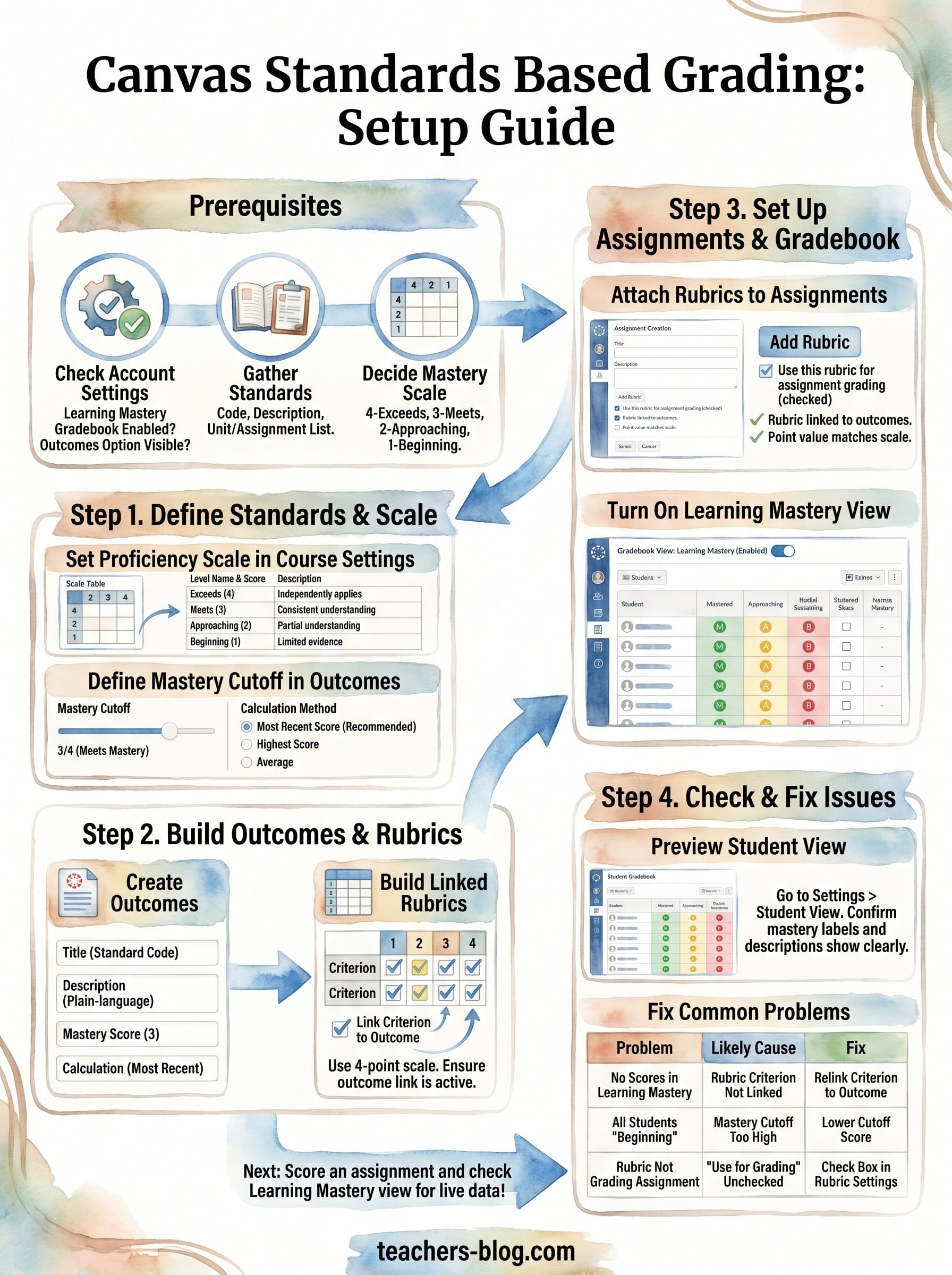
Several issues show up repeatedly when teachers first configure SBG in Canvas. Here are the most common ones and how to resolve them:
| Problem | Likely Cause | Fix |
|---|---|---|
| Outcome scores not appearing in Learning Mastery Gradebook | Rubric criterion not linked to outcome | Edit the rubric and relink the criterion to the correct outcome |
| All students show "Beginning" even after scoring | Mastery cutoff set too high | Lower the mastery score threshold in Outcomes settings |
| Rubric scores not calculating assignment grade | "Use this rubric for grading" unchecked | Edit the assignment, remove and re-attach the rubric with the box checked |
| Outcomes show in gradebook but display no data | Learning Mastery Gradebook not enabled at account level | Contact your Canvas admin to enable the feature |
Each of these problems has a direct fix inside Canvas settings, so nothing here requires rebuilding your entire setup from scratch. Work through the table row by row, and your gradebook will reflect accurate mastery data for every student.
Next steps
You now have a complete canvas standards based grading workflow inside Canvas, from enabling Learning Mastery and building outcomes to attaching rubrics and verifying the student view. The setup work is front-loaded, but once it’s in place, your gradebook does the tracking automatically and you spend less time on data entry and more time actually responding to what students know.
Your immediate next move is to score one real assignment using your new rubric and then open the Learning Mastery Gradebook to confirm mastery data is flowing through correctly. That live test tells you faster than anything else whether your outcome links and proficiency scale are working as intended.
From there, keep refining your outcome descriptions and mastery thresholds as you learn what works for your students. For more practical strategies on differentiating instruction and building smarter lesson systems, visit The Cautiously Optimistic Teacher and explore the tools and resources built specifically for educators like you.