Socrative Formative Assessment: Quick Classroom Guide
You just taught a concept, and half the class is nodding along while the other half stares blankly at their notebooks. Sound familiar? Socrative formative assessment gives you a way to check understanding in real time, before the blank stares turn into bombed quizzes. It’s a free platform that lets you push questions to student devices and see responses as they come in, which means you can adjust your teaching on the spot instead of guessing who actually got it.
Here at The Cautiously Optimistic Teacher, we’re always looking for tools that make classrooms more responsive without burying teachers in extra work. Socrative fits that bill. This guide walks you through setting up your first Socrative activity, choosing the right question types for your goals, and using the data you collect to actually move the needle on student learning. No fluff, just the steps you need to get started.
What Socrative formative assessment is and when to use it
Socrative is a free, browser-based platform that lets you push questions to student devices and collect every response in real time. You see answers populate on your dashboard as students submit them, so you get an immediate read on where the class stands. That’s the heart of Socrative formative assessment: using live data to shape your next teaching move, not to assign grades, but to close the gap between what you taught and what students actually understood.
What the platform actually does
When you log in as a teacher, you get a virtual classroom with a unique room code that students enter on any device with a browser. From your dashboard, you can launch three core activity types: a Quiz (self-paced or teacher-paced), a Space Race (a team-based competitive mode), and an Exit Ticket (a focused three-question check). Each mode serves a different instructional goal, and you pick based on what you need to know at that point in the lesson.

Your students don’t need accounts to participate. They open a browser, navigate to student.socrative.com, and type in your room name. That low barrier removes the technical friction that kills momentum in the middle of a lesson.
The less setup students need, the more likely you are to actually use the tool consistently.
The best moments to use it in class
Three natural windows in a lesson make Socrative worth your time, and knowing which to use changes the quality of data you collect.
| Moment | Purpose | Best Mode |
|---|---|---|
| Before new content | Activate prior knowledge | Quiz (teacher-paced) |
| During instruction | Quick comprehension pulse | Single question push |
| End of class | Confirm what landed | Exit Ticket |
Each moment gives you a different type of actionable insight. A pre-lesson check tells you what to skip or slow down. A mid-lesson question tells you whether to reteach on the spot or keep moving forward. An exit ticket tells you exactly which students need a follow-up the next day. Instead of waiting until a unit test to discover the gaps, you find them early enough to do something about it.
Step 1. Set up your teacher account and room
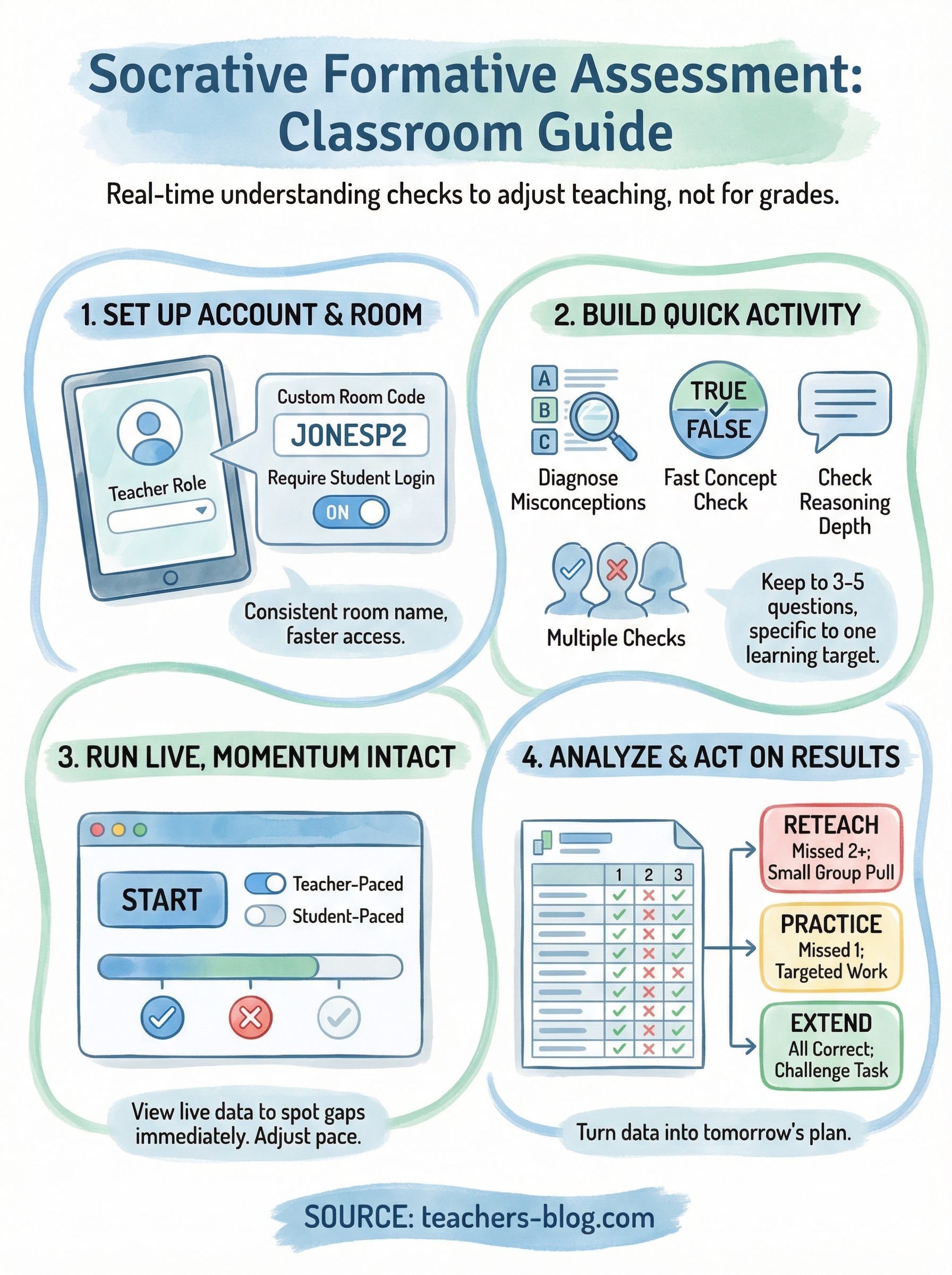
Getting started with Socrative formative assessment takes under five minutes, and you only need to do this once. Navigate to the Socrative website and click "Sign Up" in the top right corner. Select the teacher role, enter your email address, create a password, and verify your account through the confirmation email. Once you confirm, your dashboard loads immediately and you’re ready to configure your room before your next class.
Name your room for easy student access
Your room name is the code students type at student.socrative.com to join your session. By default, Socrative assigns a random string of letters and numbers. Change it to something your students will remember without you repeating it multiple times. To update it, go to your teacher dashboard, click your room name in the upper corner, and type in the new label. Good formats include:
- LastnamePeriod: JONESP2
- SubjectPeriod: ENGLISHP4
- InitialsPeriod: MRS_B_P1
A consistent room name means fewer minutes lost every time you launch an activity.
Adjust your default room settings
Inside your room settings, you control two key behaviors before any activity runs. First, toggle on "Require Student Login" if you want student names attached to every response, which makes targeted follow-up far easier. Second, set the default pace to teacher-paced for whole-class instruction or student-paced for independent review work. You can override both settings before any individual activity, but locking in useful defaults now saves you repeated clicks across the school year.
Step 2. Build a quick check for understanding
With your room set up, you’re ready to create your first activity. Click "Add Quiz" from your teacher dashboard, then select "New Quiz" to open the question editor. Give your quiz a short, descriptive name tied to your current unit so you can find it easily next week. This is where your socrative formative assessment practice actually takes shape, so a few intentional decisions here save you time every time you run it.
Choose the right question type
Socrative gives you three question formats: multiple choice, true/false, and short answer. Each one serves a different classroom purpose. Use multiple choice when you want to diagnose specific misconceptions by building common wrong answers in as distractors. True/false works best for fast concept checks. Short answer gives you open-ended insight into student reasoning, but it takes longer to review after class.
| Format | Best Use | Review Speed |
|---|---|---|
| Multiple choice | Diagnosing misconceptions | Fast |
| True/false | Concept confirmation | Fastest |
| Short answer | Checking reasoning depth | Slower |
Write questions that give you usable data
Vague questions produce vague data. Make every question specific and tied to one learning target so your results tell you exactly where to focus your reteaching. For example, instead of asking "Do you understand figurative language?", ask "Which sentence contains a metaphor?" and include four answer choices with one carefully chosen distractor.
The more precisely you write each question, the more actionable your Socrative results become.
Keep your quiz to three to five questions max for a mid-lesson check so students finish in under four minutes without disrupting lesson flow.
Step 3. Run it live without losing momentum
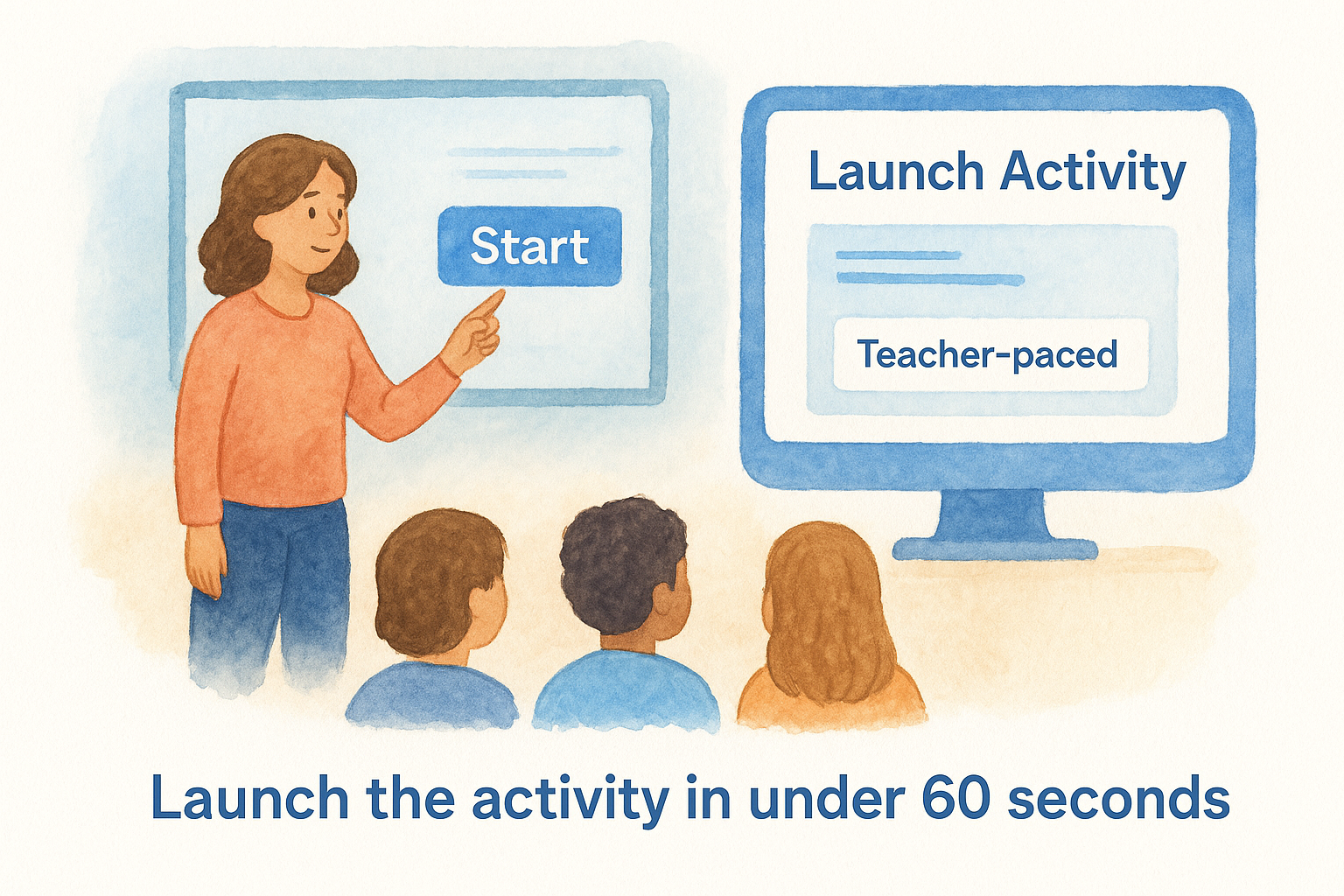
Launching a socrative formative assessment in front of thirty students feels high-stakes the first time, but the process is straightforward once you know the sequence. From your teacher dashboard, select the quiz you built, click "Start", and choose your pacing mode before the activity goes live. Having those decisions made before class means you spend zero transition time fumbling through menus while students wait.
Launch the activity in under 60 seconds
Your launch sequence should follow the same order every time so it becomes automatic. Consistency here is what keeps classroom momentum intact instead of burning two minutes on logistics.
- Open your teacher dashboard and click "Start Activity" on your saved quiz.
- Select teacher-paced for whole-class instruction or student-paced for independent work.
- Display your room name on the board so students can navigate to student.socrative.com.
- Confirm at least one student has joined before you move on to the next instruction.
- Click "Next Question" at the pace that fits your lesson, not faster.
If students finish faster than you expected, that tells you something important about the difficulty level of your questions.
Read the room while students respond
Your dashboard updates in real time as each student submits an answer, so you can see the class distribution before everyone has finished. Watch for the percentage correct on each multiple-choice option. If a wrong answer is pulling 40 percent of the class, pause and address that misconception directly before moving to the next question. That one move turns a data point into an instructional decision.
Step 4. Turn Socrative results into next-day moves
After class ends, your socrative formative assessment data sits in your reports tab waiting to tell you something useful. Click "Reports" from your teacher dashboard, select the activity you just ran, and download the results as a spreadsheet. That file gives you a student-by-student breakdown of every answer, so you’re not making instructional decisions based on gut feeling anymore.
Read your report with one question in mind
Open the spreadsheet and focus on one central question: which students missed the same question? When three or more students choose the same wrong answer on a multiple-choice item, that’s a pattern worth acting on, not a coincidence. Sort the data by that specific question column to surface those students immediately without scrolling through the whole sheet.
Patterns in wrong answers point directly to the gap you need to close, not just to the students who struggled.
Map results to tomorrow’s plan
Use a simple three-group framework to organize what you see in the data. Your results will almost always split into students who need reteaching, students who need practice, and students who are ready to move forward.
| Group | Criteria | Next-Day Move |
|---|---|---|
| Reteach | Missed 2+ questions | Small group pull, reteach the concept |
| Practice | Missed 1 question | Targeted independent work |
| Extend | All correct | Challenge task or peer support role |
Building this habit takes less than ten minutes per class, and it transforms your Socrative data from a snapshot into a concrete daily action.
Next steps for your classroom
You now have everything you need to run your first socrative formative assessment from start to finish. Set up your room today, build a three-question quiz tied to your next lesson, and run it as an exit ticket before students leave. That single low-stakes attempt will show you how the dashboard reads in real time and what the report looks like after class, so the second time feels completely routine.
From there, build the habit one class at a time. Add a pre-lesson check to activate prior knowledge, then use the three-group framework from Step 4 to map your results to the next day’s plan. The more consistently you collect and act on this data, the clearer your students’ learning gaps become before they reach a summative assessment.
For more tools and strategies to make your classroom more responsive, visit The Cautiously Optimistic Teacher and explore what’s available.