
PowerSchool Standards Based Grading: Setup Tips for Teachers
Switching to standards-based grading is one thing. Figuring out how to actually make it work inside PowerSchool standards based grading tools? That’s where most teachers hit a wall. The platform has the capability, but the setup process is far from intuitive, and district-provided training often leaves gaps.
If you’ve been clicking around PowerSchool trying to figure out how to align your gradebook with specific learning standards, you’re not alone. Many educators end up with a half-configured system that creates more work instead of less. The good news is that once you understand the core setup steps, the whole process clicks into place pretty quickly.
Here at The Cautiously Optimistic Teacher, we build resources that help educators work smarter, whether that’s through AI tools, lesson planning strategies, or guides like this one. Below, you’ll find a step-by-step walkthrough for setting up standards-based grading in PowerSchool, along with practical tips to avoid the most common pitfalls teachers run into during configuration.
What standards-based grading means in PowerSchool
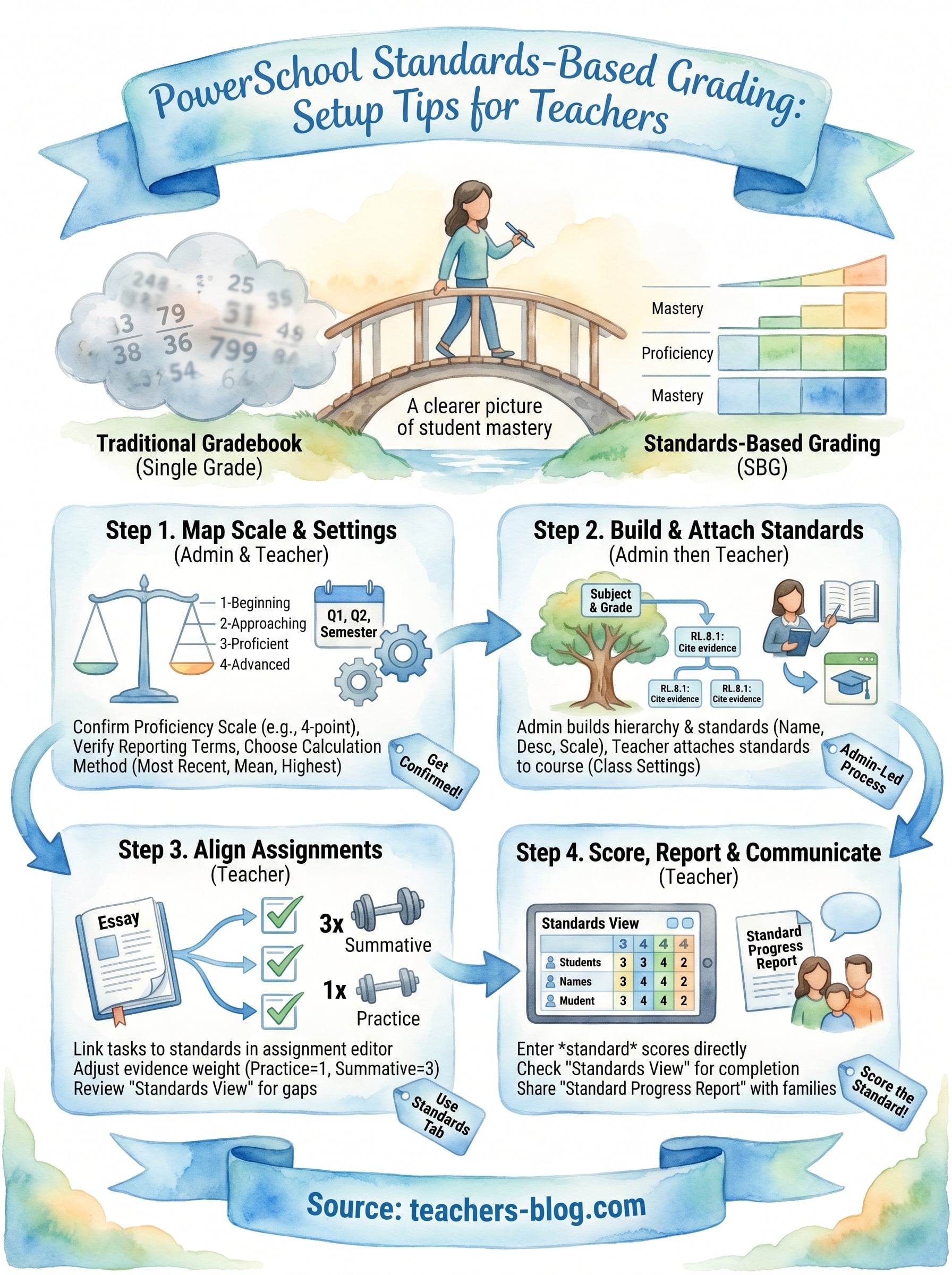
In a traditional gradebook, a single number or letter summarizes everything a student did in your class. Standards-based grading (SBG) breaks that apart by measuring each skill or learning target separately. Instead of one final grade, students receive scores tied to specific standards, which gives you and their families a much clearer picture of where they actually stand.
PowerSchool handles this through a layered structure. The platform lets you define proficiency scales, attach those scales to specific standards, and then connect those standards to individual assignments. When you score work, you’re scoring it against a standard rather than just adding points to a total. This is what makes powerschool standards based grading a fundamentally different workflow from the default percentage-based gradebook.
Once your standards are properly configured, PowerSchool can generate reports showing each student’s progress toward mastery on every skill you teach.
What PowerSchool actually tracks
SBG in PowerSchool separates two types of data: assignment scores and standard scores. An assignment can contribute evidence toward multiple standards at once, and PowerSchool calculates the standard score based on the method you choose. Your gradebook columns reflect both layers, which means you need to understand how they interact before you start entering grades. The three most common calculation methods are:
- Most recent: Uses the last score entered for that standard
- Mean: Averages all scores collected for the standard
- Highest: Takes the top score the student has earned
Where the setup lives in the system
Most of the core configuration happens inside PowerSchool’s System Settings and Grading Setup sections, which district or school admins typically control. As a teacher, you’ll work mainly inside PowerTeacher Pro, the gradebook interface where you align assignments to standards and enter scores. Here’s a quick breakdown of who owns what:
| Task | Who handles it |
|---|---|
| Create proficiency scales | Admin |
| Add and organize standards | Admin |
| Align assignments to standards | Teacher |
| Enter standard scores | Teacher |
Step 1. Map your scale, terms, and grade settings
Before you configure anything in PowerSchool standards based grading, you need a clear picture of your district’s proficiency scale. Most schools use a 4-point scale (for example: 1-Beginning, 2-Approaching, 3-Proficient, 4-Advanced), but your district may use a 3-point or custom structure. Get this confirmed in writing from your curriculum coordinator before you touch a single setting.
Mismatched scales between teachers in the same department create reporting problems, so confirm the official scale district-wide before setup begins.
Confirm your grade and term settings
Your reporting terms also need to match how your school reports progress to families. In PowerSchool, navigate to Grading Setup > Grade Scales to verify the scale is already loaded by your admin. From there, confirm which reporting terms (Q1, Q2, Semester 1, etc.) apply to your course so that standard scores roll up to the correct period at report card time. If your terms are wrong, scores can end up attached to the wrong reporting window, which creates extra cleanup work later.
Here’s a quick reference for what to confirm before you start building anything:
| Setting | What to check |
|---|---|
| Proficiency scale | Labels, numeric values, and cut scores |
| Reporting terms | Quarter, trimester, or semester structure |
| Calculation method | Most recent, mean, or highest |
Step 2. Build standards and attach them to courses
With your scale confirmed, the next step in powerschool standards based grading is getting your actual standards into the system. In most districts, an admin builds the standards list in PowerSchool’s Standards Settings, so check with your coordinator before attempting this yourself. If you have admin access, navigate to Start Page > Setup > Standards to create or import your standards.
Add standards in the admin panel
PowerSchool organizes standards in a subject-and-grade hierarchy, so you’ll create a subject group first, then add individual standards beneath it. Each standard needs a short name, a full description, and an assigned proficiency scale. Here’s a simple template to follow before you enter anything:
| Field | Example |
|---|---|
| Subject group | ELA Grade 8 |
| Standard short name | RL.8.1 |
| Full description | Cite textual evidence to support analysis |
| Proficiency scale | District 4-Point Scale |
Attach standards to your course
Once the standards exist in the system, you need to link them to your specific course section. Go to PowerTeacher Pro > Class Settings > Standards and select the standards that apply to your course. Only standards you attach here will appear as options when you align assignments later, so take time to select all relevant ones now.
Step 3. Align assignments and evidence to standards
With your standards attached to the course, you can now connect individual assignments to the standards they assess. This is where powerschool standards based grading shifts from setup into daily practice. In PowerTeacher Pro, open any assignment and click the Standards tab inside the assignment editor. Select every standard the task produces evidence for, then save.
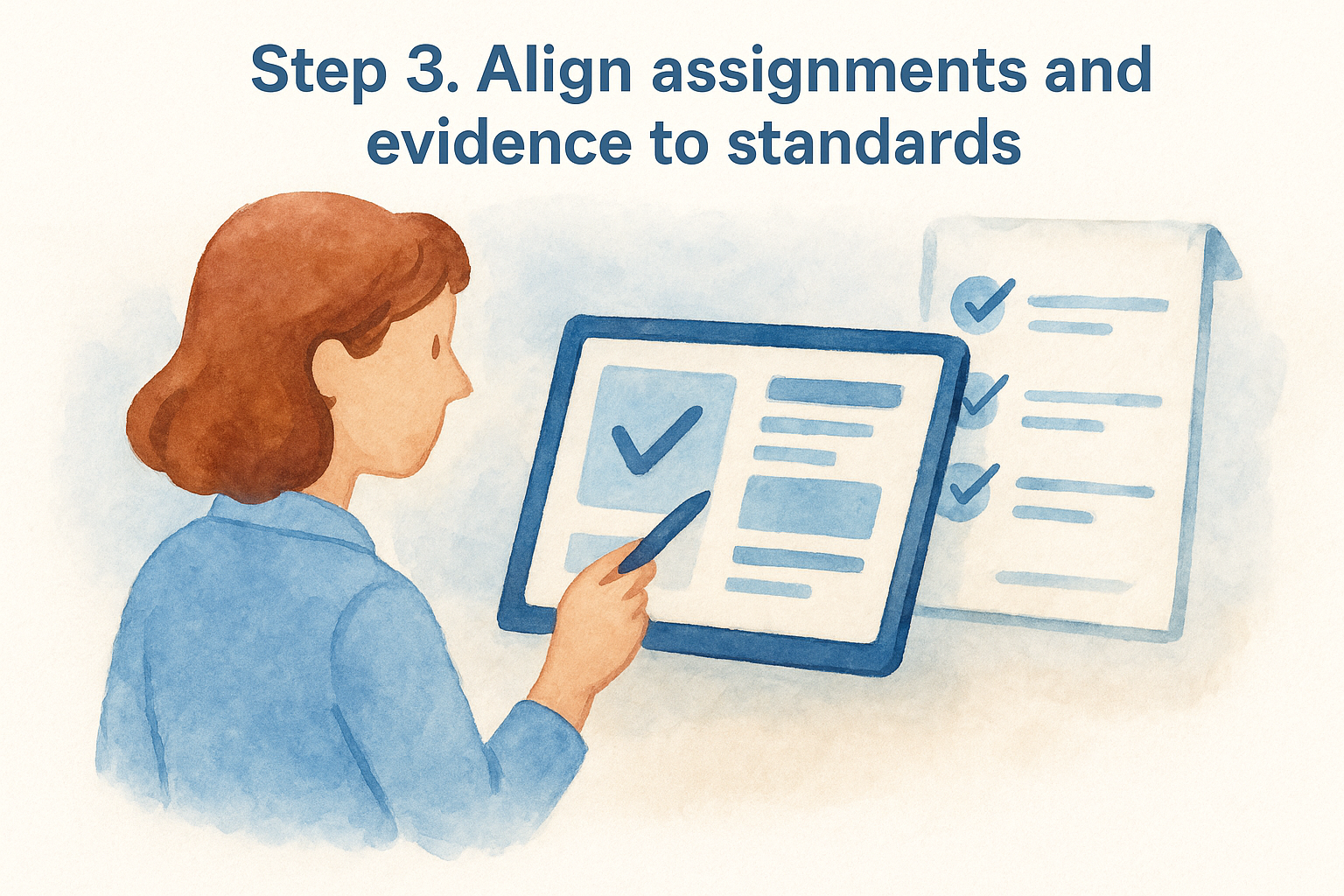
You can link one assignment to multiple standards, which is useful when a task like an essay addresses both writing and language standards at once.
Set the weight of each standard
Not every assignment carries equal weight as evidence. In PowerTeacher Pro, you can adjust the contribution weight of each standard per assignment. A practice quiz might carry lower weight than a summative task, even when both link to the same standard.
| Evidence type | Suggested weight |
|---|---|
| Practice task | 1 |
| Formative check | 2 |
| Summative assessment | 3 |
Review the standards view before grading
Switching to Standards View in PowerTeacher Pro reorganizes your gradebook by standard rather than by assignment date. Use this view to spot evidence gaps before a reporting period closes. If a standard shows only one data point, add another task before you finalize scores.
- Check that each standard has at least two evidence sources
- Flag any standard with no recent scores before the period ends
Step 4. Score, report, and communicate progress
Entering scores in PowerSchool standards based grading works differently than dropping a percentage into a cell. In PowerTeacher Pro, open the assignment and enter a standard score next to each linked standard. PowerSchool then updates that standard’s overall score automatically based on the calculation method you set in Step 1.
Always score the standard directly, not just the assignment, or the standard progress report will stay blank.
Enter and review standard scores
After scoring, switch to the Standards View in PowerTeacher Pro to see each student’s current standing per standard. Look for any standard marked incomplete or flagged before the reporting window closes. Use this quick checklist to confirm your gradebook is ready:
- Every standard has at least two scored evidence sources
- No standards are missing scores for current-term students
- Calculation method matches your district’s reporting expectations
Share progress with students and families
Run the Standard Progress Report from PowerTeacher Pro before each report card cycle. This report shows mastery levels by standard and gives families something concrete to review. Walk students through their individual standard scores during a five-minute check-in so they understand where to focus their effort before the term ends.
Keep it working all year
PowerSchool standards based grading doesn’t run itself after the initial setup. Schedule a quick audit at the start of each quarter: check that your standards still match any curriculum updates, confirm your calculation method hasn’t been reset by a system update, and verify that new assignments carry the correct standard alignments. Ten minutes of maintenance prevents hours of cleanup at report card time.
Your students benefit most when you revisit the Standards View weekly rather than waiting until grades are due. Flag any standard with only one evidence source and plan a quick assessment to add a second data point before the window closes. If families ask questions about progress, pull the Standard Progress Report directly from PowerTeacher Pro and walk them through it.
For more tools and strategies that help you work smarter in the classroom every day, visit The Cautiously Optimistic Teacher and explore what’s available for educators like you.