
How to Use an AI Report Card Comment Generator
Report card season eats up hours you don’t have. You’re staring at 32 students, trying to write something specific and true for each one, and by comment 15 everything starts sounding the same. An ai report card comment generator fixes that bottleneck by turning a few notes about a student into a polished, individualized comment in seconds instead of minutes.
Here’s the direct answer: you feed the tool basic input, things like the student’s name, strengths, areas for growth, and subject, and it drafts a comment you can tweak and paste straight into your grading system. The good tools let you adjust tone and length, so a comment for a struggling reader doesn’t sound identical to one for your top student, and you stay in control of what actually gets sent home.
This guide walks through exactly how to use one of these generators from start to finish, including our own free Report Card Commentor. You’ll see what information to prepare beforehand, how to edit AI output so it still sounds like you, and how to avoid the generic phrasing that makes parents suspicious a computer wrote it.
Explore related resources: The Report Card Comments hub brings together subject-specific feedback, behavior and progress examples, comment banks, and writing guidance.
Why use an AI report card comment generator
Teachers who try one of these tools usually don’t go back, and the hours AI gives back during report card season explain why. The math is simple: if you spend even three minutes per comment across four subjects for 30 kids, that’s six hours of writing every marking period, on top of grading, planning, and everything else stacked on your desk. An AI report card comment generator collapses that into minutes because it handles the sentence structure and word choice while you supply the facts that make each comment true. That frees up your evening for something other than staring at a blinking cursor trying to find a new way to say "needs to participate more."
A good comment generator doesn’t replace your judgment, it just removes the busywork between your judgment and the page.
Speed isn’t the only reason to switch, though it’s the one most teachers notice first. The bigger win is consistency without sameness. When you’re exhausted by comment 20, quality naturally drops and comments start blurring together. A generator keeps the writing sharp for student 30 the same way it was for student 1, while still letting you plug in the specific details that make a comment feel personal rather than copy-pasted.
The real benefits
- Time back: cuts comment writing from hours to minutes per class
- Grammar and tone consistency: no more uneven quality by the end of a long session
- Fewer generic phrases: input specific notes instead of leaning on memory or an editable comment bank by grade level
- Easier differentiation: quickly adjust tone for struggling versus advanced students
- Less end-of-term stress: report cards stop feeling like a second full-time job
Used well, an AI-generated report card comment still sounds like you wrote it, because you did, you just had help with the first draft.
Step 1. Gather student performance notes
Before you open any tool, spend five minutes pulling together what you actually know about the student. Raw material matters more than the software you pick, because even the best AI report card generator can only work with what you give it. Look at recent quiz scores, participation notes, a graded essay, or that quick note you jotped down after a class discussion, the same formative assessment data that guides your instruction. If you track behavior or effort in a spreadsheet, pull that up too.
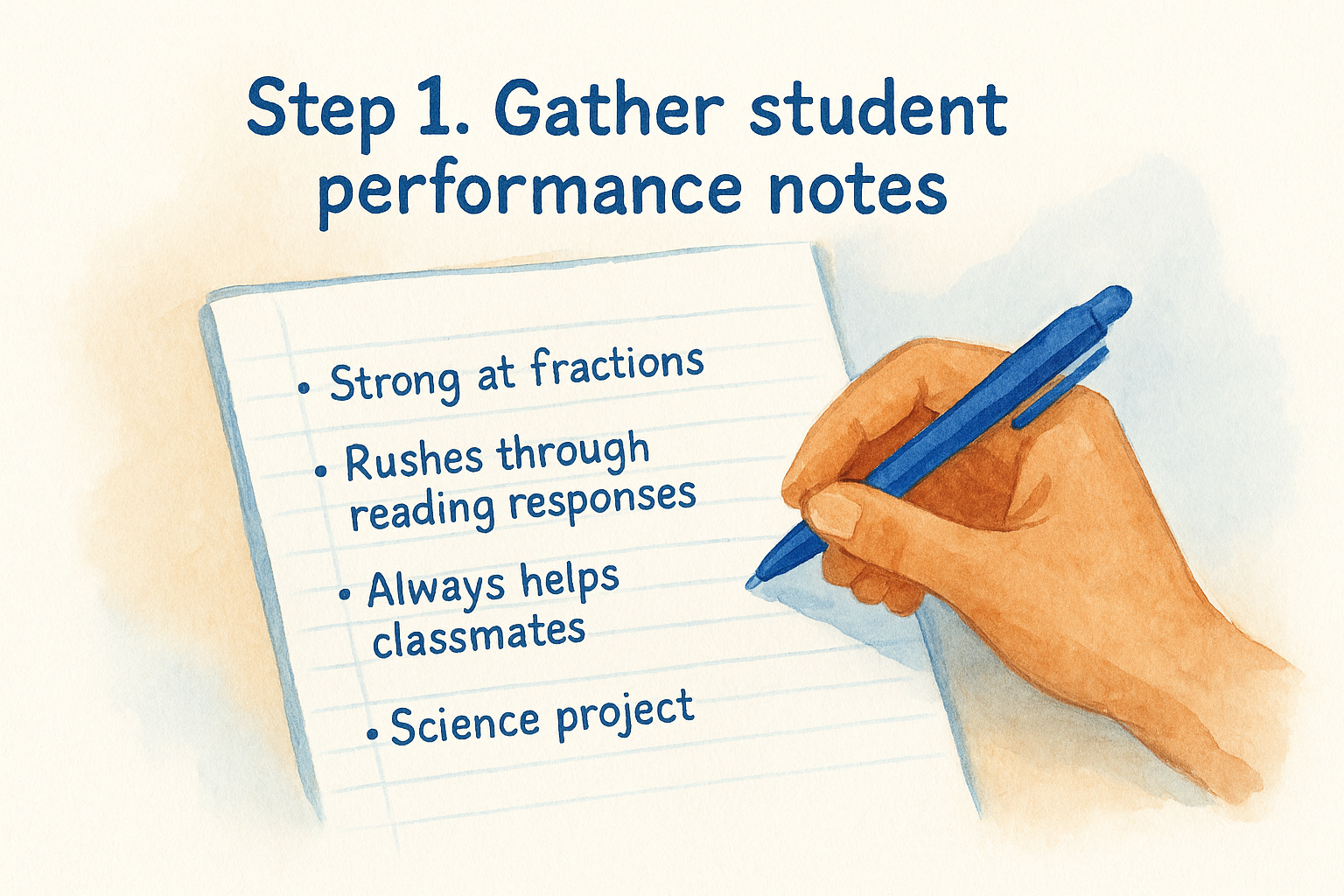
Garbage in, generic out: the quality of your notes decides the quality of the comment.
Don’t aim for full sentences here, just fragments work fine. A few examples of what to jot down for each student:
- One academic strength ("strong at fractions," "writes clear thesis statements")
- One growth area ("rushes through reading responses," "struggles with essay transitions")
- A behavior or effort note ("always helps classmates," "needs reminders to stay on task")
- Any specific project, test, or moment worth mentioning by name
Having this list ready before you start means you’ll move through the ai report card comment generator step fast, instead of pausing mid-session trying to remember what happened three weeks ago.
Step 2. Choose the right AI tool for your needs
Not every generator handles report card comments the same way, so it helps to compare the best comment generator tools for teachers before you settle on one. Some are built for generic business writing and stumble when you ask for grade-specific, standards-aligned language. Others, like our free Report Card Commentor, are built specifically around the phrasing teachers actually need, so you get fewer weird outputs to fix. Before you commit to one, check that it lets you set tone, adjust length, and edit freely instead of locking you into one style.
The right tool saves you edits later; the wrong one just moves your busywork from writing to fixing.
Quick checklist for picking a free ai comment generator:
- Does it let you adjust tone (encouraging, neutral, direct)?
- Can you set comment length to match your report card format?
- Does it accept informal notes, not just full sentences?
- Is it actually free, or gated behind a paywall after a few uses?
- Does output sound natural, or obviously templated?
Spend ten minutes testing a tool on one student before rolling it out across your whole roster. That small trial run tells you fast whether it fits how you actually write.
Step 3. Enter student details and context
Now you take those fragments from Step 1 and actually type them into the tool. Most generators, including the Report Card Commentor, ask for a handful of fields: student name, subject, strengths, growth areas, and sometimes a tone or grade level setting. Fill in every field you can, because a sparse input gives you a vague comment, and a detailed one gives you something worth keeping.
Here’s a sample of what to type into the input box for one student:
Name: Maya
Subject: Math
Strength: strong at fractions, explains her thinking out loud
Growth area: rushes through word problems
Behavior note: helps classmates without being asked
Tone: encouraging
The more specific your input, the less generic your output, that trade holds true every single time.
Context matters as much as content. If a student improved dramatically since last term, say so. If there was one standout project, name it. Skipping this step and typing three vague words is exactly how you end up with a comment that could describe any kid in the room.
Step 4. Generate, review, and personalize the comment
Once your fields are filled in, hit generate and read the draft the way you’d read a student’s rough draft, looking for what needs fixing, not just typos. Most tools give you a full paragraph in seconds, but that first version is a starting draft, not a finished comment. Check that it actually reflects what you typed and doesn’t invent details you never gave it.

What to check before you paste it in
- Does it name a real strength and a real growth area, or does it read generic?
- Does the tone match how you’d actually talk to this family?
- Is the length right for your report card format?
- Did it keep the specific detail you added, like the project name or the improvement note?
A generated comment is a draft you edit, not a final answer you copy blindly.
Swap in a phrase you’d naturally use, borrow wording from ready-made comment templates, tighten a sentence that feels stiff, or add a detail the tool couldn’t have known. This is where an AI report card comment generator earns its keep: it hands you 80% of the writing so you spend your energy on the 20% that makes it sound like you, not a template.
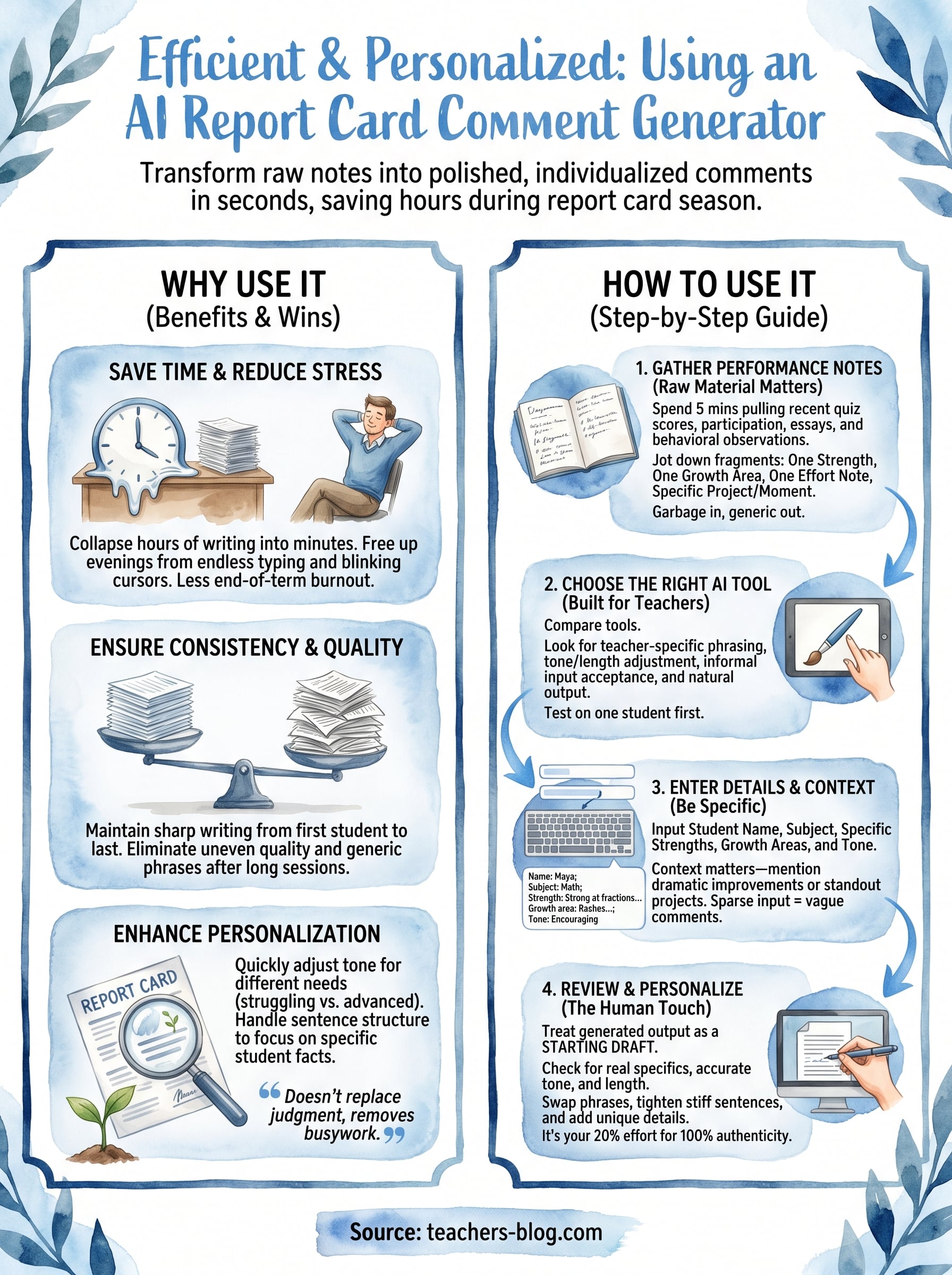
Making report card season easier
Report cards don’t have to eat your entire weekend. Gather your notes, pick a tool built for this exact job, feed it real specifics, and edit the draft until it sounds like you, not a template. That’s the whole process, and once you’ve run it for one class, the second class goes even faster because you already know what input produces a good comment.
You already do the hard part, knowing your students well enough to say something true about each one. An AI report card comment generator just removes the blank-page problem so that knowledge gets on the page faster. Fewer late nights, fewer generic phrases, and comments parents actually read as personal.
If you’re ready to try it, run your next batch of comments through our free AI report card comment generator at The Cautiously Optimistic Teacher.