
5 Canvas LMS AI Features Teachers Should Know in 2026
Canvas has quietly rolled out some serious AI upgrades over the past year, and if you’re managing courses on the platform, these tools can save you real time. From Smart Search to AI-powered discussion summaries, the latest Canvas LMS AI features are built to handle the repetitive tasks that eat into your planning periods.
Here at The Cautiously Optimistic Teacher, we spend a lot of time testing AI tools that actually help educators, not just ones that sound impressive in a press release. So we dug into what Canvas is offering natively and through integrations, and pulled together the five features worth your attention right now.
Whether you’re looking to streamline course management, speed up feedback, or make content more accessible, this list breaks down what each feature does, how it works in practice, and whether it’s genuinely useful in the classroom.
1. The Cautiously Optimistic Teacher AI tools for Canvas work
Before looking at what Canvas provides natively, it’s worth knowing that The Cautiously Optimistic Teacher offers its own set of AI tools built specifically for educators. These tools are designed to produce classroom-ready content you can move directly into Canvas without extra reformatting.
What it does for Canvas teachers
The site includes a Worksheet Maker, a Question Generator, and a Differentiated Instruction Helper, each built around how teachers actually plan lessons. Instead of generic AI output, you get structured content that fits the way Canvas modules and assignments are organized.
Because these tools are built for educators, the outputs read like a teacher wrote them rather than a language model guessing at what a classroom needs.
How you use it to create Canvas-ready content
You paste in a topic, unit goal, or source passage, and the tool returns formatted content you can copy straight into a Canvas assignment, discussion prompt, or quiz. The Question Generator is especially useful for building critical thinking questions tied to a specific reading or lesson objective.
Best use cases in real teaching workflows
Pairing these tools with Canvas LMS AI features like quizzes or discussion boards is where they shine. Generate a set of differentiated questions, then load them into separate Canvas assignment tracks for students at different reading levels.
Limits to plan around
Vague inputs produce vague outputs. If you want something usable, give the tool a specific grade level, a clear topic, and the type of task you need. That small upfront investment in your prompt saves significant editing time afterward.
Pricing and availability
The core AI tools on The Cautiously Optimistic Teacher are free to access on the site. Some downloadable resources carry a cost, but you can use the AI generators without creating an account or paying a subscription fee.
2. Canvas Smart Search
Canvas Smart Search is one of the more practical canvas lms ai features built into the platform right now. It uses AI-powered indexing to help you and your students find course content without scrolling through every module manually.
What it does
Smart Search uses semantic search technology to return results based on meaning, not just exact keyword matches. You type a phrase or question, and Canvas pulls up relevant pages, assignments, and files that match the intent of your query.
Where you find it in Canvas
Look for the global search bar at the top of your Canvas dashboard. Your institution must enable the feature at the admin level before it appears for users.
Check with your Canvas admin if AI-driven search results aren’t showing up yet.
What it searches and what it skips
Smart Search covers course pages and assignments. It skips:
- External URLs
- Documents hosted outside Canvas
Best use cases for teachers and students
Students use it to locate lost rubrics or instructions quickly. You can pull up specific assignment details mid-class without navigating away from what you’re doing.
Limits and settings to check
Vague page titles reduce result accuracy noticeably. Label your modules and pages clearly to improve what Smart Search returns for both you and your students.
Pricing and availability
Smart Search requires a paid Canvas plan. Confirm with your district whether your current license includes it before planning lessons around it.
3. Canvas Discussion Summaries
One of the more underused canvas lms ai features, Discussion Summaries condense long threads into a short overview so you can see where the class landed without reading every single post.
What it does
The feature scans all student replies in a discussion thread and generates a brief summary highlighting the main ideas students raised during the conversation.
Where you find it in Canvas discussions
Open any active discussion thread in Canvas and look for the summary button near the top of the thread view. Your admin must enable the feature at the institutional level before it appears.
How to use summaries for grading and reteaching
Use the summary to spot which concepts students understood and which ones need more class time. It gives you a quick snapshot before you start scoring individual posts.
A summary won’t replace reading posts for grading, but it’s a solid first pass for planning your next lesson.
How to reduce bias and missed context
Always cross-check the summary against a sample of actual posts. Short or off-topic replies can skew what the AI surfaces as the main class takeaway.
Limits and settings to check
The tool works best on longer threads. Discussions with fewer than ten replies may produce summaries that miss important nuance.
Pricing and availability
Discussion Summaries are part of Canvas’s AI suite and require an institutional license that includes AI features. Confirm with your admin before building it into your workflow.
4. Canvas Translations for Inbox and Discussions
Canvas’s translation feature is one of the more accessible canvas lms ai features available to teachers working with multilingual student populations.
What it does
The tool auto-translates inbox messages and discussion posts into a student’s preferred language, reducing the barrier for students who read more comfortably in a language other than English.
Where you find translation options
Students and teachers access translations through the language settings in their Canvas profile. Your admin must enable the feature at the institutional level before it appears in the interface.
Classroom use cases for multilingual access
Translation helps multilingual learners follow discussion threads and read teacher feedback without switching between platforms. It keeps communication centralized inside Canvas rather than scattered across outside translation tools.
This feature works best when your announcements and discussion prompts use plain, direct language from the start.
What to watch for with tone, names, and accuracy
Idiomatic phrases and student names can translate awkwardly. Review key messages after translation runs to confirm the intended meaning came through clearly.
Limits and settings to check
The feature covers text-based content only. Embedded images, PDFs, and linked documents stay in their original language without any translation applied.
Pricing and availability
Translations require an institutional Canvas license that includes AI features. Confirm with your district admin before building this into your communication workflow.
5. Gemini LTI in Canvas
Gemini LTI brings Google’s AI assistant directly into Canvas through a Learning Tools Interoperability integration, making it one of the more powerful canvas lms ai features available for schools already running Google Workspace for Education.
What it does
Gemini acts as an AI writing and research assistant inside Canvas. Students and teachers can ask it questions, draft text, or summarize material without leaving the course environment.
How it connects to Canvas and Google Workspace
Your Canvas admin installs Gemini as an external LTI tool through the admin settings panel. Once configured, it links to your school’s Google Workspace for Education account, so access ties to institutional credentials rather than personal Google accounts.
Confirm your Google Workspace edition before requesting the integration, since Gemini availability varies by tier.
Teacher and student tasks it helps with most
Teachers use it to draft assignment instructions and generate feedback starters. Students use it to outline essays or break down complex reading passages before writing.
Safety, privacy, and account rules to confirm
Check that your district has reviewed Google’s data processing terms and that students are accessing Gemini through school-managed accounts only, not personal Gmail addresses.
Pricing and availability
Gemini LTI access depends on your Google Workspace for Education tier. Contact your district’s Google admin to confirm whether your current plan includes it before building it into any lessons.
Next Steps
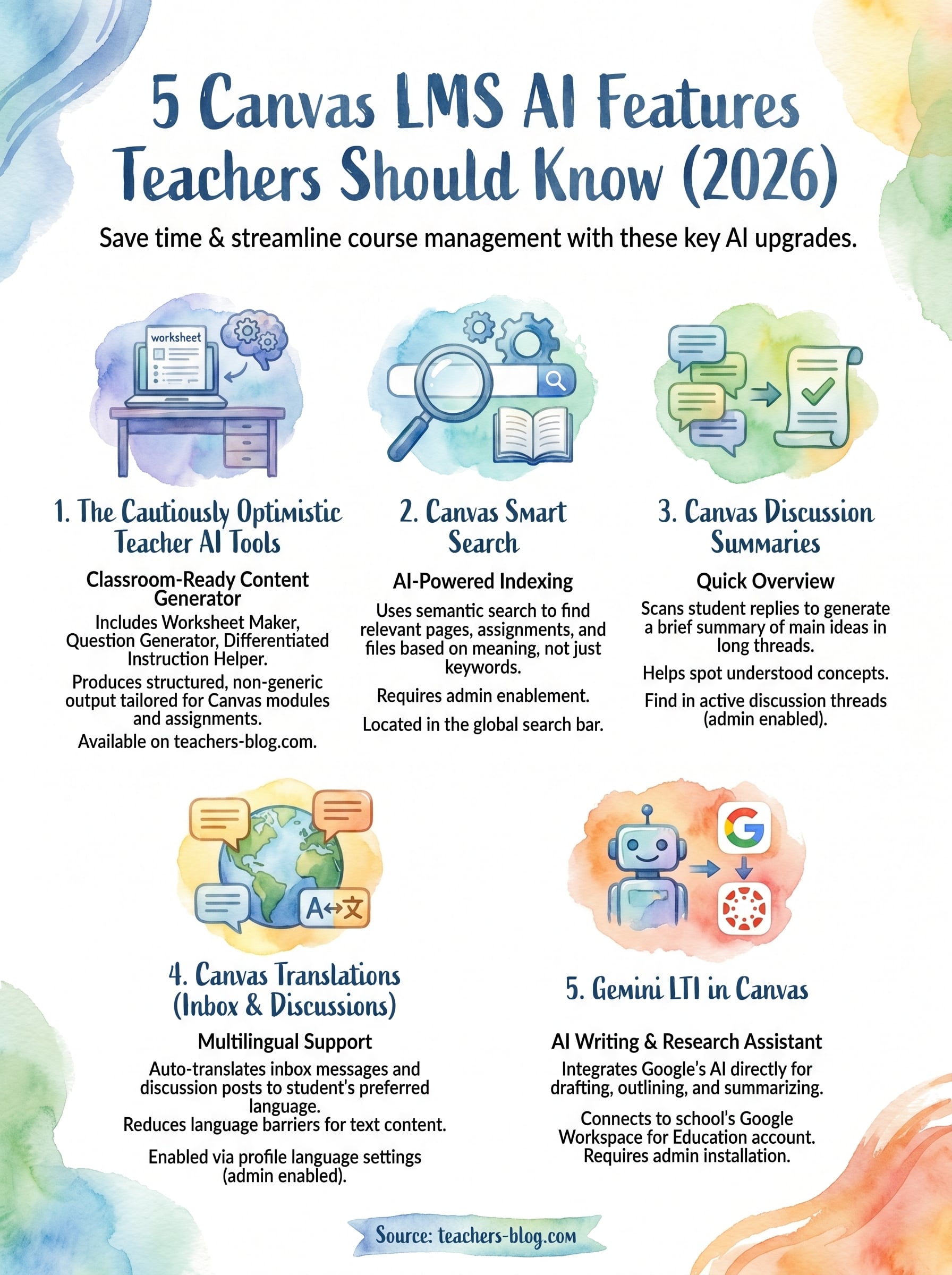
The canvas lms ai features covered in this list range from built-in tools like Smart Search and Discussion Summaries to integrations like Gemini LTI. Each one targets a specific pain point, whether that’s helping students find content faster, giving you a quick read on class discussions, or supporting multilingual learners inside your existing workflow.
Start by checking which features your district’s current Canvas license already includes. Contact your admin before you build any of these into a lesson plan, since several require institutional-level activation before they appear in your interface.
Once you know what’s available, pair those native Canvas tools with dedicated teacher-focused AI resources to get the most out of your prep time. The Cautiously Optimistic Teacher has free tools built specifically for educators, including a Question Generator and Worksheet Maker. Visit The Cautiously Optimistic Teacher to try them and see how they fit into your Canvas courses.