
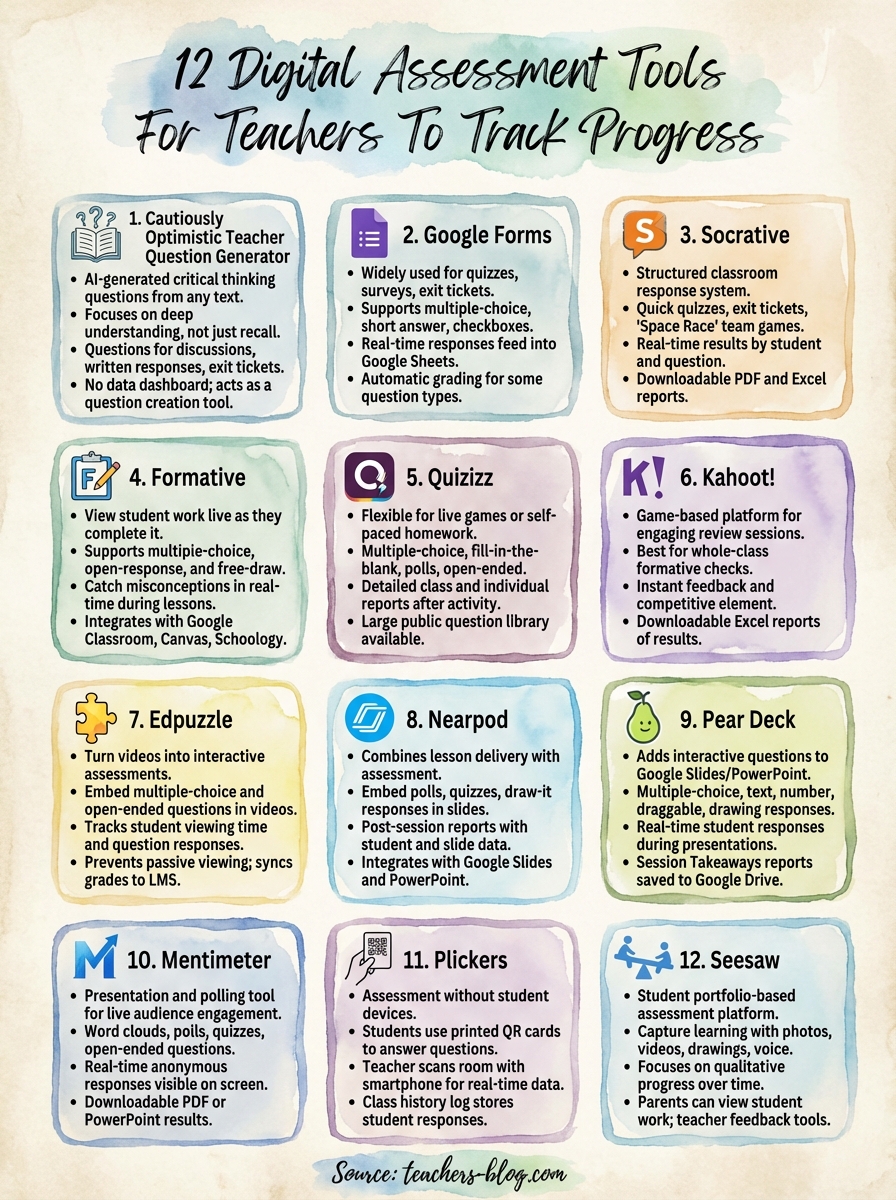
12 Digital Assessment Tools For Teachers To Track Progress
Tracking student progress used to mean lugging home a stack of papers every weekend and manually entering grades into a spreadsheet. If that’s still your routine, digital assessment tools for teachers can save you hours each week while giving you sharper insights into how your students are actually learning. These platforms handle everything from quick formative check-ins to full summative exams, and most of them provide real-time data you can act on immediately.
But with dozens of options available, picking the right tool (or combination of tools) matters. Some excel at real-time feedback during lessons, while others are built for deeper progress tracking over an entire semester. The wrong choice means wasted setup time and features you’ll never touch.
Here at The Cautiously Optimistic Teacher, we’re all about helping educators work smarter with practical strategies and tools that actually hold up in a real classroom. We’ve rounded up 12 digital assessment platforms worth your attention, broken down by what they do best, what they cost, and where they fit into your teaching workflow. Let’s get into it.
1. The Cautiously Optimistic Teacher Question Generator
When you talk about digital assessment tools for teachers, most people immediately think of quiz platforms or multiple-choice builders. The Cautiously Optimistic Teacher Question Generator takes a different approach. You paste in any text, lesson excerpt, or reading passage, and the AI generates critical thinking questions you can use for formative checks, Socratic seminars, written responses, or exit tickets.
What you can assess with this tool
This tool is built for depth of understanding, not surface recall. When you feed it a passage from a novel, a science article, or a primary source document, it generates questions that push students to analyze, evaluate, and synthesize, not just locate an answer on the page. You can use those questions to assess reading comprehension, inferencing skills, and higher-order thinking across any subject area.
If your goal is to move students beyond "right answer" thinking, starting your assessment design with strong questions is one of the highest-leverage moves you can make.
You can also tailor the output by adjusting the complexity or focus of the questions before you deliver them. This flexibility makes the tool useful whether you’re working with advanced readers or students who need scaffolded support.
How you track progress and export data
The Question Generator is a question creation tool, not a full data dashboard. You use the questions it produces inside your preferred delivery method, such as a class discussion, a Google Form, or a written response assignment. From there, your existing grading and tracking systems capture the student data. Think of this tool as the front end of your assessment design process, not the back end.
Setup and classroom workflow
Setup takes about two minutes. You paste your source material into the input field, select your preferences, and the tool returns a ready-to-use question set. From there, you copy the questions into whatever format fits your lesson: a printed handout, a slide, or a digital form. There is no account creation required to get started, which means zero friction for first-time use.
The workflow fits naturally into lesson planning. Many teachers generate a question set during prep, then pull two or three questions for a warm-up and save the rest for a unit review or discussion.
Pricing and plan notes
The Question Generator is available through The Cautiously Optimistic Teacher’s AI tools suite. Access is free to try, with additional features available depending on your plan. It pairs well with the site’s other tools, including the Differentiated Instruction Helper and Worksheet Maker, giving you a connected set of resources built specifically for classroom use.
2. Google Forms
Google Forms is one of the most widely used digital assessment tools for teachers, and for good reason. It requires no student accounts, works on any device, and connects directly to the rest of the Google Workspace ecosystem most schools already use. The learning curve is nearly flat, which means you can build and deploy an assessment in under ten minutes.
What you can assess with this tool
Google Forms supports multiple-choice, short answer, paragraph, dropdown, checkbox, and linear scale questions, giving you enough variety to cover both formative checks and summative tests. You can assess vocabulary knowledge, reading comprehension, math problem-solving, or opinion responses depending on how you structure your questions. Adding images or video embeds also lets you build source-based questions for social studies or science.
The biggest limitation is that Google Forms won’t score open-ended responses automatically, so plan accordingly if you’re assessing written work at scale.
How you track progress and export data
Every form response feeds directly into a linked Google Sheet, where you can sort, filter, and analyze class data. The built-in summary view gives you response charts for each question at a glance, making it easy to spot where most students struggled. You can also download data as a CSV for use in your gradebook or school reporting system.
Setup and classroom workflow
You build your form in Google Forms, then share the link through your LMS, email, or a QR code. Students submit responses in real time, and you see results populate immediately. Setting up answer keys for auto-grading takes just a few clicks inside the quiz settings.
Pricing and plan notes
Google Forms is completely free for anyone with a Google account. Schools using Google Workspace for Education get additional administrative controls and storage at no extra cost for the core tier.
3. Socrative
Socrative is a classroom response system that sits in a useful middle ground among digital assessment tools for teachers: it’s more structured than a live discussion but less game-heavy than platforms built purely for entertainment. Teachers use it to run quick quizzes, exit tickets, and team races that show you exactly where each student stands in real time.
What you can assess with this tool
Socrative supports multiple-choice, true/false, and short-answer questions, making it a solid choice for knowledge checks, vocabulary reviews, and concept application. The Space Race feature turns a quiz into a team competition, which works well for review days when you want engagement without losing rigor. You can build a quiz in advance or launch one on the fly as a quick exit ticket at the end of class.
Short-answer responses in Socrative require manual review, so factor that into your workflow if you’re assessing written reasoning with large classes.
How you track progress and export data
Socrative generates a results report after each activity, breaking down performance by student and by question so you can see patterns quickly. You can download those reports as PDF or Excel files, which makes it straightforward to transfer data into your gradebook or share results with a co-teacher or department chair.
Setup and classroom workflow
Students join your room at SOC.show using a room code, and they do not need individual accounts to participate. Building a quiz takes roughly five to ten minutes, and you can save quizzes for reuse across multiple class periods or share them with colleagues who teach the same course.
Pricing and plan notes
Socrative offers a free plan supporting up to 50 students per room, which covers most single-class setups without any cost. The Pro plan unlocks unlimited students, multiple simultaneous rooms, and expanded reporting options for teachers managing larger course loads.
4. Formative
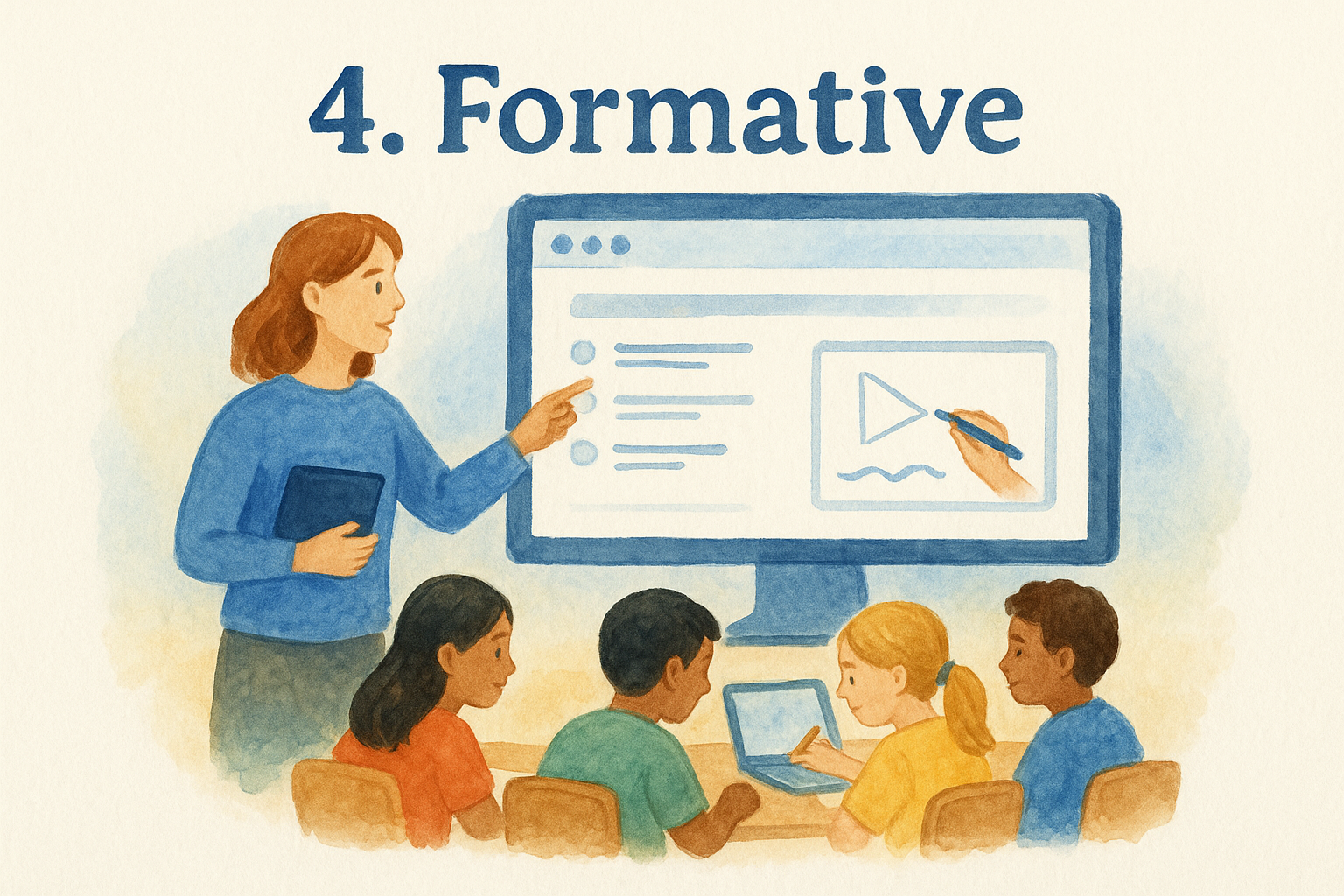
Formative stands out among digital assessment tools for teachers because it lets you see student work as they complete it, not after they submit. That live visibility changes how you respond during a lesson, since you can catch misconceptions while there’s still time to address them rather than discovering the gaps the next day when grading.
What you can assess with this tool
Formative supports multiple-choice, true/false, short answer, and open-response questions, but its standout feature is the free-draw response type, where students write or sketch directly on the screen. That makes it particularly useful for math teachers checking problem-solving steps, science teachers reviewing diagram labeling, or any class where the process matters as much as the final answer.
How you track progress and export data
The live dashboard updates in real time as students type, giving you a color-coded view of where each student stands before anyone has finished. You can scroll through individual responses or look at class-wide patterns at a glance.
This real-time view is one of the most actionable features in any classroom response system because it lets you pivot your instruction mid-lesson based on actual evidence.
Completed assessment data exports as a spreadsheet, and Formative integrates with Google Classroom, Canvas, and Schoology to push grades directly into your existing gradebook.
Setup and classroom workflow
You build assignments inside Formative’s editor or import existing Google Docs and PDFs to layer questions on top of them. Students join via a shareable code, and no student account is required for basic access, which keeps the barrier to entry low for both you and your class.
Pricing and plan notes
Formative offers a free tier with core features suitable for most classrooms. The Gold plan unlocks advanced reporting, additional question types, and LMS grade sync for teachers who need deeper data integration.
5. Quizizz
Quizizz is one of the more flexible digital assessment tools for teachers because it runs equally well as a live class activity or a self-paced homework assignment. Students work through question sets on their own devices at their own pace, with the platform handling scoring and data collection automatically.
What you can assess with this tool
The platform supports multiple-choice, fill-in-the-blank, poll, open-ended, and checkbox questions, so you can cover a wide range of learning objectives. It also includes a large public question library you can search by subject and grade level, which cuts down prep time when you need a review activity quickly. Image and audio attachments are supported, making it useful for science, reading comprehension, and foreign language assessments.
The self-paced format works particularly well for differentiated classrooms because students move through questions at their own speed without feeling pressure from a class-wide timer.
How you track progress and export data
After each activity, Quizizz provides a detailed class report showing overall scores, individual student performance, and a question-by-question breakdown. You can identify which questions your class found hardest and use that data to plan reteaching. Reports download as Excel or PDF files, and the platform integrates with Google Classroom to push grades directly into your existing gradebook.
Setup and classroom workflow
For live sessions, you share a join code or direct link, or assign a quiz through Google Classroom for homework. No student account is required for live games, which keeps setup fast on both ends. Building a quiz from scratch takes about ten minutes, and every quiz you create saves automatically for future use.
Pricing and plan notes
Quizizz offers a free plan with full core functionality, including unlimited quizzes and basic reporting. The Super plan adds advanced data features, custom themes, and additional question types for teachers who want more control over the assessment experience.
6. Kahoot!
Kahoot! is one of the most recognized digital assessment tools for teachers, known for turning review sessions into competitive, game-based activities that students actually look forward to. It works best as a whole-class formative check rather than a summative exam, and it delivers instant feedback on where your class stands after a lesson.
What you can assess with this tool
Kahoot! is built around multiple-choice and true/false question formats, which makes it ideal for vocabulary checks, concept reviews, and quick comprehension quizzes. You can add images and videos to questions, which expands its usefulness to science diagrams, historical images, and reading passages. The competitive timer element motivates students to engage, though it can disadvantage students who need more processing time.
If engagement is your primary goal for a review day, Kahoot! delivers that reliably, but pair it with a lower-stakes exit ticket if you need accurate individual performance data.
How you track progress and export data
After each game, Kahoot! generates a results report showing individual scores and question-level accuracy for every player. You can download these reports as Excel spreadsheets, giving you a clear record of how each student performed. The data works well for spotting class-wide gaps but is less reliable for tracking individual progress over time compared to platforms built specifically for longitudinal reporting.
Setup and classroom workflow
Students join using a game PIN on any device without creating accounts, which keeps your setup time to a minimum. You can build a kahoot from scratch, or pull from the public library of community-created games to cut down on prep when you need a review activity quickly.
Pricing and plan notes
Kahoot! offers a free plan that covers basic game creation and hosting for standard classroom use. The paid tiers unlock additional question types, advanced reporting, and higher player limits for teachers running multiple sections.
7. Edpuzzle
Edpuzzle sits in a unique position among digital assessment tools for teachers because it turns any video into an interactive assessment experience. Instead of students passively watching a clip, they answer questions embedded directly into the video at specific timestamps, which forces active engagement throughout the entire viewing.
What you can assess with this tool
Edpuzzle supports multiple-choice and open-ended questions embedded inside videos, making it well-suited for assessing content comprehension, listening skills, and critical thinking tied to instructional content. You can use videos from YouTube, Khan Academy, or your own recordings, which means it works across virtually every subject area.
The embedded question format catches passive viewers because students must answer before the video continues, giving you honest data about who actually understood the material.
How you track progress and export data
The platform gives you a student-by-student breakdown showing how many times each student rewatched a segment, how long they spent on the video, and how they answered each question. You can export grades as a spreadsheet or sync them directly to Google Classroom or your LMS gradebook with a few clicks.
Setup and classroom workflow
You select or upload a video, add questions at specific timestamps using Edpuzzle’s editor, then assign it to your class with a due date. Students access the assignment through a class code or directly via Google Classroom. No separate student accounts are needed for basic classroom access, which keeps onboarding fast on both ends.
Pricing and plan notes
Edpuzzle offers a free plan that allows up to 20 active videos, which suits teachers who use it selectively for key lessons. The Pro plan removes that cap and adds advanced analytics and LMS integrations for teachers who rely on video-based instruction regularly.
8. Nearpod
Nearpod combines lesson delivery and assessment in a single platform, which makes it one of the more efficient digital assessment tools for teachers who want to embed checks for understanding directly inside their instructional slides rather than switching between separate apps.
What you can assess with this tool
Nearpod supports multiple-choice, short answer, polls, fill-in-the-blank, and draw-it responses, giving you a wide range of question types to work with across any subject. You can also use collaborative boards and open-ended responses to gauge student thinking on discussion-based topics or creative tasks, which works well for English, social studies, and project-based learning environments.
The draw-it feature is particularly useful for math and science classes where you need students to show their work, not just select an answer.
How you track progress and export data
After each session, Nearpod generates a post-session report that breaks down responses by student and by slide, so you can pinpoint exactly where confusion appeared during your lesson. You can download the report as a PDF or CSV, and the platform integrates with Google Classroom and several major LMS platforms to simplify gradebook transfers.
Setup and classroom workflow
You build your lesson inside Nearpod’s editor or import an existing PowerPoint or Google Slides presentation and layer in interactive questions. Students join using a session code on any device, and you control the pace in live mode or let students move through the lesson at their own speed in student-paced mode.
Pricing and plan notes
Nearpod offers a free plan with a 50-participant limit and up to 40 lessons, which covers light classroom use. The Gold and Platinum plans unlock unlimited participants, advanced reports, and expanded storage for teachers who use it as their primary lesson delivery tool.
9. Pear Deck
Pear Deck plugs directly into Google Slides and Microsoft PowerPoint, which means you’re adding interactive assessment layers to presentations you likely already use. That workflow advantage makes it one of the more practical digital assessment tools for teachers who want formative checks embedded in their lessons without rebuilding everything from scratch.
What you can assess with this tool
Pear Deck supports multiple-choice, short text, number, draggable, and drawing response types, giving you enough variety to check comprehension, gauge opinion, and have students show their reasoning on the same slide where you delivered the instruction. The drawing and draggable responses work especially well for geometry, diagram labeling, and annotating primary sources, where you need students to interact with the content rather than just select an answer.
Embedding questions directly inside your slides keeps the assessment tied to the exact moment in your lesson where the concept was taught, which makes student responses far more contextually useful for reteaching.
How you track progress and export data
After each session, Pear Deck sends a Takeaways report to your Google Drive, which contains every student response linked to the slide it came from. You can review individual responses or look at class-wide patterns to decide what needs revisiting. The report format is clean and readable, making it easy to share with an instructional coach or use during a team planning meeting.
Setup and classroom workflow
You install the Pear Deck add-on inside Google Slides or PowerPoint, then add interactive question slides from the sidebar. Students join your session with a code at joinpd.com and respond on any device without creating accounts. The whole setup takes under five minutes for a teacher already comfortable with their slide deck.
Pricing and plan notes
Pear Deck offers a free plan with core interactive question types that covers most classroom needs. The Premium plan adds additional question types, advanced pacing controls, and deeper reporting features for teachers who rely on it daily.
10. Mentimeter
Mentimeter is a presentation and polling tool that doubles as one of the more visually engaging digital assessment tools for teachers, particularly for gauging whole-class understanding at the start or end of a lesson. It specializes in live, anonymous responses, which lowers the barrier for students who hesitate to share opinions or answers publicly.
What you can assess with this tool
Mentimeter supports multiple-choice, word cloud, open-ended, ranking, scales, and quiz question types, making it versatile enough for opinion polls, concept checks, and vocabulary reviews. The word cloud format works especially well for activating prior knowledge, since you can see which terms your students associate with a topic before you introduce new material.
Anonymous response mode is a strong option when you want honest feedback on how well students understood a challenging concept without social pressure affecting their answers.
How you track progress and export data
After each session, Mentimeter lets you download your results as a PDF or PowerPoint file, which you can archive for your records or share with colleagues during team planning. The platform does not offer a dedicated longitudinal tracking dashboard, so it works best as a snapshot tool rather than a system for monitoring individual progress across multiple weeks.
Setup and classroom workflow
You build your presentation inside Mentimeter’s editor, then share a join code or QR code at menti.com so students can connect on any device without accounts. Slides update live on your projected screen as responses come in, making the whole-class data visible in real time during the activity.
Pricing and plan notes
Mentimeter offers a free plan with up to two questions per presentation, which limits how you can use it for full assessments. The Basic and Pro plans remove that cap and unlock additional question types for teachers who want to use it more extensively.
11. Plickers
Plickers solves a specific problem that most digital assessment tools for teachers don’t address: what do you do when your students don’t have devices? Instead of requiring phones or tablets for every student, Plickers gives each student a printed QR code card they hold up to answer questions while you scan the room with a single smartphone.

What you can assess with this tool
Plickers handles multiple-choice and true/false questions, making it best suited for quick knowledge checks, vocabulary reviews, and comprehension questions. Each card has four sides labeled A, B, C, and D, so students answer by rotating the card to show their chosen response. This works well for exit tickets, bellringers, or spot checks during a lesson without any tech setup on the student side.
How you track progress and export data
Your phone camera reads every card simultaneously as you scan the room, and results appear on your projected screen and in the app in real time. The platform stores each student’s responses in a class history log, so you can review performance across multiple sessions. Data exports as a spreadsheet for gradebook entry or further analysis.
Plickers is one of the few tools that gives you real-time individual response data without requiring a single student device, which makes it genuinely useful in under-resourced classrooms.
Setup and classroom workflow
You print the free card set once from the Plickers website, assign each card to a student in the app, and build your question set. From that point forward, the cards are reusable indefinitely. Students pick up their card as they enter, and you launch questions directly from your phone during the lesson.
Pricing and plan notes
Plickers offers a free plan covering core functionality for standard classroom use. The Plickers Pro plan unlocks unlimited question sets, organizational folders, and enhanced reporting for teachers who rely on it regularly.
12. Seesaw
Seesaw rounds out this list of digital assessment tools for teachers as the strongest option for elementary classrooms and student portfolio-based assessment. It gives students a space to document their learning through photos, videos, drawings, and typed responses, while giving you a running record of each student’s progress over time.
What you can assess with this tool
Seesaw lets you assess a wide range of skills that traditional quizzes can’t capture, including creative projects, oral reading fluency, hands-on activity documentation, and collaborative work. Students can record themselves reading aloud, photograph a completed math page, or draw and annotate directly in the app, which makes it especially powerful for younger learners who aren’t yet strong writers.
Portfolio-style assessment shows growth across weeks and months in a way that a single quiz score simply cannot.
How you track progress and export data
Each student has a dedicated portfolio that accumulates work over the entire year. You can leave audio, video, or text feedback on individual posts, and parents can view their child’s portfolio in real time through the family app. Data exports are available for grade reporting purposes, though Seesaw is stronger as a qualitative progress tracker than a traditional quantitative gradebook.
Setup and classroom workflow
You create a class, then students join using a QR code or class code on any device. The app is intuitive enough for young students to navigate independently after a single walkthrough. You assign activities from the Seesaw library or build your own, and student submissions appear in your feed as they’re posted.
Pricing and plan notes
Seesaw offers a free plan covering core portfolio and assignment features for individual teachers. The School and District plans add advanced reporting, administrator oversight, and deeper LMS integrations.
What to do next
You now have a solid overview of 12 digital assessment tools for teachers that cover everything from quick formative checks to full portfolio-based progress tracking. The next step is to pick one tool that matches your most pressing classroom need, set it up with a single lesson this week, and see how it fits your workflow before adding anything else. Trying to adopt three platforms at once is how tools end up collecting digital dust.
Once you have your assessment process running smoothly, the next leverage point is the quality of the questions you’re asking. Stronger questions produce more useful data, no matter which platform you’re using. If you want to build better assessments from the ground up, the Cautiously Optimistic Teacher AI tools suite gives you a Question Generator, a Worksheet Maker, and a Differentiated Instruction Helper designed specifically to support teachers in exactly that kind of work.