
9 Free Classroom Seating Chart Templates for Teachers
You have a new roster, a room full of desks, and about ten minutes before first period to figure out who sits where. A good classroom seating chart template saves you from redrawing boxes by hand every time a student swaps schedules or a pair of friends needs separating. It also gives substitutes, admin, and your future self a quick reference when someone asks "who sits next to whom."
This roundup skips the generic advice and hands you ready-to-use templates you can grab today, whether you want a simple printable grid, a Google Sheets version you can drag and drop, or something built for group work and flexible seating. Each option below covers different classroom setups, from traditional rows to clusters and horseshoes, so you can match classroom layout, seating, and flow to how your room actually functions.
You will find free downloads for Word, Excel, Google Docs, and PDF, plus a few digital tools that update automatically as you move students around. We picked these based on ease of editing, compatibility with common school software, and how well they handle real classroom needs like IEP accommodations, sensory-aware classroom design, and rotating groups. Scroll through, pick the format that fits your workflow, and get your seating sorted before the bell rings.
1. Canva classroom seating chart templates
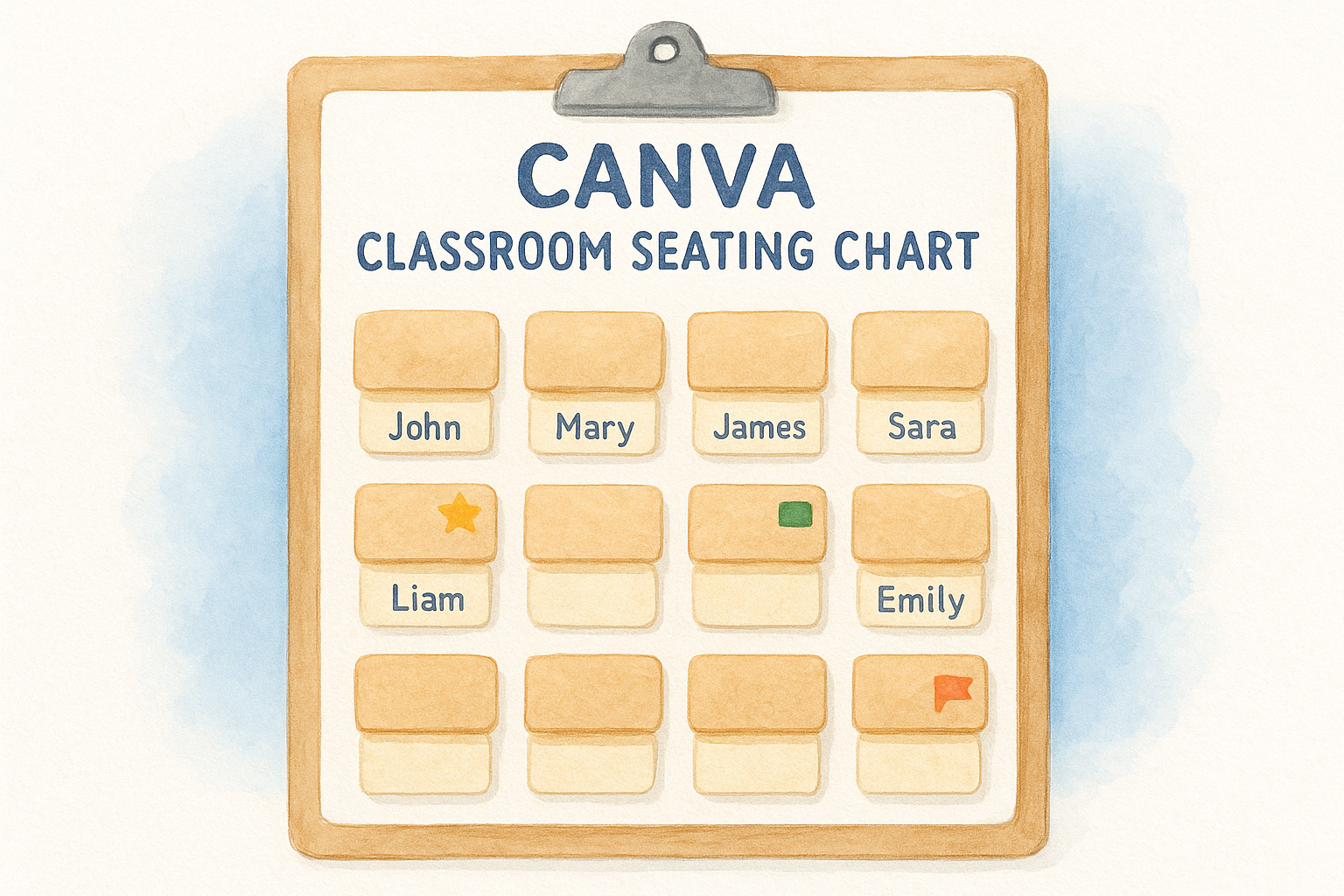
Canva has quietly become one of the most popular places teachers go for a free seating chart maker, and it’s easy to see why once you open the template library. Search "classroom seating chart" inside Canva and you’ll get dozens of pre-built layouts, from neat rows of desks to pod-style clusters, all in a drag-and-drop editor that doesn’t require any design skill.
What it offers
Each template comes with pre-drawn desk or table shapes you can duplicate, rename, and color-code by student, group, or accommodation type. Canva also lets you drop in your school’s colors, add a header with the class period and room number, and layer icons (a star for a helper, a small flag for an IEP note) directly onto individual seats. Because everything lives in the cloud, you can update a seating arrangement from your phone during passing period if a swap needs to happen fast.
A cloud-based seating chart means you’re never stuck redrawing boxes by hand when a student transfers in on a Tuesday afternoon.
Best for
This option suits teachers who manage multiple class periods and want one clean, professional-looking chart per section without recreating the layout from scratch each time. It also works well if you like to print a visual classroom map for substitutes, since the finished design looks polished enough to hand off without extra explanation. Elementary teachers who rotate seating by table groups and secondary teachers with five or six sections a day both get real time savings here.
How to customize it
Getting a chart ready takes just a few steps:
- Open Canva and search "seating chart" in the templates bar.
- Pick a layout that matches your room (rows, groups, or horseshoe).
- Click each desk shape and type in a student’s name, or paste your roster into a text box and drag names onto seats.
- Add color tags for grouping, behavior tracking, or accommodations.
- Duplicate the whole page for each class period, then rename the tab.
- Download as PDF for printing or share a link for a digital copy.
You can also lock the background elements so you only edit the text layer, which keeps the design from shifting when you’re moving names around quickly.
Cost
Canva’s free plan covers everything you need for a basic seating chart, including the templates, shapes, and standard fonts. The paid Canva Pro tier (around $120 per year, though many districts and individual teachers qualify for free access through Canva for Education) adds premium templates, a background remover, and extra storage, but none of that is necessary for a straightforward classroom chart. Most teachers never need to upgrade just for this use case.
2. Freeology editable seating chart in Word
Freeology has been a go-to for printable classroom worksheets for years, and its seating chart template collection fits right into that no-frills tradition. Instead of a design tool, you get a straightforward Word document with a grid of desks already laid out, ready for you to type over and print.
What it offers
The site hosts several blank seating chart templates, including versions for standard rows, paired desks, and a simple table format where you list names next to seat numbers. Everything opens directly in Microsoft Word, so there’s no login, no account setup, and no software to learn. Because the files are plain .doc format, they also open fine in Google Docs if that’s your default.
Sometimes the fastest seating chart is the one that opens in the program you already use every day.
Best for
Teachers who want something quick and low-tech will appreciate this option most. If you’re not interested in learning a new app mid-semester, or your school blocks third-party design sites, a Word document sidesteps all of that. It also suits teachers who print a fresh chart each grading period rather than editing one digital version all year.
How to customize it
Open the downloaded file in Word, then replace the placeholder text in each desk box with a student’s name. You can resize the grid by adjusting the table dimensions if your room has more or fewer desks than the template assumes, and you can shade individual cells to flag accommodations or behavior notes. Save a new copy for each class period so you keep a clean master file to reuse next year.
Cost
Freeology’s templates are entirely free to download, with no account or email sign-up required for the basic seating chart files. There’s no premium tier tied to this particular resource, which makes it one of the simplest zero-cost options on this list if you just need a working document today.
3. Seating Chart Maker app templates
Dedicated apps built just for this job exist, and Seating Chart Maker is one of the better-known ones among teachers who want more automation than a static grid, much like the other apps that save teachers hours each week. Rather than dragging shapes around a blank canvas, you feed the app your roster and room layout, and it handles the arranging logic for you, including random shuffles and rule-based placement.
What it offers
The app gives you a digital seating chart builder where you set up your room shape first (rows, pods, U-shape) and then import or type your student list. It can auto-generate arrangements based on rules you set, like keeping certain students apart or grouping by reading level, and it saves multiple class period layouts inside one account so you’re not rebuilding from zero each hour.
Letting software apply your seating rules beats manually double-checking every swap against a mental list of who can’t sit together.
Best for
This tool suits teachers juggling several sections with different roster sizes and room configurations, since switching between saved charts takes seconds. It also fits classrooms with frequent seating changes, like weekly random shuffles for group work, where redrawing a chart by hand every Monday would eat into planning time.
How to customize it
Customizing a chart involves these steps:
- Create your room layout by choosing a preset shape or drawing your own desk grid.
- Import your class roster from a spreadsheet or type names directly.
- Set placement rules (separations, front-row needs, group pairings).
- Click generate to auto-fill seats, then manually drag any names that need adjusting.
- Save the layout under the class period name for quick access later.
You can regenerate a fresh random arrangement anytime without losing your saved rules, which is handy for classes that rotate seats monthly.
Cost
Most core features run on a free tier that covers a handful of saved charts, enough for a single teacher managing a few sections. Paid plans unlock unlimited saved layouts and extra room templates, typically priced as a small monthly or annual fee, though the free version handles most classroom needs without upgrading.
4. Classroomscreen seating chart maker
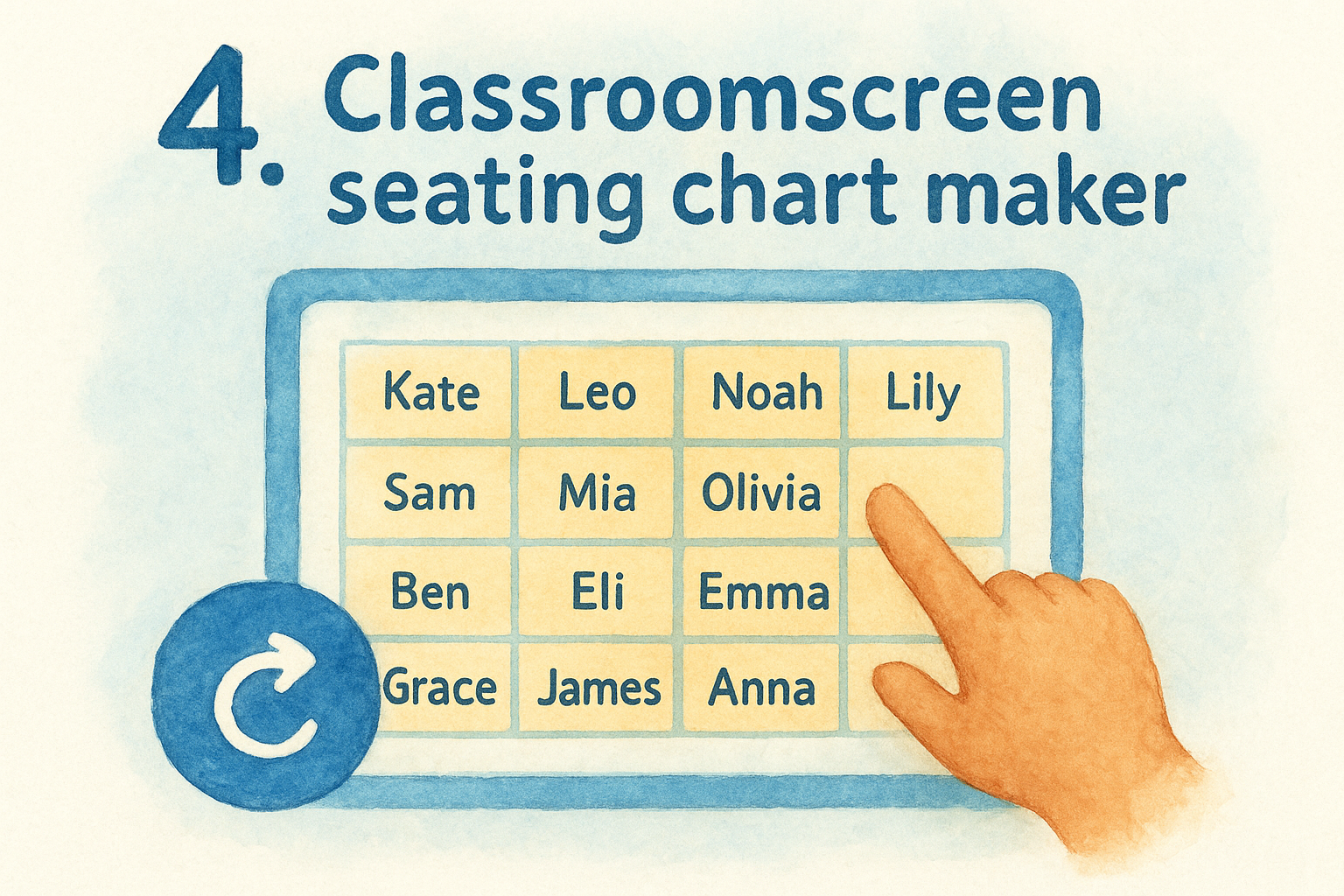
Classroomscreen started as a bundled toolbox for your classroom display, timers, noise meters, QR codes, and it added a random name and seating tool that many teachers now use just for arranging desks. You run it right from the browser tab already open on your projector, so there’s no extra download and no switching devices mid-lesson.
What it offers
The seating widget places student names into a grid you can adjust to match rows, pods, or a horseshoe, and it displays live on your classroom screen while you teach. Because it lives alongside Classroomscreen’s other widgets, you can pull up a seating chart maker next to a timer or a traffic light behavior tool without opening a second tab. It also supports quick random shuffles, which helps if you want to mix up groups without manually dragging every name.
A seating tool that shares screen space with your timer and behavior widgets saves you from juggling browser tabs mid-lesson.
Best for
Teachers who already run Classroomscreen for daily classroom management get the most value here, since the seating tool adds zero extra setup. It also suits anyone who wants seating visible on the board itself rather than printed on paper, which helps during the first weeks of a new term when students are still learning names.
How to customize it
Add your roster to the widget, choose a grid shape that mirrors your desk layout, then drag names into place or hit shuffle for a random draw. You can save the arrangement and reload it for the same class period tomorrow, or shuffle fresh each day if you rotate seats often.
Cost
Classroomscreen’s free version includes the seating widget along with most core tools, no account required for basic use. A paid Plus tier adds extra backgrounds and widget customization, but the seating function itself works fully on the free plan.
5. ClickSchool seating plan generator
ClickSchool built its seating plan generator for teachers who want a genuinely random draw with just enough control to keep the chaos useful. You type or paste your roster, pick a room shape, and the tool spits out a fresh arrangement in seconds, which makes it a favorite for teachers who reshuffle desks weekly to break up cliques and keep group work fresh.
What it offers
Beyond the random shuffle, the site gives you a classroom seating chart template grid you can lock partially, so certain students stay put (front row for vision needs, aisle seats for wheelchair access) while everyone else gets reassigned automatically. It also lets you exclude specific pairings before you generate a chart, so friends who talk too much never land side by side without you having to check manually.
Locking a few seats before you shuffle beats manually undoing a random draw every time it puts the wrong two students together.
Best for
Teachers who value fairness and want students to see seating as random rather than teacher-picked will like this tool most. It also suits classrooms with a handful of fixed accommodations mixed into an otherwise flexible layout, since you don’t have to sacrifice the shuffle feature just to keep one or two seats stable.
How to customize it
Enter your class list, select rows or pods to match your room, lock any required seats, and set exclusion pairs. Hit generate, review the result, and regenerate if something still looks off. Save the arrangement or print it straight from the browser.
Cost
ClickSchool runs its seating generator as a free browser tool with no login required for basic use. There’s no paid tier tied specifically to this feature, so every function described above stays free.
6. Gynzy seating chart generator
Gynzy built its seating tool as part of a broader interactive whiteboard for the classroom, and the seating chart generator sits alongside lesson slides, timers, and digital dice you might already use during class. Teachers who run Gynzy for daily instruction often discover the seating feature almost by accident, then keep using it because it lives right where they’re already working.
What it offers
The generator gives you a flexible seating grid you can shape into rows, pods, or a horseshoe, then populate by typing names or pasting a roster list. It includes a random shuffle button for quick reshuffles, plus the option to drag individual students into fixed spots if a few seats need to stay locked. Because it runs on the same screen as your lesson content, you can flip between a seating chart template and your actual slideshow without switching tabs or devices.
Keeping your seating chart on the same screen as your lesson slides means one less tab to manage during a busy period.
Best for
This tool suits teachers already using Gynzy’s whiteboard tools for daily lessons, since adding seating costs no extra setup time. It also fits classrooms that display seating on the board itself during the first weeks of school, when students are still learning each other’s names and a printed chart on your desk doesn’t help much.
How to customize it
Building a chart takes four steps:
- Open the seating widget from your Gynzy dashboard.
- Choose a grid shape matching your room.
- Add your roster and drag names into seats, or shuffle for a random draw.
- Save the arrangement for reuse next class period.
Regenerating a shuffle takes one click, which helps if you rotate seats weekly.
Cost
Gynzy offers a free tier that includes the seating generator alongside basic whiteboard tools. Paid school-wide subscriptions unlock extra lesson content and premium widgets, but the seating feature itself works fully without upgrading.
7. Teachers Pay Teachers free seating chart templates
Teachers Pay Teachers hosts thousands of independently created resources, from free and editable TPT lesson plans to a search for free seating chart templates that turns up dozens of options made by actual classroom teachers rather than a design company. This marketplace mix means you’ll find styles built for specific needs, like flexible seating classrooms with couches and floor cushions, that you won’t see on more generic template sites.
What it offers
Because every file comes from a different seller, you get real variety: editable PowerPoint grids, PDF printables, and even bundles that pair a classroom seating chart template with matching desk name tags or a student information card. Many free listings double as previews for a seller’s paid bundle, so you often get one solid template plus a nudge toward a fuller set if you want more design options later.
A marketplace built by teachers, for teachers, tends to solve problems a generic template never anticipated.
Best for
This option suits teachers who want a template designed with a specific classroom style in mind, whether that’s flexible seating, a small resource room, or a themed elementary classroom with matching decor. It also works well if you like browsing a few different layouts before committing, since you can download several free versions and compare them side by side.
How to customize it
Download the file type the seller provides, usually PDF or PowerPoint, then edit directly in the matching program. PowerPoint versions let you move text boxes freely, which helps if your room shape doesn’t match the seller’s original layout. Save a fresh copy per class period so your master file stays blank for next year.
Cost
Free listings cost nothing and require only a free TPT account to download. Paid versions from the same sellers typically range from $2 to $5 and add extra design options, but the free templates work fine as a standalone classroom seating chart template.
8. Google Sheets editable seating chart template
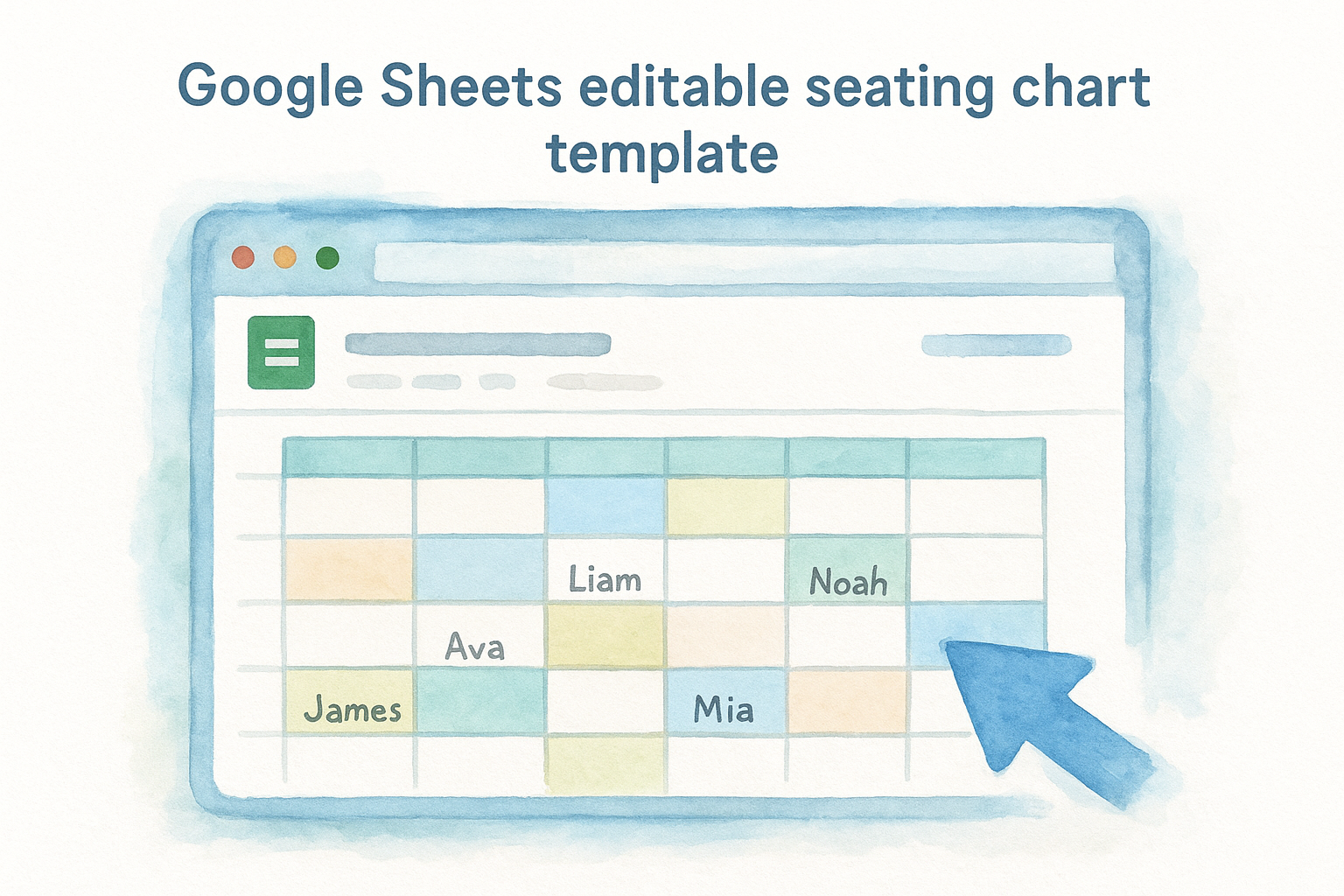
Google Sheets rarely gets mentioned as a seating chart tool, but teachers who already live inside Google Classroom find it’s often the fastest option they already have access to. Instead of downloading new software, you build a grid-based seating chart right in a spreadsheet you can share, edit, and update from any device signed into your school Google account.
What it offers
A basic template uses merged cells to represent desks, arranged into rows or clusters that mirror your room, with student names typed directly into each box. Because it’s a live spreadsheet, you get real-time collaboration if a co-teacher or aide needs to update seating without waiting for you to send a new file. Color-coding cells for accommodations, reading groups, or behavior tracking takes just a few clicks using the fill tool, and formulas can even auto-count how many seats remain empty as you build out a roster mid-year.
A shared spreadsheet means your seating chart updates the moment someone types a change, no new file, no version confusion.
Best for
This option suits teachers who already manage rosters, grades, or attendance in Sheets and want their seating chart living in the same ecosystem. It also works well for co-taught classrooms where multiple adults need edit access, since sharing a link beats emailing an updated PDF every time a student moves.
How to customize it
Start from a blank seating chart template by merging cells into desk-sized blocks, then format borders to match your room shape. Type names directly into cells, adjust column widths for larger tables, and use the freeze-row feature to keep a header with class period and date visible while scrolling. Duplicate the sheet tab for each class period within one file.
Cost
Google Sheets is free with any Google account, and most schools already provide access through Google Workspace for Education, so there’s no extra cost tied to building or sharing this template.
9. Printable blank grid seating chart PDF
Sometimes you don’t need software at all. A printable blank grid seating chart PDF is the paper-and-pen fallback that works when your school’s wifi goes down, your laptop dies, or you just want something you can scribble on with a pencil during the first chaotic week of school. You’ll find these grids on general teacher resource sites and printable archives, including our own free printable seating plan charts, and they’re built to be photocopied, filled in by hand, and taped to your desk or clipboard.
What it offers
This format gives you a simple grid of empty boxes representing desks, arranged in rows, pairs, or a basic cluster layout, with no names, colors, or software required. Most versions include a small header space for the class period, room number, and date, plus a legend area where you can jot a quick key for behavior codes or accommodation flags. Because it’s a static PDF, there’s nothing to load or log into, which matters on the days your school’s network decides not to cooperate.
The best backup plan for a seating chart is one that doesn’t need a working internet connection.
Best for
This option suits teachers who want a physical backup even if they manage the main seating arrangement digitally elsewhere, and substitute teachers who need something they can fill out fast without learning a new tool. It also works well during testing days or fire drills when you need a quick paper reference clipped to a folder.
How to customize it
Print the PDF, then write student names directly into each box with pencil so you can erase and swap seats as needed. Laminate one copy per class period if you want a reusable version you can wipe clean with a dry-erase marker each term.
Cost
These grids are free to print with no account, email, or software purchase required, making them the simplest zero-cost backup on this list.
Choosing the right template for your classroom
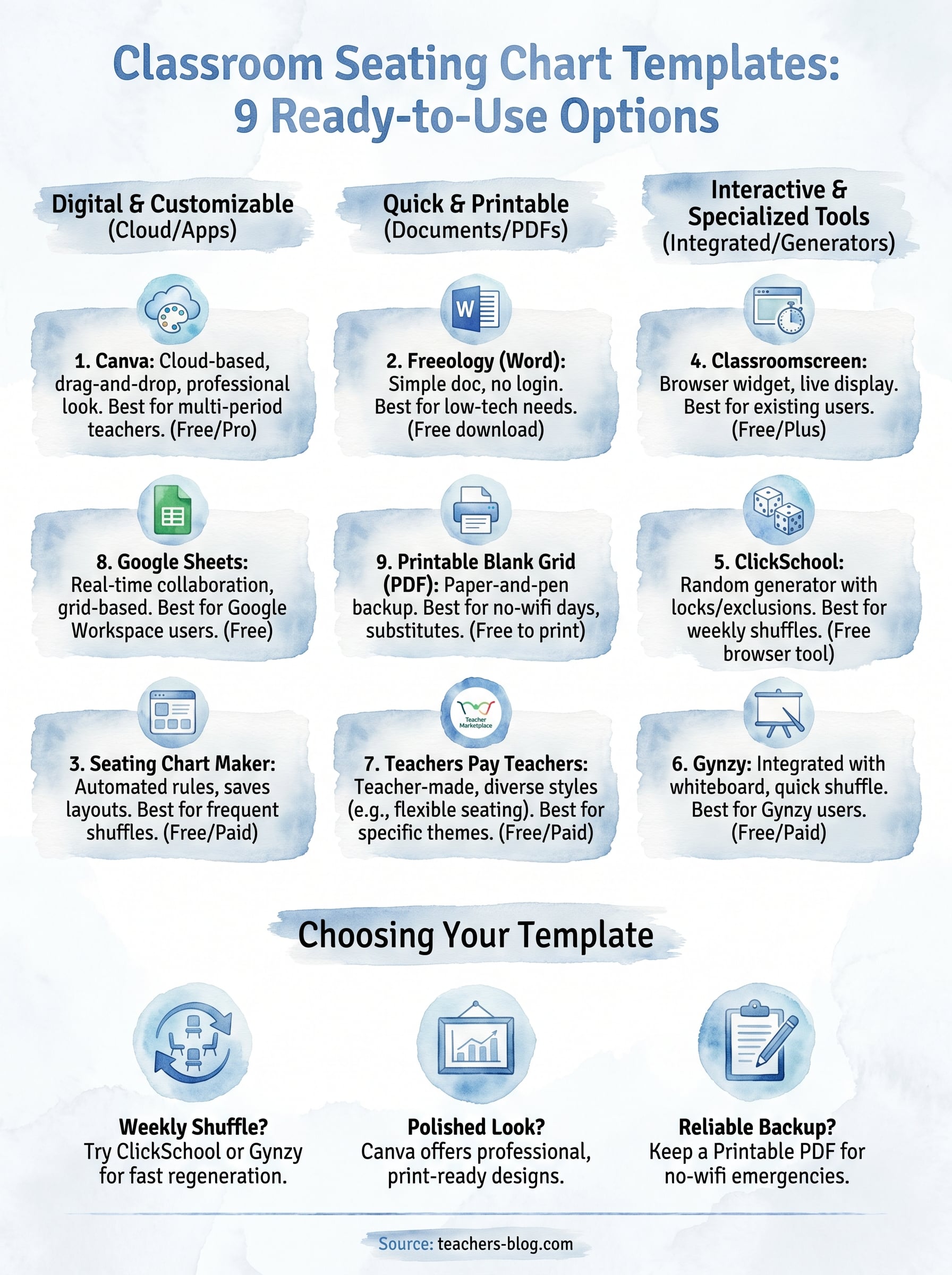
Nine options is plenty, but the right pick really comes down to how your room runs day to day. If you shuffle groups weekly, lean toward a digital seating chart tool like ClickSchool or Gynzy that regenerates arrangements in seconds. If you want something polished for substitutes and parent visits, Canva still wins on looks. And if your wifi is unreliable or you just want a backup taped to your clipboard, keep a printable blank grid on hand no matter what else you use.
Whatever you choose, don’t overthink it. Grab a classroom seating chart template that matches your layout, fill in your roster, and adjust as the year goes on. And once your seats are set, see which of the best classroom management software options can keep the rest of your room running just as smoothly.