
6 Best Classroom Management Software for Teachers (2026)
You’ve got 30 students, half of them have tabs open that have nothing to do with your lesson, and you’re supposed to teach and police screens at the same time. That’s not a management problem, it’s a design problem. The right best classroom management software can handle the monitoring and device control so you can focus on actually teaching.
Here at The Cautiously Optimistic Teacher, we’re always looking for tools that make educators more effective without adding more to their plate. We’ve tested and researched six classroom management platforms that help you minimize digital distractions, keep students on task, and maintain visibility over what’s happening on every screen in your room. Each tool brings something different, from real-time screen monitoring to website filtering to guided browsing, so the best pick depends on your school’s setup, budget, and how much control you actually need.
Below, you’ll find a breakdown of each option with honest pros, cons, and use cases so you can make a decision that fits your classroom, not just your IT department’s checklist. Let’s get into it.
1. GoGuardian Teacher
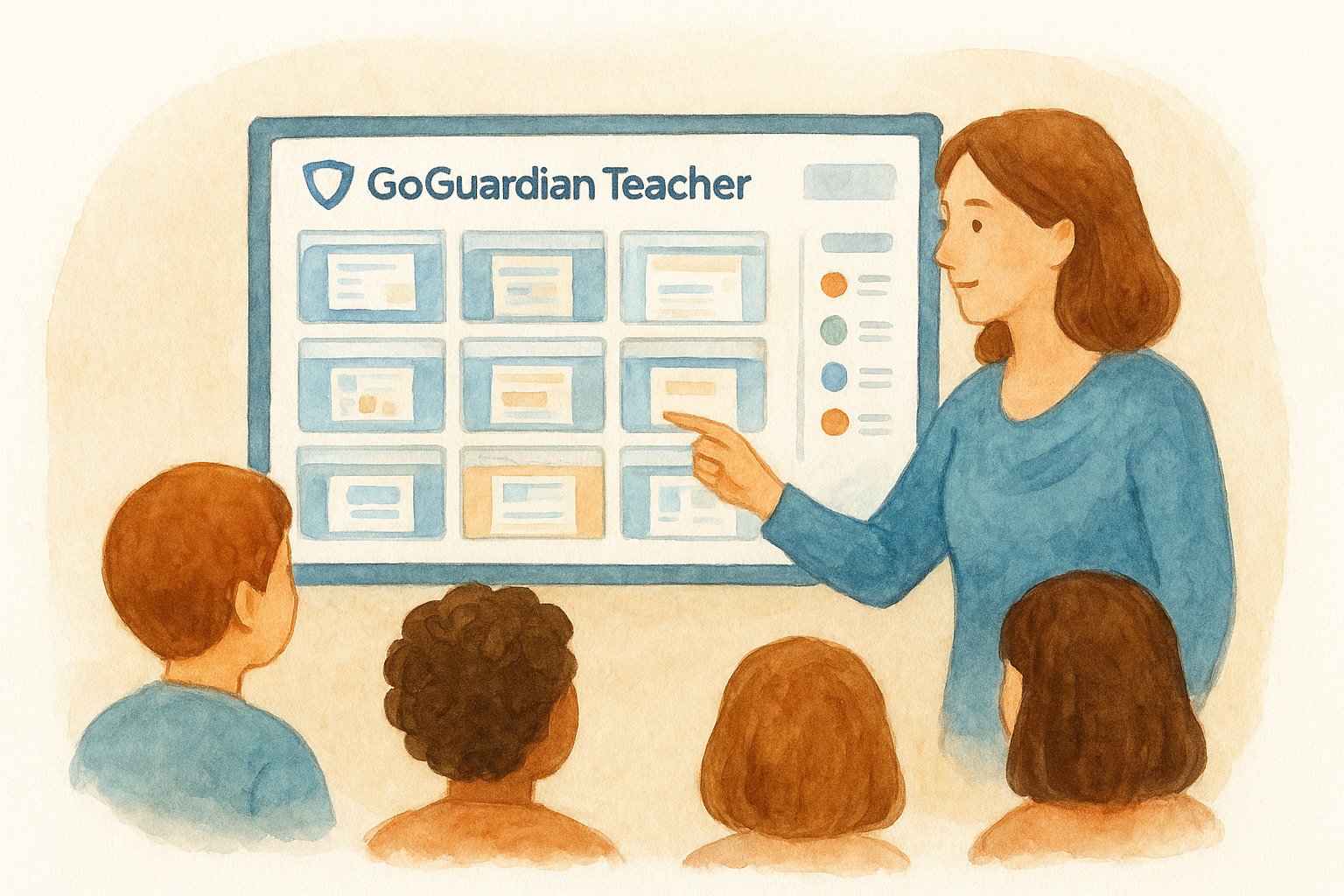
GoGuardian Teacher is one of the most widely recognized tools in the best classroom management software space, and the reason is simple: it puts a live thumbnail of every student’s screen directly in front of you from a single dashboard. That visibility alone changes how you run a tech-integrated lesson.
What GoGuardian Teacher does best
Real-time monitoring and fast intervention are where GoGuardian genuinely shines. You can view every active tab across your class, close distracting sites remotely, push a specific URL to all students at once, or lock every screen when you need the room’s attention. The platform also logs student activity timelines, giving you a record of what each student accessed during class, which is useful when you need to loop in parents or an administrator.
The class session feature ties all monitoring to a scheduled period, so visibility starts and ends automatically without any manual steps from you each day.
Must-have features for day-to-day teaching
The tools you’ll reach for most are tab management and screen viewing. You can pull up any student’s screen for a closer look with one click, and the "Scenes" feature lets you create browsing rules for specific tasks, restricting students to only the sites that matter for the current activity. That makes transitions between open research and focused writing much easier to control. You also get a built-in direct messaging function that lets you send a quiet nudge to an individual student without calling them out in front of the class.
Device and platform fit
GoGuardian works almost exclusively with Chromebooks and the Chrome browser, which makes it an ideal match for schools running Google Workspace for Education. Setup is clean and integrates directly with Google Classroom. If your school runs primarily Windows or Mac devices, GoGuardian is not the right tool for your situation.
Pricing and licensing notes
Pricing details are not listed publicly by GoGuardian. Licensing is structured at the district level, so your IT department or purchasing coordinator handles the quote process directly. Costs depend on device count and which GoGuardian products your district selects. Title I schools may qualify for adjusted pricing, so it is worth asking during the sales conversation.
2. Lightspeed Classroom Management
Lightspeed Classroom Management earns its spot among the best classroom management software options for districts that want student safety and distraction control in one package. If your district already uses Lightspeed’s web filtering suite, adding this tool is a natural next step rather than an entirely separate onboarding process.
What Lightspeed Classroom Management does best
The platform focuses on real-time screen visibility and content control, particularly for schools with strict internet safety policies. It integrates tightly with Lightspeed’s broader filter system, so the web restrictions your district sets carry over directly into classroom sessions.
This makes Lightspeed especially effective for schools where student online safety is a top compliance priority.
Must-have features for day-to-day teaching
You get live screen thumbnails, website blocking, and the ability to push URLs to all student devices at once. The class snapshot view lets you scan the entire room at a glance. You can also pause internet access for all students when you need focused, heads-up attention without navigating through multiple menus.
Device and platform fit
Lightspeed supports Chromebooks, Windows, and Mac devices, giving it broader compatibility than GoGuardian. That cross-platform support makes it a strong choice for schools running mixed-device environments or those using both Google Workspace and Microsoft 365.
Pricing and licensing notes
Pricing is quote-based and handled at the district level. Lightspeed does not publish per-device costs publicly, so reach out to their sales team directly for accurate figures based on your school’s device count.
3. LanSchool
LanSchool has a longer track record than most tools in the best classroom management software category, which means it has been refined through real classroom feedback over many years. It works well for schools that need broad device compatibility without committing to a single operating system or ecosystem.
What LanSchool does best
LanSchool’s clearest strength is its ability to manage a mixed-device classroom from one teacher console. You can monitor and interact with student devices across multiple platforms without switching between separate tools, which keeps your workflow simple during active lessons.
This unified approach makes LanSchool a practical fit for schools where device types vary across classrooms or grade levels.
Must-have features for day-to-day teaching
The teacher console gives you live screen thumbnails and the ability to blank all student screens the moment you need the room’s focus. You can push websites directly to student devices, restrict browsing to a specific list of approved sites, and send files to the class mid-lesson. The student chat monitoring feature lets you track peer-to-peer communication without interrupting what you are teaching.
Device and platform fit
LanSchool supports Windows, macOS, Chromebooks, and iOS devices, which makes it one of the more flexible picks for schools running varied hardware inventories. That cross-platform support means your monitoring setup stays consistent even when students switch between device types across different courses.
Pricing and licensing notes
Pricing is not listed publicly and is handled through a direct quote process. Reach out to LanSchool’s sales team with your school’s device count and platform breakdown to get accurate figures for your budget.
4. Dyknow Classroom
Dyknow Classroom carves out a specific niche in the best classroom management software market by focusing on student attention and distraction data rather than just raw monitoring. If your priority is understanding where students lose focus, not just whether they are off-task, Dyknow gives you that layer of insight.
What Dyknow Classroom does best
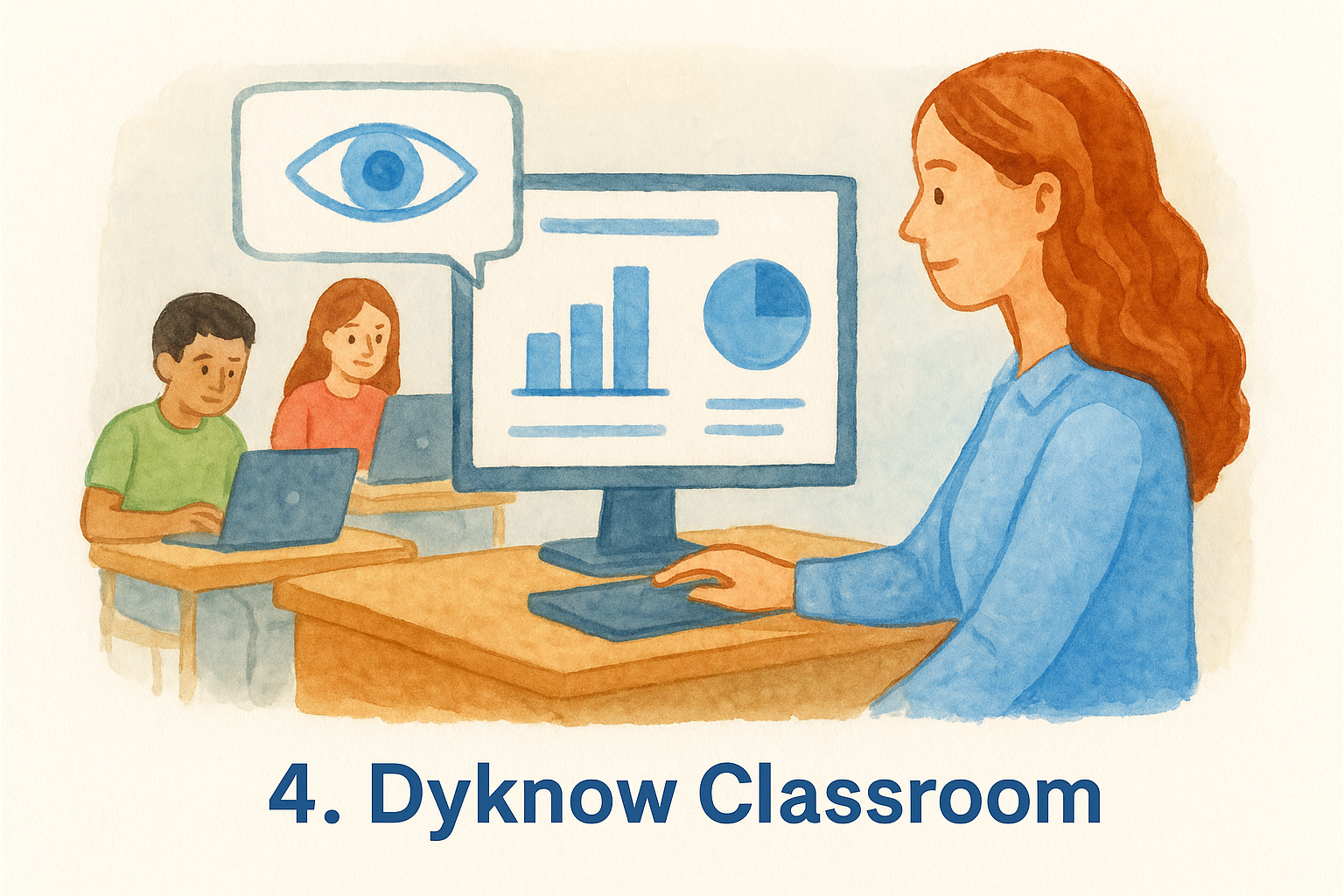
Dyknow’s standout feature is its attention analytics dashboard, which tracks student device activity and surfaces patterns over time. You can see which students are consistently distracted and during which parts of your lessons, giving you data to support conversations with students, parents, or counselors.
This reporting depth sets Dyknow apart from tools that only offer real-time snapshots without any historical context.
Must-have features for day-to-day teaching
For active lessons, you get live screen monitoring and the ability to block specific websites across all student devices. You can also push a focus mode that limits students to a set of approved sites for timed work blocks, which is useful during assessments or independent practice.
Device and platform fit
Dyknow supports Windows, macOS, and Chromebooks, so it handles most standard school device setups without compatibility issues. It works across both Google Workspace and Microsoft 365 environments, making it a flexible fit for schools mid-transition between ecosystems.
Pricing and licensing notes
Dyknow does not post public pricing. Licensing is handled at the school or district level, so contact their team directly with your device count to get a quote.
5. Senso.cloud
Senso.cloud is a UK-based platform that has earned consistent recognition in the best classroom management software space, particularly among schools running Windows-heavy environments. It operates through a browser-based teacher interface, which means you don’t need dedicated software installed on your own machine to get started.
What Senso.cloud does best
Senso.cloud’s strongest advantage is its centralized, cloud-based architecture, which keeps the setup process straightforward for schools with limited IT resources. Teachers can access the full management dashboard directly from a browser without waiting on IT to configure anything on their end.
This low-friction deployment model makes Senso.cloud a realistic option for schools where teachers need to get up and running without heavy technical support.
Must-have features for day-to-day teaching
You get live screen monitoring and remote screen locking, along with website filtering and the ability to push URLs to all student devices at once. The platform also includes application blocking, which lets you prevent students from opening specific programs during a lesson, not just browser tabs. That added layer of control is useful when your school uses local software that students tend to open instead of staying on task.
Device and platform fit
Senso.cloud works primarily with Windows devices, though it extends some support to Chromebooks and macOS. Schools where Windows is the dominant OS will get the fullest feature set from the platform.
Pricing and licensing notes
Pricing is quote-based and handled at the school or district level. Reach out to their team with your device count and OS breakdown to get figures that fit your actual setup.
6. Veyon
Veyon stands apart from every other tool in the best classroom management software category for one straightforward reason: it costs nothing. For schools on tight budgets or those that want full control without locking into a vendor contract, Veyon is a legitimate option worth a closer look.
What Veyon does best
Veyon’s biggest advantage is its zero-cost, open-source model. Your IT department can customize and self-host the entire platform, which means your school owns the setup rather than depending on a third-party vendor for ongoing access.
This level of control is rare in classroom management tools and makes Veyon a realistic fit for schools with capable technical staff on hand.
Must-have features for day-to-day teaching
The platform gives you a practical set of tools for active lessons, including:
- Live screen monitoring across all connected devices
- Remote screen locking to redirect student attention instantly
- Screen broadcasting to display your screen to the class
- Direct messaging to individual students mid-lesson
Device and platform fit
Veyon supports Windows, Linux, and macOS, making it one of the broader cross-platform options for schools not running Chrome-first environments. Chromebook support is not currently available, so Google-heavy schools should look at a different tool before committing to this one.
Pricing and licensing notes
The tool is completely free under an open-source license. Your only real expenses are IT staff time for initial setup and ongoing maintenance, which makes it the most budget-conscious pick on this entire list.
Next steps
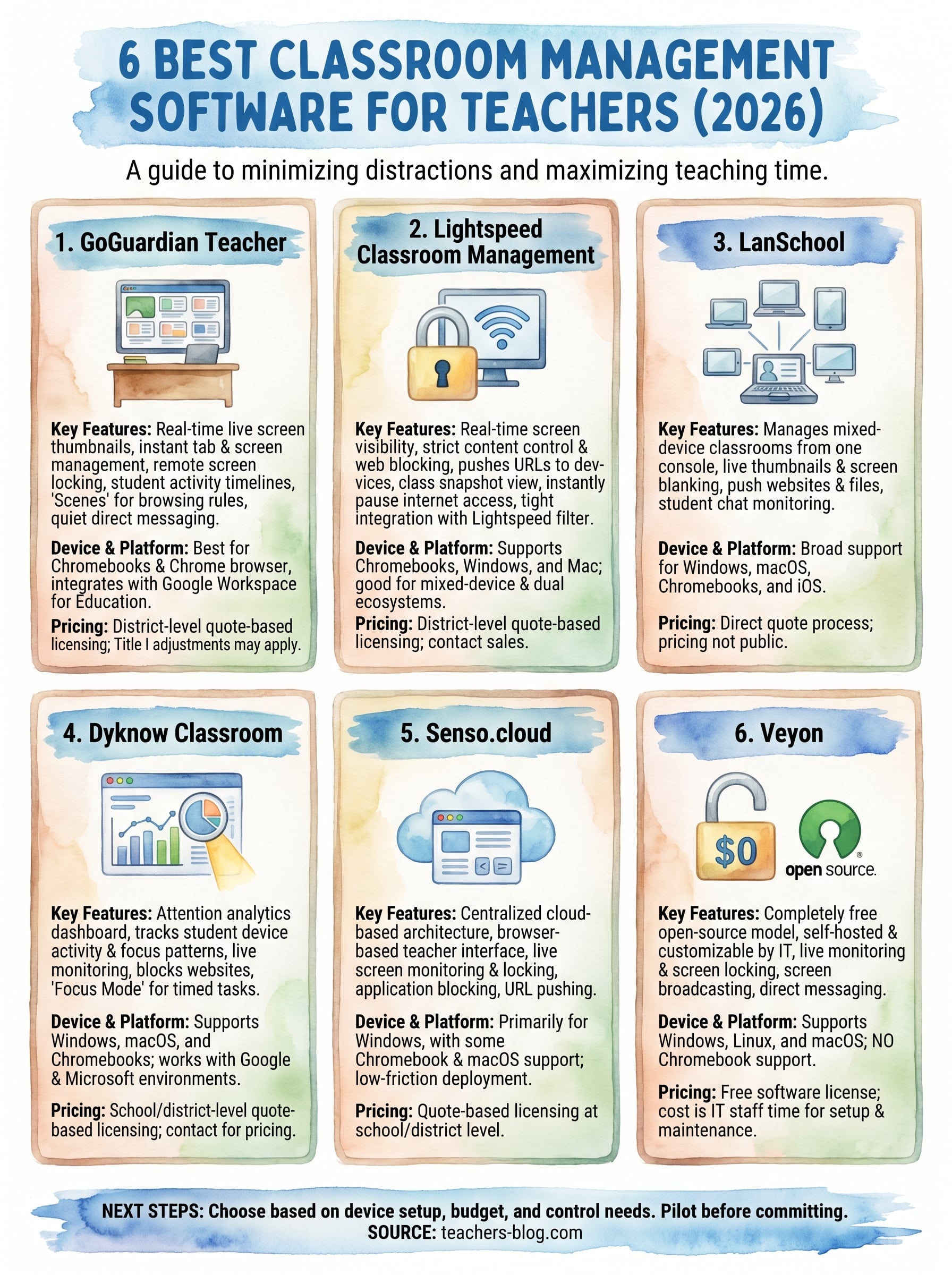
Choosing the best classroom management software comes down to three things: your device setup, your budget, and how much control you actually need during a lesson. If your school runs Chromebooks, GoGuardian or Lightspeed are the most direct fits. Mixed-device environments give you more to work with through LanSchool, Dyknow, or Senso.cloud. And if your IT team is capable and your budget is tight, Veyon gives you a fully functional free option that most schools overlook.
Before you commit to anything, pull in your IT coordinator or tech integration specialist early. The tools that look great in a demo can hit real friction during deployment if your network setup or device management system doesn’t align. A quick pilot with one class period will tell you more than any feature list. For more practical teaching strategies and tools that actually work in the classroom, visit The Cautiously Optimistic Teacher and explore what fits your day-to-day reality.