
Seesaw Formative Assessment: Create, Assign, Track Progress
You just taught a lesson you spent hours preparing, but when you look around the room, you have no idea how much actually landed. Sound familiar? Seesaw formative assessment tools give you a way to find out, right then and there, without collecting a stack of papers or waiting until the unit test. With built-in assessment features, Seesaw lets you create questions, assign ready-made activities, and pull real-time data on student understanding, all inside a platform many schools already use.
Here at The Cautiously Optimistic Teacher, we’re always looking for tools that make teaching more effective without making your day longer. Seesaw’s assessment features fit that description well. They’re straightforward to set up, and the reporting gives you actionable insight into who’s getting it and who needs another pass.
This guide walks you through the full process: creating assessment questions in Seesaw, assigning "Check for Understanding" activities, and reading the reports so you can adjust instruction on the fly. Whether you’re new to the platform or just haven’t explored its assessment side yet, you’ll leave with a clear, step-by-step plan to start tracking student progress more efficiently.
What Seesaw formative assessment helps you measure
Seesaw formative assessment gives you a window into student thinking that paper exit tickets simply can’t match. Instead of collecting and sorting through physical work, you see student responses in one organized place, flagged by completion status. That alone changes how quickly you can respond to gaps in understanding before the next day’s lesson.
Conceptual understanding and skill application
The most direct thing you can measure is whether students grasped the core concept you just taught. With Seesaw, you can ask students to explain a math step in their own words, record themselves reading a passage, or annotate an image to show their thinking. These formats go beyond right-or-wrong answers and reveal how a student is reasoning, not just what they selected from a list.
When you can see a student’s reasoning process, not just their final answer, you know exactly where the misunderstanding started.
Progress over time and class-wide learning gaps
Seesaw also lets you track student growth across multiple assignments. Because every activity lives inside a student’s digital portfolio, you can compare early responses to later ones and identify students who are falling behind before a summative assessment arrives. This makes it much easier to spot learning gaps at the class level, too. If 18 out of 25 students skipped the same step in a problem, that’s a signal to reteach the concept to the whole group rather than pull individual students aside.
Filtering responses by student or by activity means you’re not just measuring performance at a single point. You’re building an ongoing picture of where each learner stands, so your next instructional move is based on real data rather than a gut feeling.
Step 1. Choose the right Seesaw assessment format
Before you build anything, pick the activity format that matches what you actually want to know. Not every seesaw formative assessment task needs to be elaborate. Sometimes a quick multiple-choice question after a mini-lesson tells you everything you need to decide whether to move on or slow down.
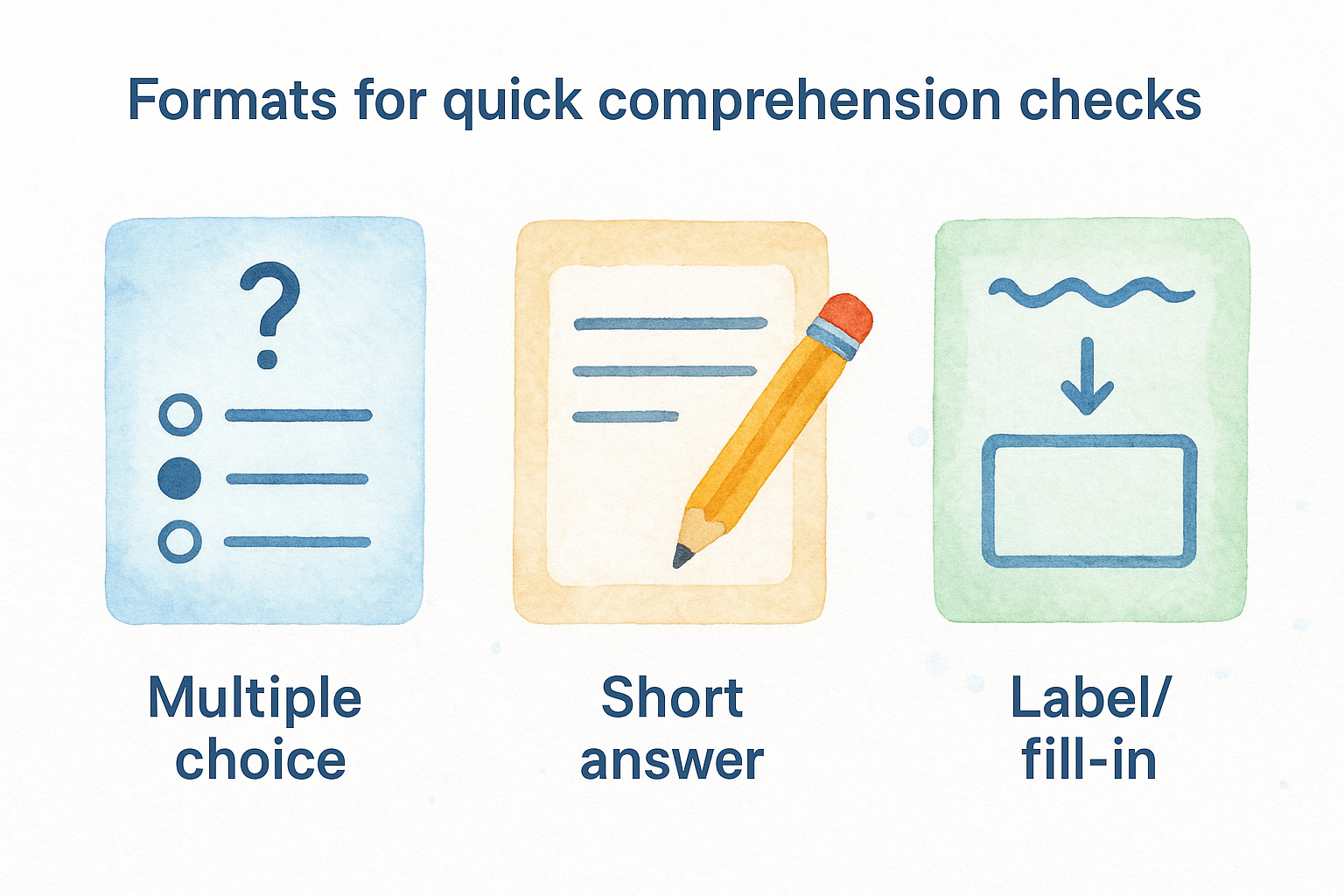
Formats for quick comprehension checks
Seesaw’s multiple-choice and short-answer formats work best when you need a fast read on whether students understood a specific concept. Use the table below to match the format to your purpose:
| Format | Best used when |
|---|---|
| Multiple choice | You want clear right-or-wrong data across the whole class |
| Short answer | Students need to produce a word, number, or brief phrase |
| Label/fill-in | You’re checking vocabulary or diagram recognition |
If you’re unsure which format to use, ask yourself: do I need to see how students think, or just whether they got the answer right?
Formats for deeper evidence of thinking
For lessons where surface-level responses won’t reveal much, Seesaw’s drawing, voice recording, and video tools give you richer evidence. Ask students to annotate a diagram to show their reasoning, or record a voice memo explaining a concept in their own words. These formats take a bit longer to review but reveal far more about exactly where understanding breaks down.
Step 2. Create questions that show real understanding
Once you’ve picked your format, question design determines how much you actually learn from student responses. Weak questions give you weak data. For seesaw formative assessment to work well, your questions need to push students past recall and into applying what they just learned.
Focus on one skill per question
Each question in your activity should target one specific skill or concept, not two or three at once. When a student answers incorrectly, you need to know exactly why. A question like "Explain photosynthesis and compare it to cellular respiration" makes that impossible.
The cleaner your question, the cleaner your data.
Here’s a simple template to follow when writing questions:
| Question element | Example |
|---|---|
| Skill targeted | Identifying the main idea |
| Prompt | "What is the main idea of this paragraph? Use one sentence." |
| Expected response type | Short answer, one sentence |
Use student language, not textbook language
Write your prompts the way you’d explain something out loud in class, not the way a textbook states it. Students respond more accurately when they understand the question clearly. Instead of "Identify the protagonist’s motivation," try "Why does the main character make this choice?" That small shift removes a barrier between the student and the answer.
Step 3. Assign, collect responses, and respond fast
Once your activity is ready, assigning it takes about 30 seconds. Open the activity in Seesaw, tap the green "Assign" button, and select the class or group you want to reach. Students get a notification immediately, so you can assign during a lesson and watch responses come in while you circulate.
Keep an eye on completion as it happens
Seesaw shows you live completion status on your teacher dashboard as students submit. You can see who has finished, who is still working, and who hasn’t started. This means your seesaw formative assessment doesn’t have to wait until the end of class to give you useful data.
Check completion halfway through your allotted time so you can nudge students who haven’t started before the window closes.
Respond to student work directly in the platform
Leaving feedback is fast. Tap any submitted response and add a voice comment, text note, or stamp to acknowledge strong thinking or redirect a student who is off track. Responding while students are still in the room turns feedback into something actionable right away, not something they find two days later.
| Feedback type | When to use it |
|---|---|
| Voice comment | When you want to explain your thinking quickly |
| Text note | When a short written nudge is enough |
| Stamp | When you want to quickly acknowledge effort or completion |
Step 4. Use reports to track progress and reteach
After students submit, Seesaw’s reporting tools show you exactly where the class stands. Open the Class Activity Feed and filter by the assignment you just ran. You’ll see a color-coded breakdown of responses sorted by student, so you can identify who answered correctly and who needs more support before moving on.
Read the class summary first
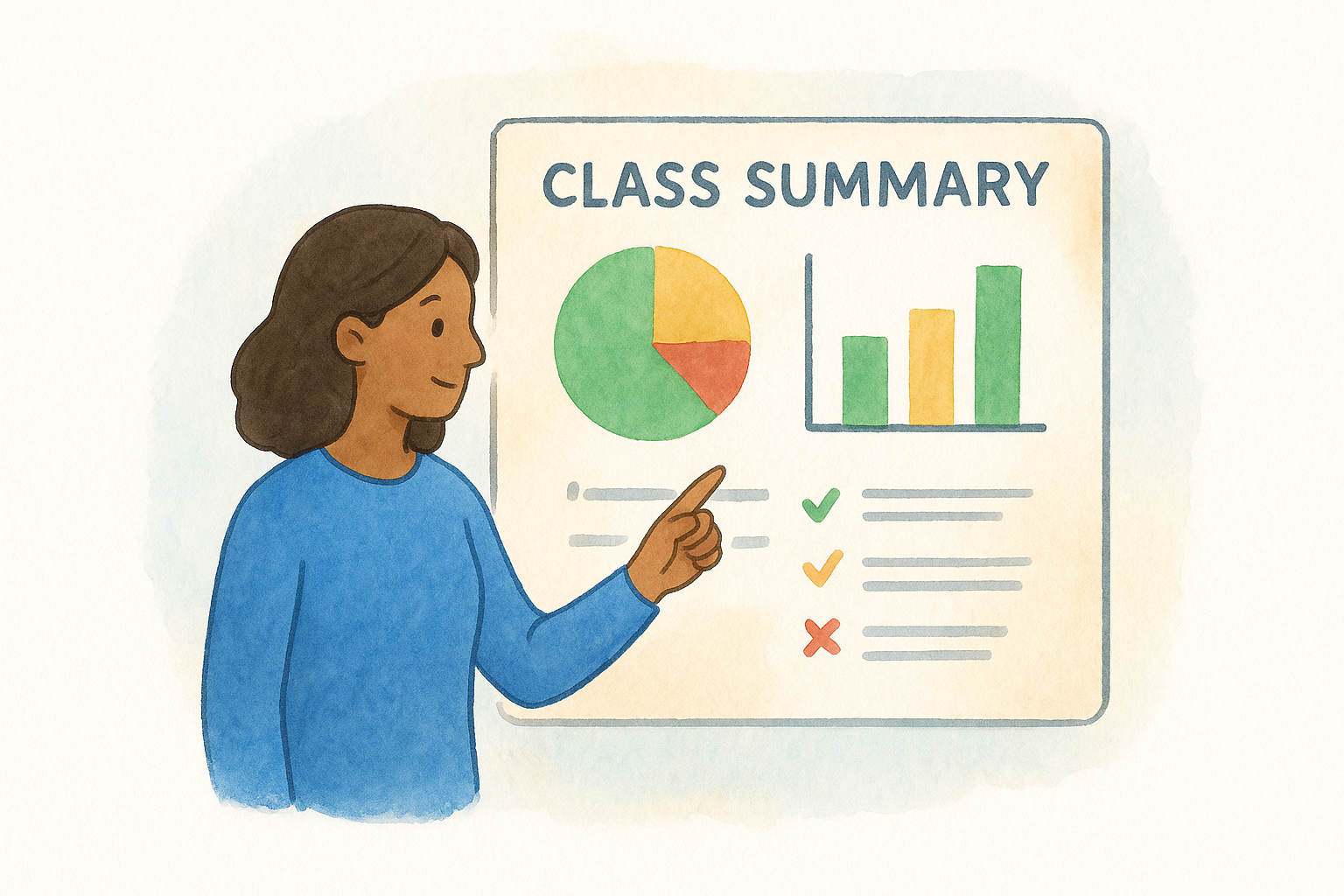
The class summary view gives you a high-level snapshot of how many students answered each question correctly. Look at this before diving into individual responses. If more than a third of your class missed the same question, that’s your signal to reteach that concept whole-group rather than address it one student at a time.
Reteaching based on real data is faster and more effective than guessing which students are lost.
Identify patterns in wrong answers
Once you spot a common misconception, look at the specific incorrect responses students gave. This is where seesaw formative assessment goes beyond a simple score. Sort responses by incorrect answers and look for patterns. If multiple students made the same error, you can address it directly in your next lesson opener with a targeted example that corrects the exact misunderstanding the data revealed.
Next steps for your next lesson
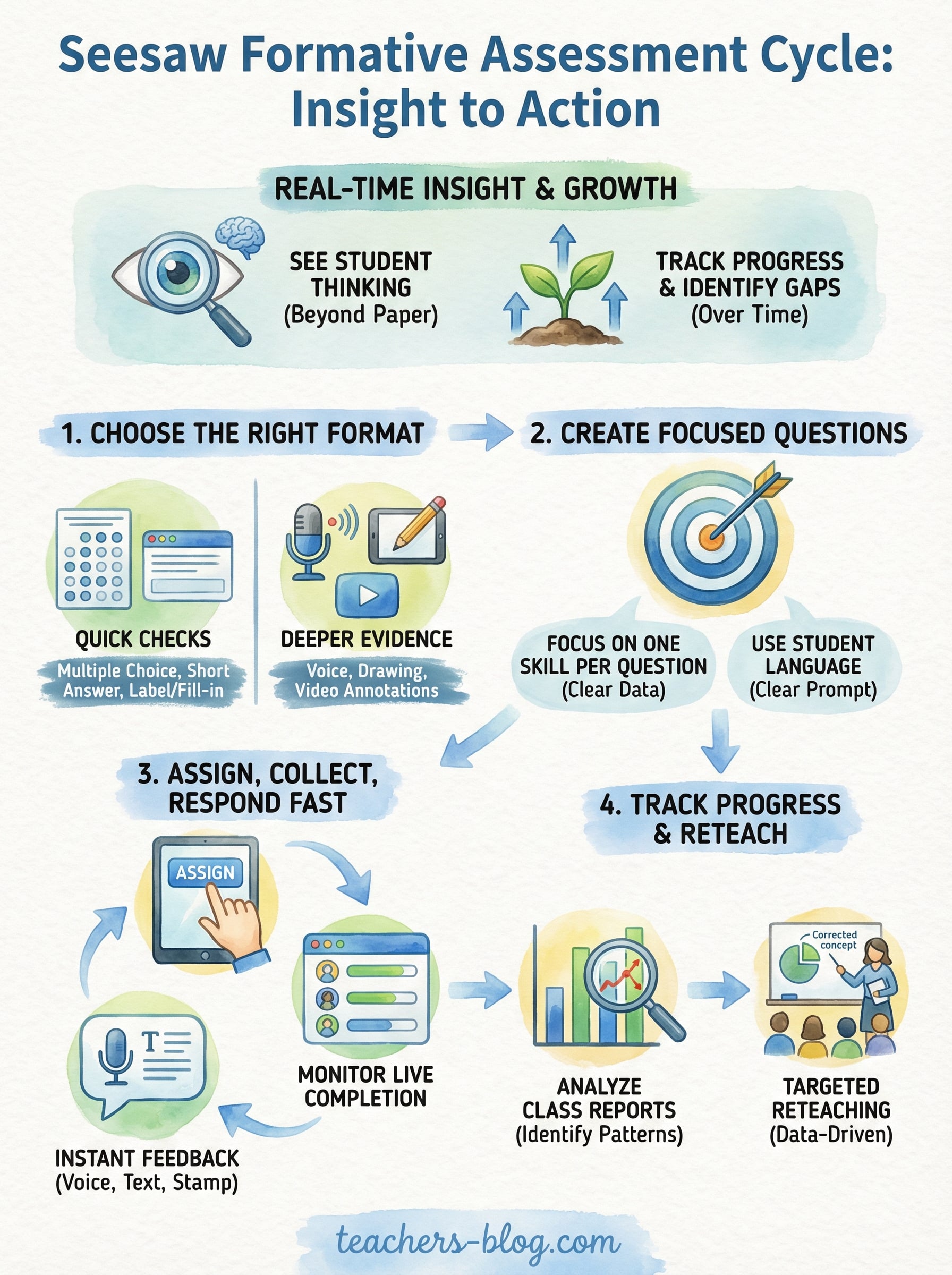
You now have everything you need to run a complete seesaw formative assessment cycle from start to finish. Pick one upcoming lesson this week and build a single activity around it. Choose your format, write one focused question using the template from Step 2, assign it during class, and check the completion dashboard before students leave the room. That’s a realistic starting point that fits into a normal class period without extra prep time.
From there, pull the report after class and identify one pattern in the wrong answers. Use that pattern to design the opening of your next lesson. A targeted five-minute re-teach based on actual student data is more effective than a full review that covers ground students already understand. Small adjustments like this, made consistently, add up quickly across a unit.
For more practical tools and teaching strategies built around real classroom needs, visit The Cautiously Optimistic Teacher.