
NotebookLM (Now Gemini Notebook): What It Is and How to Use It
You have heard colleagues mention NotebookLM in a staff meeting or seen it pop up in a Google account you barely use, and now you want to know what it actually does before you commit any prep time to it. That confusion is fair. Google rebranded the tool, folded in new AI features, and changed the sign in flow, so even teachers who tried it a year ago might not recognize it now.
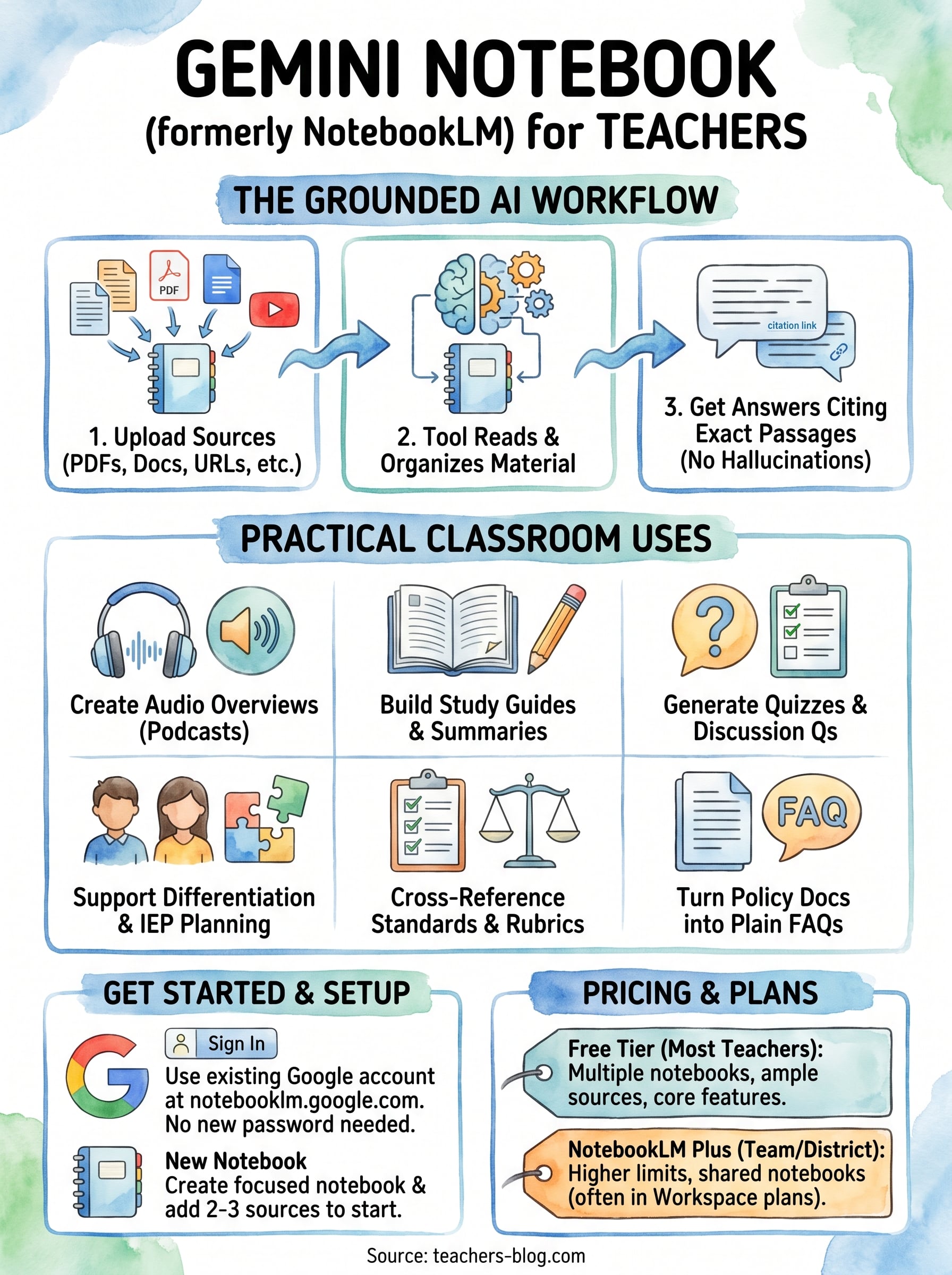
Here is the short answer: NotebookLM is now called Gemini Notebook, and it is a research and note-organizing assistant that reads your uploaded documents, PDFs, or links, then answers questions and summarizes content using only that material. It will not hallucinate outside your sources, which makes it useful for building study guides, unit plans, or lecture notes without pulling random facts from the open internet.
Below, you will find a plain explanation of what the tool does, how to sign in and set up your first notebook, and practical ways teachers are using it to cut grading and planning time. If you already lean on AI tools for differentiation or worksheet creation, this one fits right into that same workflow.
Why NotebookLM matters for busy teachers
Time is the real currency in teaching, and most of it disappears into rereading the same source material three or four times: once to plan, once to build a handout, once to answer a student question about it later. NotebookLM matters because it removes that repetition. You upload the material once, whether it’s a chapter PDF, a district curriculum guide, or your own typed lecture notes, and the tool becomes a searchable assistant that answers questions about that exact content in seconds. For a teacher juggling five preps and a stack of essays, that’s not a novelty feature, it’s a genuine reduction in the number of hours spent hunting through your own files.
Grounded answers beat generic AI chatter
Generic chatbots pull from everything they were trained on, which means they sometimes invent a quote, misstate a date, or blend two unrelated ideas into one confident-sounding paragraph. NotebookLM works differently. It answers strictly from the sources you give it, and it cites the exact passage it used, so you can click back to verify anything before it reaches a lesson plan or a handout. That source-grounded design is the single biggest reason educators trust it more than a general-purpose AI tool for anything tied to a specific text, unit, or set of standards.
If an AI tool can’t show you where an answer came from, don’t put it in front of your students.
This matters even more for Google NotebookLM, since teachers are already using it alongside curriculum documents that carry real academic stakes, like state standards or a novel study built around a specific edition.
Where teachers are already seeing the payoff
Once you see the pattern, the everyday uses pile up fast. Colleagues who’ve adopted it report saving real prep time in a handful of recurring tasks:
- Building study guides: upload a textbook chapter and ask for a summary organized by learning objective.
- Prepping for parent conferences: drop in a folder of a student’s essays or assessments and ask what patterns show up in their writing over the term.
- Cross-referencing standards: upload your state framework alongside a unit plan and ask where alignment gaps exist.
- Creating quick FAQs: turn a dense policy document, like a grading rubric or IEP accommodation list, into plain-language answers you can share with substitutes.
Unlike scattered folders of PDFs, everything lives in one notebook you can revisit and expand as the unit progresses, which keeps your planning workflow in one place instead of five browser tabs. Teachers already using AI for differentiated instruction or worksheet generation tend to pick this up quickly, since the underlying habit, feeding a tool clear source material and asking specific questions, is the same skill. Whether you still call it NotebookLM out of habit or use its new name, the value proposition hasn’t changed: less time digging through documents, more time actually teaching.
How to sign in and set up your first notebook
Getting started takes less time than reading this section. Since Gemini Notebook runs on the same infrastructure as your other Google apps, there’s no separate account to create and no new password to remember.
Signing in with your Google account
Head to notebooklm.google.com and sign in with the same Google account you already use for Gmail, Drive, or Google Classroom. If your school district uses Google Workspace for Education, check with your IT department first, since some districts restrict which AI tools staff accounts can access. Personal Gmail accounts almost always work without any extra setup, which is why many teachers start there before asking their district to approve a school-wide rollout.
Creating and naming your first notebook
Once you’re signed in, click "New Notebook" and give it a name tied to the unit or task at hand, something like "To Kill a Mockingbird Ch. 1-10" rather than a vague label like "Notebook 1." Specific naming matters once you have a dozen notebooks running across different classes and preps.
A notebook is only as useful as the sources you feed it, so start narrow and specific rather than broad and general.
Uploading your first sources
From there, upload your material. NotebookLM accepts:

- PDFs (textbook chapters, scanned worksheets, rubrics)
- Google Docs and Slides directly from your Drive
- Website URLs
- Pasted text
- YouTube video links, which it can transcribe and summarize
Add two or three sources to start, since a focused source set produces sharper answers than dumping in an entire semester’s worth of material at once. Once your sources finish processing, a chat window appears where you can ask questions. Try something concrete first, like "summarize the main themes in chapter three," to confirm the tool is reading the material the way you expect before you build an entire lesson around it.
Practical ways to use NotebookLM in your classroom
Once your first notebook is running, the real question becomes where to point it next. Teachers who stick with NotebookLM past the first week tend to fold it into specific recurring tasks rather than treating it as a general chatbot, and that focus is what makes the time savings add up.
Turning readings into audio overviews
Gemini Notebook can generate a short, podcast-style audio summary of whatever sources you’ve uploaded, which works well for students who process spoken content better than text or for a sub plan when you’re out sick. Upload a chapter, generate the overview, and share the audio link instead of writing a summary from scratch. Students who missed class get a review they can listen to on the bus instead of a worksheet they’ll skim.

The audio overview feature turns a dense reading into something a student can absorb on a fifteen-minute commute.
Generating discussion questions and quick quizzes
Ask your notebook to generate open-ended discussion questions or a short comprehension quiz straight from the uploaded text, and you skip the step of writing questions from memory or hunting through a teacher’s guide. This pairs naturally with a question generator workflow if you already use one for critical thinking prompts.
Supporting differentiation and IEP planning
Upload a student’s IEP or 504 plan alongside a unit’s core reading, then ask what accommodations apply to specific assignments. That single question can replace ten minutes of flipping between two documents.
| Task | What you upload | What you ask |
|---|---|---|
| Sub plan | Chapter PDF | "Generate an audio summary" |
| Discussion prep | Novel excerpt | "List five open-ended questions" |
| Accommodations check | IEP + assignment sheet | "What modifications apply here?" |
Each of these tasks takes minutes, not a planning period, and the source-grounded answers mean you’re not double-checking facts before you hand material to students.
NotebookLM pricing and plans explained
Money matters when you’re deciding whether to bring a new tool into your classroom, so here’s the practical breakdown. Gemini Notebook offers a free tier that covers what most teachers need: a set number of notebooks, a generous source upload limit per notebook, and full access to chat, summaries, and audio overviews. You don’t need a credit card to start, and the free version is what most educators use for a full school year before ever considering an upgrade.
What the free plan actually includes
Google keeps the free tier usable rather than gutted, which is unusual for AI tools right now. You get multiple notebooks, dozens of sources per notebook, and the same core chat and audio features as paid users, just with lower daily usage caps. For a single teacher managing a handful of units at a time, those caps rarely become a real obstacle.
Most teachers never need to pay for NotebookLM, and that alone sets it apart from most AI tools marketed to classrooms.
When NotebookLM Plus makes sense
NotebookLM Plus comes bundled into paid Google Workspace and Google One AI plans, and it raises the ceiling on notebooks, sources per notebook, and daily queries. It also adds features like shared notebooks for team planning and customizable audio overview styles. A department chair coordinating notebooks across an entire grade level, or a district running a shared curriculum library, is the realistic use case here, not an individual classroom teacher.
| Plan | Notebooks | Sources per notebook | Best for |
|---|---|---|---|
| Free | Multiple | Dozens | Individual teachers |
| NotebookLM Plus | Higher limit | Higher limit | Departments, districts |
Check Google’s official NotebookLM help documentation before budgeting anything, since usage limits and plan details shift as Google keeps rolling this tool into its broader Gemini lineup. If your district already pays for Google Workspace for Education, ask your IT department whether Plus features are already included before you assume you need a separate purchase.
Bringing it into your teaching routine
You don’t need a training day or a district mandate to start using NotebookLM. Pick one unit you’re teaching next week, upload the chapter or handout, and ask one specific question. That small test tells you more than any product page ever could. Google will likely keep tweaking the name and features under the Gemini Notebook label, but the core habit stays the same: feed it clean sources, ask precise questions, and let it save you the rereading.
Notebooklm works best as one tool in a bigger toolkit, alongside the worksheet generators and differentiation helpers you may already lean on for daily prep. Start small, see what sticks, and expand from there. If you want more classroom-tested AI strategies like this one, browse the blog for tools built specifically for teachers juggling real preps and real deadlines.