
6 Interactive Educational Technology Tools Teachers Love
Students learn better when they’re actively doing something, not just sitting and listening. That’s where interactive educational technology comes in. These are digital tools that turn passive screen time into hands-on learning experiences, giving students real ways to engage with content, collaborate with peers, and demonstrate understanding.
But here’s the thing: there are hundreds of edtech tools out there, and most teachers don’t have time to test-drive all of them. You need options that actually work in a real classroom, not just ones that look good in a sales demo. At The Cautiously Optimistic Teacher, we focus on practical tools and strategies that make your teaching life easier, and that includes helping you sort through the noise when it comes to classroom technology.
This article breaks down six interactive tools that teachers genuinely use and recommend. For each one, you’ll find what it does, how it works in practice, and which type of classroom activity it fits best. Whether you’re looking to boost participation, differentiate instruction, or just add some variety to your lessons, there’s something here worth trying.
1. The Cautiously Optimistic Teacher AI Tools
The Cautiously Optimistic Teacher offers a suite of AI-powered tools built specifically for educators. These aren’t generic tools that happen to work in classrooms. They were designed with real teaching workflows in mind, which makes them a practical starting point for any teacher exploring interactive educational technology.
What makes these tools interactive in practice
Each tool responds directly to your specific input. The Differentiated Instruction Helper takes your lesson details and generates tailored versions for different learners. The Question Generator turns any piece of text into critical thinking questions your students can work through in class, making the content feel responsive rather than static.
Best ways to use them for planning and instruction
Use these tools during your planning window to cut preparation time significantly. The Worksheet Maker lets you build customized materials from your own keywords, and the Report Card Commentor helps you write individualized comments without starting from scratch. Both tools save time on tasks that would otherwise take hours.
When you reduce time spent on administrative tasks, you free up more energy for what actually matters: teaching.
Suggested classroom workflows
Start with the Question Generator to build discussion prompts from your current unit material. Then pair the Differentiated Instruction Helper with your existing lesson plans to build tiered versions for students who need more support or more challenge.
A simple three-step sequence works well:
- Generate discussion questions for your warm-up activity
- Build a differentiated version of the core task for varied learner needs
- Assign a custom worksheet as an independent practice or exit activity
Common mistakes to avoid
Don’t use the output from these tools without reviewing it first. AI tools work best when you treat them as a strong first draft. Also, avoid jumping to multiple tools simultaneously before you’re comfortable with each one on its own.
Pricing and access
All tools are available on The Cautiously Optimistic Teacher website. Several features are free to access, with additional options available through the site’s paid resources and community offerings.
2. Nearpod
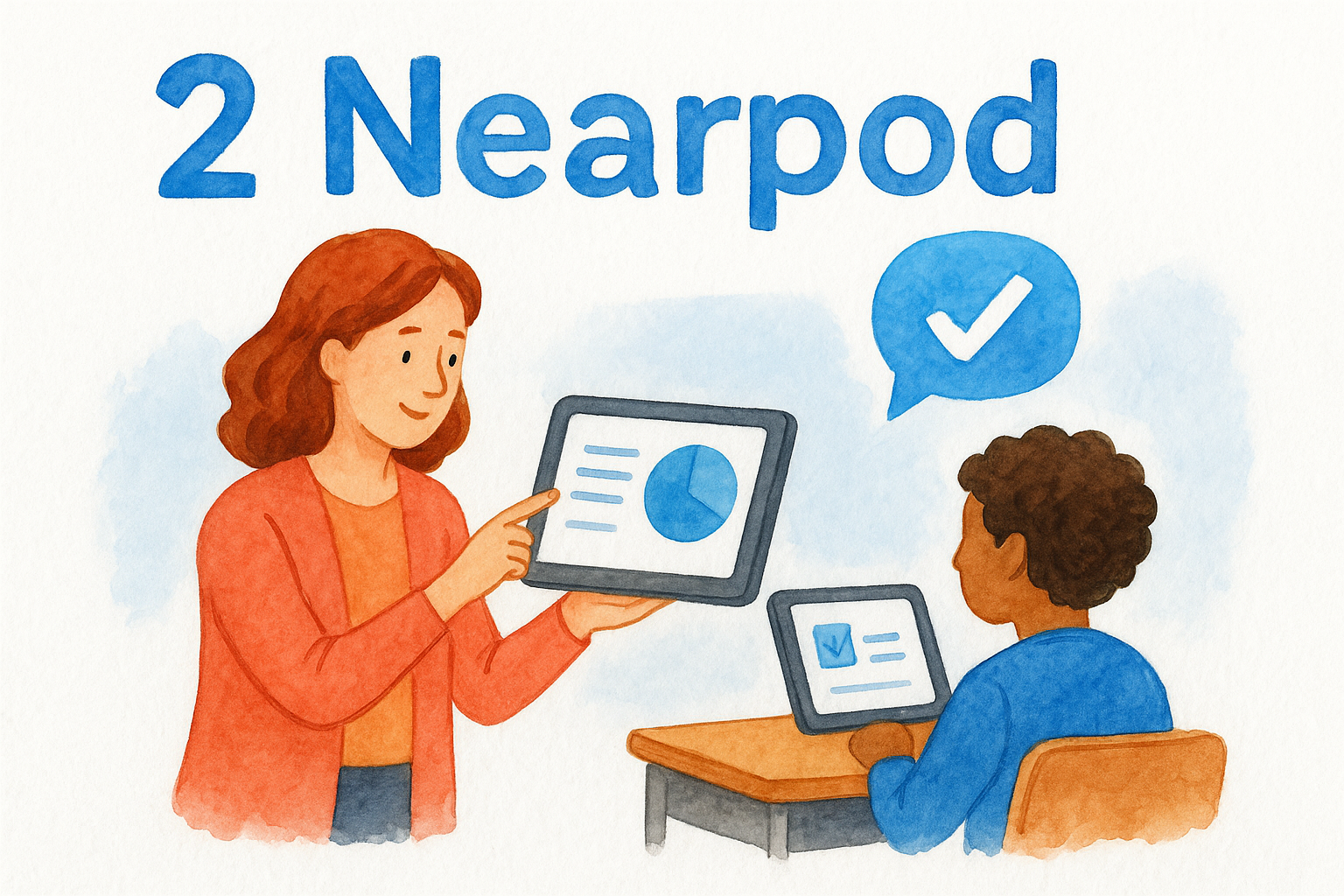
Nearpod is a slide-based presentation tool that transforms your lessons into genuine interactive educational technology experiences. Students join sessions on their own devices and respond to activities built directly into your slides, rather than just watching you click through them.
What it does best
The tool embeds polls, quizzes, open-ended questions, and virtual field trips right into your presentations. It gives you real-time response data so you can spot where students are struggling before the lesson ends, not after.
Its core strength is visibility. You monitor every student’s response from your teacher dashboard, which makes it far easier to catch misconceptions early and redirect instruction on the spot.
Best use cases by subject and grade band
Nearpod fits naturally into ELA and social studies classes where comprehension and discussion are central. Science teachers use the 3D models and virtual labs to give students something hands-on even during whole-class instruction.
How to run a smooth Nearpod lesson
Launch the session from your dashboard and share the join code or link with students. Use teacher-led mode for direct instruction, then shift to student-paced mode when you want students working independently or in small groups.
Switching between modes mid-lesson lets you control pacing without building two separate activities.
Tips for checks for understanding
Use the draw-it slides for quick visual responses and open-ended questions when you need written evidence of thinking. Both options generate formative data you can act on the same day.
Pricing and access
Nearpod offers a free plan supporting up to 40 participants per session. Paid tiers unlock larger class sizes, more storage, and deeper reporting features for tracking student progress over time.
3. Pear Deck
Pear Deck integrates with Google Slides and Microsoft PowerPoint, turning your existing presentations into interactive educational technology sessions where every student responds to every prompt. Students join from any device and submit answers that only you see on the teacher dashboard.
How Pear Deck keeps every student participating
With Pear Deck, every student submits a response before the class moves forward. There’s no hiding. This structure raises participation rates noticeably, especially for students who rarely volunteer aloud.
When Pear Deck beats slides alone
Standard slides give students one role: watching. Pear Deck changes that by requiring active responses throughout a lesson. Use it when you need evidence of understanding from every student, not just the few who always raise their hands.
If your goal is real-time data on where each student stands, Pear Deck delivers it more consistently than a show-of-hands ever will.
Question types that work well for formative assessment
Pear Deck supports draggable responses, text answers, multiple choice, and drawing prompts. Draggable questions fit number lines and ranking tasks especially well. Text responses give you written reasoning you can screenshot and discuss with the whole class.
Classroom management and pacing tips
You control when slides advance, so students can’t skip ahead. Lock responses when you’re ready to discuss, then project anonymized answers to spark whole-class conversation without singling anyone out.
Pricing and access
Pear Deck offers a free basic tier that covers most core features. The Premium plan unlocks additional question types, deeper reporting, and extended session history.
4. Kahoot!
Kahoot! is a game-based quiz platform that turns review sessions into competitive, fast-paced activities students actually look forward to. It’s one of the most recognizable names in interactive educational technology, and for good reason: it requires almost no setup time and delivers immediate student engagement.
What Kahoot does well for engagement
Kahoot! runs as a timed quiz game where students compete for points by answering questions quickly and correctly. The leaderboard structure creates energy in the room, and students who usually disengage tend to stay focused when a game element is involved.
How to write questions that measure learning
Resist the urge to write only recall-level questions. Mix in application and analysis prompts to push students beyond surface knowledge. Keep answer choices distinct enough that guessing is harder, which gives you cleaner data on actual understanding.
Ways to keep it inclusive for all learners
Not every student thrives under time pressure. Switch to team mode so students collaborate on answers rather than compete individually. You can also reduce point weighting for speed, shifting the focus toward accuracy over reaction time.
Team mode often reveals more about student thinking than solo play, since students have to argue for their answers out loud.
Data and follow-up moves after the game
Your post-game report shows question-by-question accuracy rates. Use that data to identify which concepts need a reteach before moving forward.
Pricing and access
Kahoot! offers a free basic plan for teachers. Paid tiers add more question types, student reports, and collaborative team features.
5. Padlet
Padlet is a flexible digital board where students post text, images, links, and files to a shared space visible to the whole class. It works well as interactive educational technology because it makes student thinking public and collaborative without requiring much technical skill from you or your students.
What Padlet does best for visible thinking
When you want every student’s response on display at once, Padlet is the right tool. Students post simultaneously, and the class scrolls through responses, reacts to peers’ ideas, and builds on each other’s thinking. This structure works especially well for brainstorming, pre-reading activations, and end-of-class reflections.
Go-to board formats for different activities
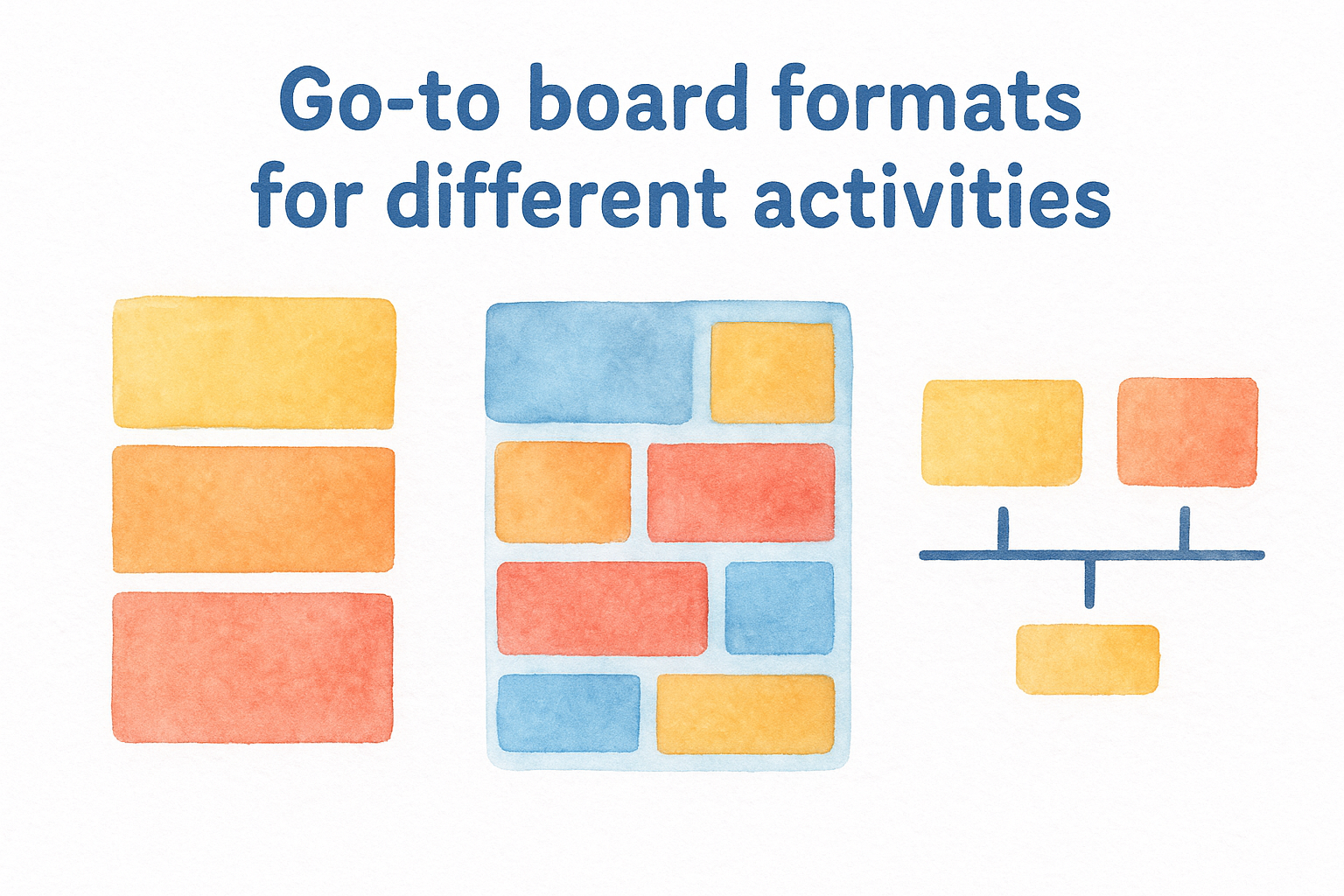
Padlet offers several layout options worth knowing. The shelf format works well for sorting and categorization tasks. The wall format fits open brainstorms, while the timeline layout suits sequencing activities in history or narrative writing units.
Moderation, safety, and digital citizenship basics
Turn on post approval before students start so you review content before it goes live on the board. This single setting handles most classroom safety concerns without slowing the activity down significantly.
Enabling moderation takes under a minute and prevents almost every content issue before it reaches the board.
Fast routines for feedback and discussion
Use Padlet’s like or star reaction feature to have students identify strong peer responses. Then pull up two or three highlighted posts on your projector for a short whole-class discussion.
Pricing and access
Padlet’s free plan allows three active boards. Paid plans unlock unlimited boards, additional storage, and privacy controls that work particularly well in school settings.
6. Edpuzzle
Edpuzzle transforms any video into an interactive educational technology experience by embedding questions directly at specific timestamps. Students must answer before the video resumes, replacing passive watching with genuine active engagement throughout the lesson.
How Edpuzzle turns video into active learning
You decide exactly where questions appear, and students cannot skip past them without responding. The tool supports both multiple choice and open-ended questions, giving you flexibility based on the level of thinking you want students to demonstrate.
How to choose or build effective video lessons
Keep your videos under ten minutes and trim any footage that doesn’t directly support your learning objective. Place questions at the exact moment a key concept appears rather than saving them all for the end.
Embedding a question right when a concept first appears forces students to process it in the moment, not after the video finishes.
Accountability without busywork
Edpuzzle records each student’s responses and watch history automatically. You can see who completed the assignment and who rewatched sections, which gives you real accountability data without any additional tracking on your end.
Grading, feedback, and re-teach workflows
Your teacher dashboard displays class-wide accuracy rates broken down by question. When most students miss a specific question, flag that concept for direct reteaching at the start of your next class before moving forward.
Pricing and access
Edpuzzle offers a free teacher plan covering up to 20 active videos. Paid school plans unlock unlimited videos and advanced reporting features.
Bring One Tool Into Class Tomorrow
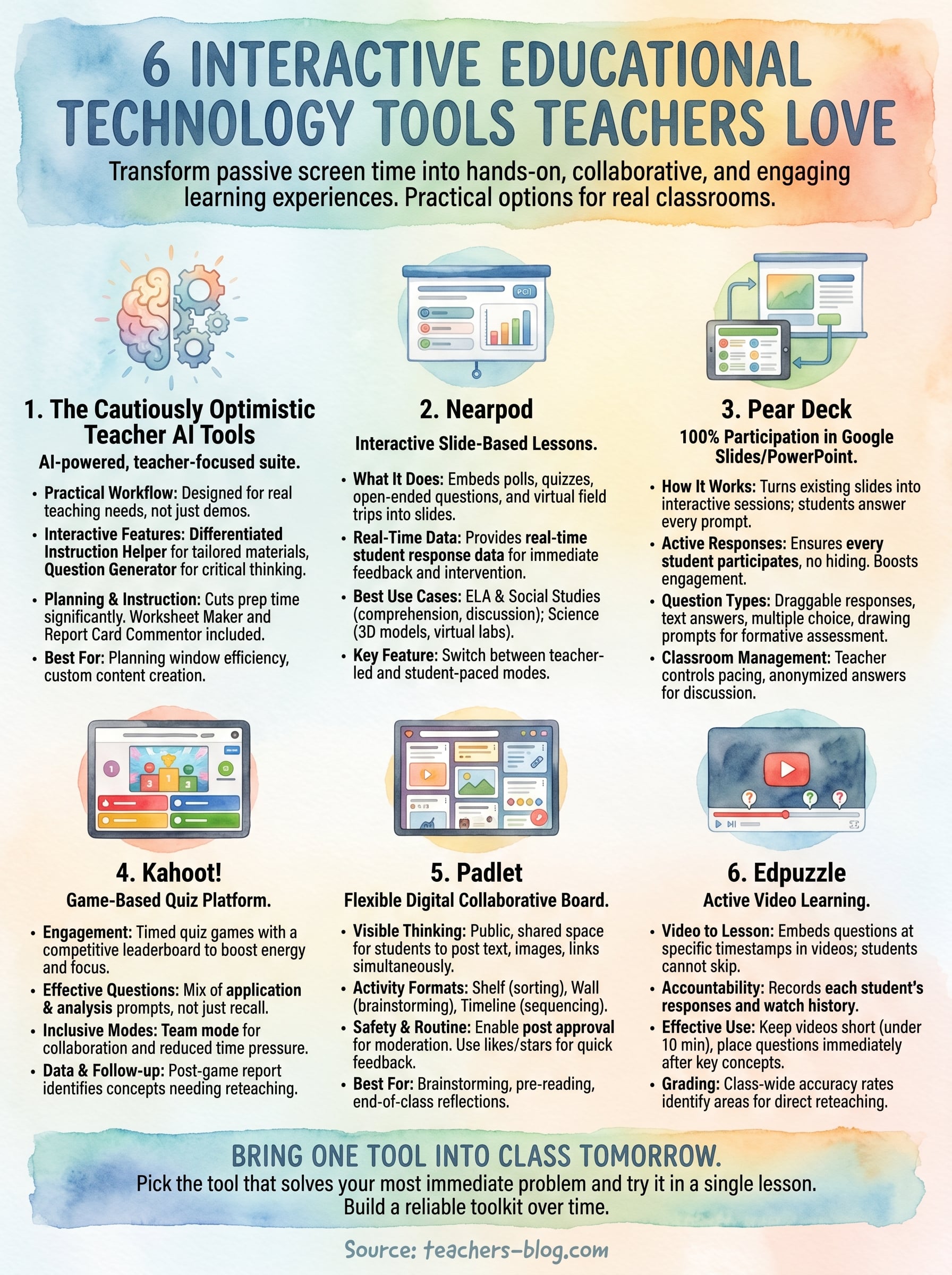
You don’t need to overhaul your entire teaching practice to benefit from interactive educational technology. Pick one tool from this list that fits what you’re already doing this week and try it in a single lesson. That’s it.
Start with the tool that solves your most immediate problem. If student participation is the issue, try Pear Deck or Nearpod. If you need a quick review activity, run a Kahoot! game. If you want students responding to video content, build one Edpuzzle lesson tonight.
Once you’ve run one successful lesson, adding a second tool becomes much easier. The goal isn’t to use all six at once. Build a small, reliable toolkit you actually reach for, and your students will notice the difference.
For more practical strategies and AI-powered tools designed specifically for educators, visit The Cautiously Optimistic Teacher and explore ready-to-use resources that make your classroom more efficient and effective.