
How to Convert a PDF to an Interactive Worksheet (3 Free Ways)
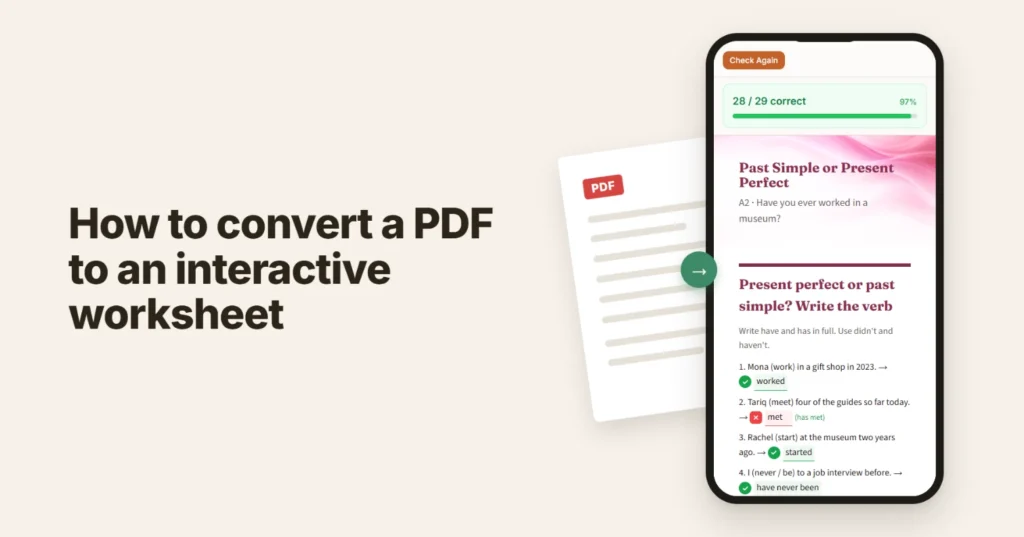
You already have the worksheet. It is a PDF in your Drive or a page in the textbook. The problem is everything after the photocopier: thirty copies, answers coming back as printouts, attachments and photos, and an evening spent marking them. For students, a PDF is awkward to fill in at all.
You can convert a PDF to an interactive worksheet in three free ways: rebuild it in Google Forms, draw answer boxes on top of the PDF, or let an AI converter rebuild it for you. All three end the same way. Students open a link, answer on any device, and see straight away which answers are right.
What is an interactive worksheet?
An interactive worksheet is a self-checking worksheet students complete online: each answer is checked the moment they press Check.
For you, that means the marking is done: gap fills and multiple choice are checked automatically, so your evening is not spent going through every sheet. Everything also sits in one place: the worksheet, each student’s answers and their score, instead of printouts, email attachments and photos of handwriting spread across your inbox and your desk.
Why PDF homework is hard on students
A PDF is made for printing, not for answering. Seen from the student’s side, PDF homework usually goes like this:
- Print it, or find an app that lets you type on a PDF.
- On a phone, zoom and scroll to reach each gap, then type into a box too small for the answer.
- Save the file, attach it, send it, and hope your answers show up on the teacher’s copy.
- Or write on paper, photograph it, and send a picture the teacher has to squint at.
None of those steps is part of the exercise, and each one is a reason to leave the homework for later. An interactive worksheet is one link that opens on the phone they already carry, so ten minutes on the bus is enough.
That convenience is not a small thing. Homework is where most of the practice happens, and it is the easiest part of learning to skip. When it opens in one tap and answers back at once, students put it off less and worry about it less. Over a term, that can be the difference between a student who keeps going and one who quietly gives up on the subject.
Method 1: Rebuild it in Google Forms
Forms will not read your PDF unless your school’s plan includes Gemini, so in most cases you retype the questions and Forms marks them.
- Create a form, open Settings and turn on Make this a quiz.
- Retype each question as multiple choice, dropdown or short answer.
- Mark the right answer in each question’s Answer key.
- Send the link, or post it to Google Classroom.
Good for multiple-choice quizzes in Google Classroom. The catch: you retype everything, a gap inside a sentence becomes a separate question, and short answers must match exactly, so “dont” is wrong unless you add it to the key.
Method 2: Draw answer boxes on top of the PDF
Liveworksheets and Classwork.com (formerly TeacherMade) keep your page as it is and put answer boxes on top of it.
- Upload the PDF.
- Draw a box over each blank and type the right answer into it.
- Share the link.
Good when the look of the page matters. The catch: a page with 20 gaps means about 20 boxes to draw, and on a phone the whole page shrinks until the boxes are hard to tap.
Method 3: Let an AI converter rebuild it
An AI converter reads the page and rebuilds each exercise as a real online one: a gap becomes a typing box inside the sentence, options become multiple choice, two columns become matching.
MakeLesson has a free PDF to interactive worksheet converter.
- Upload the PDF, or a photo of the page.
- Press Make the worksheet and wait about a minute.
- Share the link.
Good for mixed pages and for students on phones. The catch: AI can get an answer wrong, so check the answers before you share the link.
The three methods compared
| Google Forms | Answer boxes on the PDF | AI converter | |
|---|---|---|---|
| What you do | Retype every question | Draw a box for each answer | Upload, then check |
| Time for a 15-question page | About 30 minutes | About 15 minutes | About 2 minutes |
| Checks answers automatically | Yes, exact match only | Yes | Yes |
| Changing it later | Edit each question by hand | Redraw boxes by hand | Type what to change |
| Gaps inside a sentence | No | Yes | Yes |
| Works from a phone photo | No | Yes | Yes |
| Easy to answer on a phone | Yes | Boxes get small | Yes |
Frequently asked questions
Can I convert a PDF to an interactive worksheet for free?
Yes. MakeLesson’s PDF to interactive worksheet converter is free, and you don’t need an account to make and share a worksheet. Google Forms is free too, but you retype the questions.
Can I make an interactive worksheet from a photo?
Yes, if the tool reads images. An AI converter takes a photo of the page as well as a PDF, and the exercises come back online.
Which exercises can a PDF worksheet become?
Gaps, multiple choice, dropdowns, matching, unscramble, crosswords and writing tasks. An AI converter rebuilds each one as the right type.
Do students need an account to answer it?
Not with MakeLesson: students open the link on a phone, tablet or laptop. Google Forms asks them to sign in if you collect email addresses.
How do I see my students’ scores?
In MakeLesson, sign in free and assign the worksheet, and you see each student’s score.
Can I edit the worksheet after converting it?
In most tools you edit by hand. In MakeLesson you type what to change, such as “add two more questions to exercise 2”.
Can an interactive worksheet include listening exercises?
Yes. In the same editor you ask for one, such as “add a short dialogue to listen to”, and the audio is generated in the voice you choose.
Can I convert worksheets in other languages?
Yes. The free converter above works in most languages, and the worksheet keeps the page’s own language.