
Browser Personalization as a Digital Citizenship Lesson
Digital citizenship lessons often focus on serious topics: privacy, cyberbullying, misinformation, passwords, and permanent online records. Those topics matter, but students can find them abstract when every example begins with a warning. Browser personalization offers a more approachable starting point.
Asking students to evaluate a custom cursor, theme, or extension creates an immediate and concrete discussion. They already understand why someone might want a device to look different. From there, a teacher can introduce questions about permissions, accessibility, identity, school policies, and responsible participation online.
Start With a Choice Students Understand
Most students personalize something. It may be a phone wallpaper, profile image, game character, playlist cover, or Chromebook background. A cursor belongs to the same family of choices, but it also has a practical job: it must help the user point, select, and navigate.
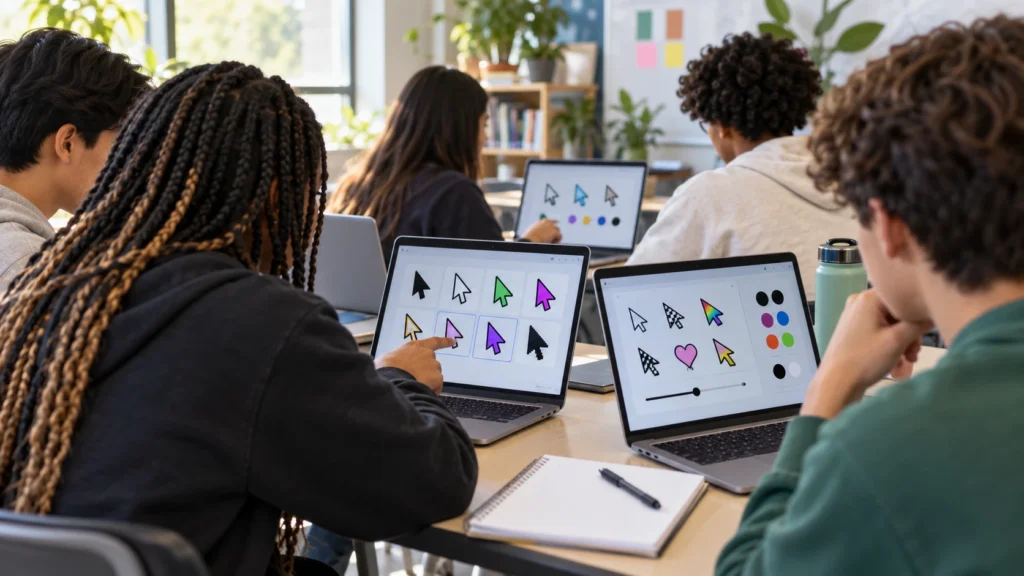
That makes it useful for a quick classroom comparison. Show students several cursor concepts – large and small, animated and static, high contrast and low contrast – and ask which would be easiest to use on a bright page, a dark page, or a presentation screen.
Students can explore examples of custom cursors for Chrome and then explain which design they would choose and why. The activity naturally moves beyond “I like this one” toward evidence-based reasoning about visibility, distraction, and usability.
Turn Extension Installation Into a Permission Check
A browser extension should never be treated as a decoration that magically appears. Before installing any extension, students should learn to pause and review the listing, developer information, requested permissions, recent updates, and school policy.
A simple checklist can guide the discussion:
- Is the extension installed from an official browser marketplace?
- What does it say it can read or change?
- Does its purpose match the permissions it requests?
- Is it allowed on the school-managed account or device?
- Can the student remove it if it is no longer useful?
- Does it work only on ordinary websites, or are some browser and administrator-controlled pages restricted?
The point is not to make students afraid of extensions. It is to teach a repeatable decision process. The same process applies later to study tools, ad blockers, note-taking extensions, accessibility aids, and productivity software.
Connect Personalization to Accessibility
Custom cursors create a useful opening for accessibility. Some users benefit from a larger pointer, a strong outline, or a color that stands out against the page. Others may find animation distracting or difficult to track.
Students can test designs against several backgrounds and record what changes. Does the pointer disappear on white? Is the click point obvious? Does an effect cover small buttons? Can the cursor still be followed while a page scrolls?
This reframes personalization as more than style. A design can be expressive and functional at the same time. It also teaches students that an interface that works for one person may not work equally well for someone else.
Discuss Identity Without Demanding Personal Disclosure
Young people use visual choices to signal interests and group membership. A cursor based on a color palette, a cute theme, or a gaming aesthetic may feel like a small piece of identity. Teachers can discuss that idea without asking students to reveal private information.
Useful prompts include:
- What can visual choices communicate about a person?
- When might someone choose a neutral design instead?
- Why do people use different identities in school, gaming, and family spaces?
- Which details should remain private even in a friendly online community?
The conversation can then expand to usernames, avatars, chat rooms, private messages, and video calls. Students should understand that self-expression does not require sharing a real name, location, school schedule, or other identifying details.
Include Games in the Same Safety Conversation
Browser games are often treated as separate from social media, yet many now include rooms, invitations, chat, reactions, profiles, or leaderboards. Cursor Style, for example, combines its cursor-focused experience with community features and lightweight browser games, including a multiplayer snake game with rooms and chat.
That combination creates a realistic digital citizenship scenario. A student may move from customizing a browser to messaging friends and joining a game without feeling that they have entered a completely different environment. The safety expectations should move with them.
Teachers can ask students to create three rules for any social browser game. Strong answers may include using private room links carefully, avoiding personal information in chat, blocking or reporting unwanted behavior, and leaving a room when something feels wrong.
A Short Classroom Activity
This lesson can fit into one class period:
- Compare three cursor designs for visibility and distraction.
- Review a fictional extension permission list.
- Identify which personal details are safe, risky, or context-dependent to share.
- Write a short code of conduct for a browser chat or multiplayer room.
- End with an exit ticket: “What will you check before personalizing a browser?”
Students leave with a practical habit rather than a vague warning. They learn that customizing technology is allowed to be fun, but every digital choice has functional, privacy, and community consequences.
Personalization With Judgment
Digital citizenship is not only about avoiding danger. It is about using technology deliberately. A custom cursor may seem like a tiny subject, yet it can help students practice evaluating software, respecting device rules, considering accessibility, protecting personal information, and behaving responsibly in shared online spaces.
When lessons begin with choices students already care about, the larger principles become easier to remember – and easier to apply outside the classroom.