
Adobe Express for Education: What It Is and How to Use It
You have probably heard colleagues mention Adobe Express in the staff lounge, usually right after they show off a slick student video project. Adobe Express for education is Adobe’s free, K-12 and higher ed version of its design and video tool, and it comes loaded with templates, stock assets, and AI features that most districts already clear for use. If you have been on the fence about adding another tool to your tech stack, this is the one worth your time.
This article gives you a straight answer on what the platform includes and how to actually get your class set up with it. You will learn how to verify your school email, connect through Google Classroom or Clever, and manage student accounts without a mountain of paperwork. We also break down the AI-powered features, like text-to-image and background removal, so you know exactly what your students can and cannot do inside district content filters.
By the end, you will have a clear plan for using Adobe Express in real assignments, from book trailers for To Kill a Mockingbird to visual essays and presentation graphics. No fluff, just the practical setup steps and classroom uses that make this tool worth adding to your lesson plans this year.
Why Adobe Express matters for K-12 classrooms
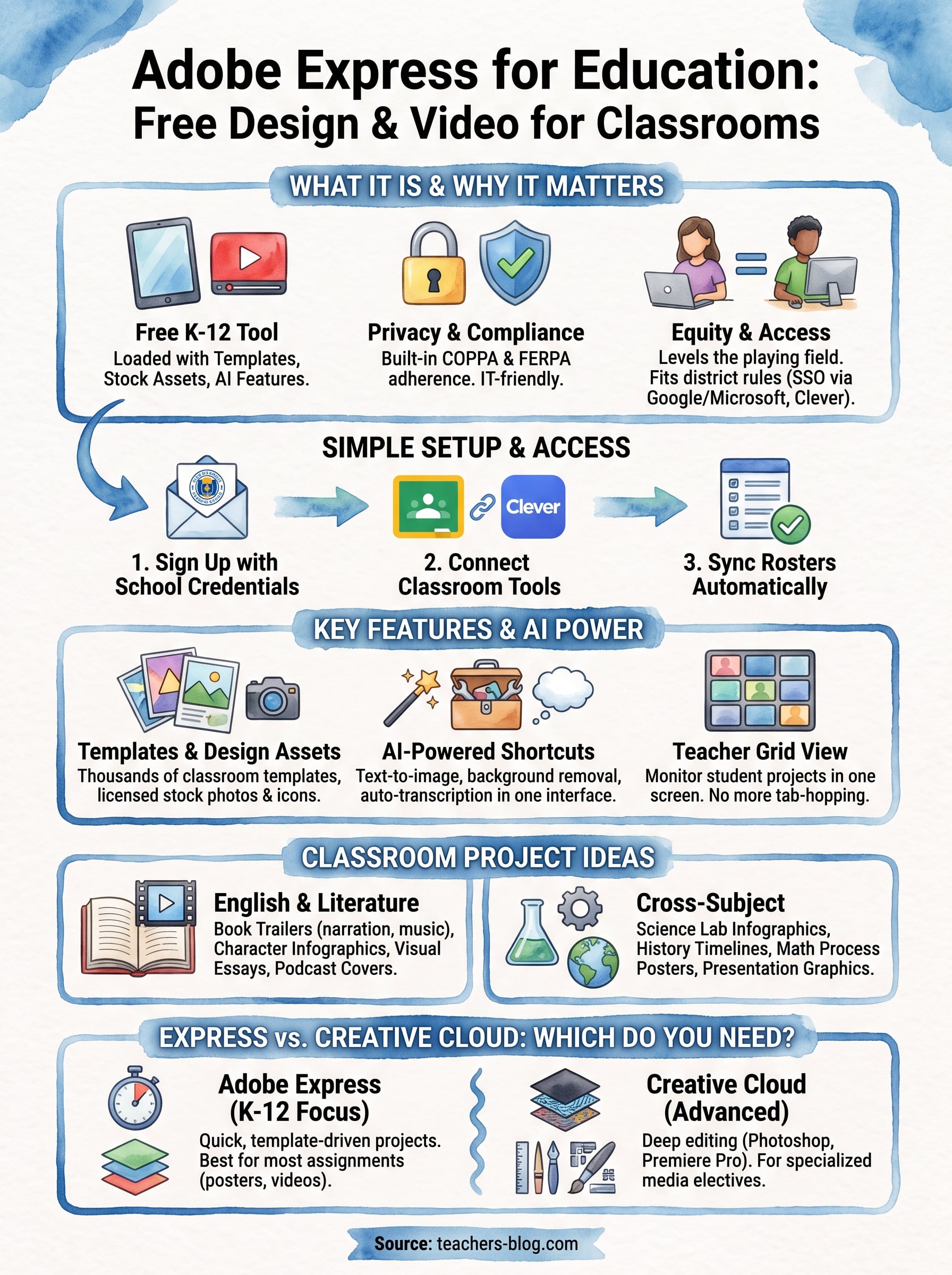
Most districts hesitate before adding a new app, and for good reason. Adobe built its education version with student data privacy baked in, following COPPA and FERPA guidelines that your IT department will actually recognize. Adobe publishes its compliance details directly, including alignment with student privacy laws, so you are not stuck explaining the tool to your administrator from scratch.
It already fits your district’s rules
Getting a new tool approved usually eats weeks of your prep time, but Adobe Express skips that delay because it slots into systems schools already use. You get single sign-on through Google Workspace for Education or Microsoft 365, which means no separate password for twelve-year-olds to lose.
- Works with existing Google Classroom rosters
- Syncs through Clever for districts that use it
- Meets FERPA and COPPA requirements out of the box
- Offers free premium features for verified teachers and students
It puts design tools in every student’s hands
Before tools like this existed, only the kids with design software at home could make a polished slideshow or video. Adobe Express for education levels that out by giving every student the same templates, fonts, and stock photos, regardless of what is sitting in their home computer.
A free, district-approved design tool removes the excuse gap between students who have tech at home and those who don’t.
Teachers notice the difference fast. Assignments that used to come back as plain text documents now show up as infographics, short videos, and branded presentations, and grading them feels less like reading and more like reviewing actual work.
How to set up and access Adobe Express for Education
Getting started takes less time than setting up a new gradebook. Adobe Express for education is free for verified teachers and students, and the sign-up process runs through your existing school email, not a separate account system you have to babysit.
Sign up with your school credentials
Head to Adobe’s education page and choose to sign in with Google or Microsoft, whichever your district already uses. Adobe checks your school domain against its list of verified institutions, and most .edu or district-issued addresses clear instantly.
- Go to the Adobe Express for Education page and click “Get Started”
- Sign in with your school Google or Microsoft account
- Confirm your role as teacher or student when prompted
- Create or join a class using a shared class code
Connect it to your existing classroom tools
Once you are verified, link Adobe Express to Google Classroom so rosters sync automatically instead of you typing thirty names by hand. Districts using Clever can enable single sign-on the same way, which matters if your school locks down which apps students can open.
If your district is not on Adobe’s approved list for K-12 institutions, your tech coordinator can request verification directly, usually with a turnaround of a few days.
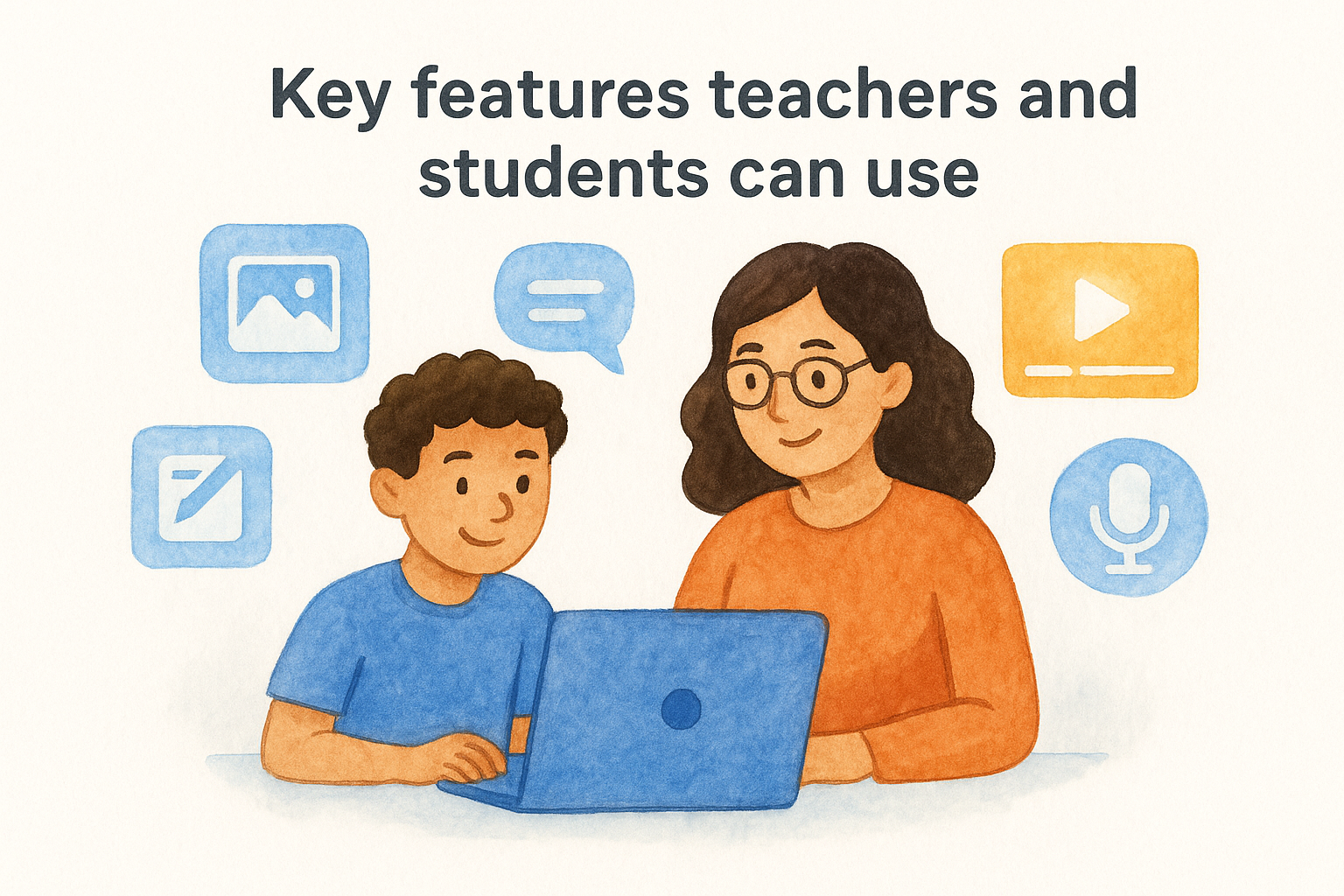
Key features teachers and students can use
Once you’re logged in, the real value shows up in the toolkit itself. Adobe Express for education bundles templates, stock media, and AI features that would normally cost a district a separate subscription budget line.
Templates and design assets
Students get access to thousands of templates built for classroom work, from lab report layouts to book cover designs. Pair that with a library of licensed stock photos and icons, and nobody is stuck using a blurry image pulled from a random search.
- Book trailers and video summaries
- Infographic creator for research projects
- Presentation slides with built-in animation
- Podcast covers and audio editing
AI tools built for the classroom
Text-to-image generation, background removal, and automatic transcription all sit inside the same interface, so students never leave the app to finish a project. These AI-powered shortcuts cut editing time dramatically without requiring a separate account or upload to a third-party site.
The fewer tabs a student needs open, the more likely the project actually gets finished.
Teachers get their own layer of tools too, including a grid view to check every student’s project in one screen, which beats clicking through thirty separate Google Docs links one at a time.
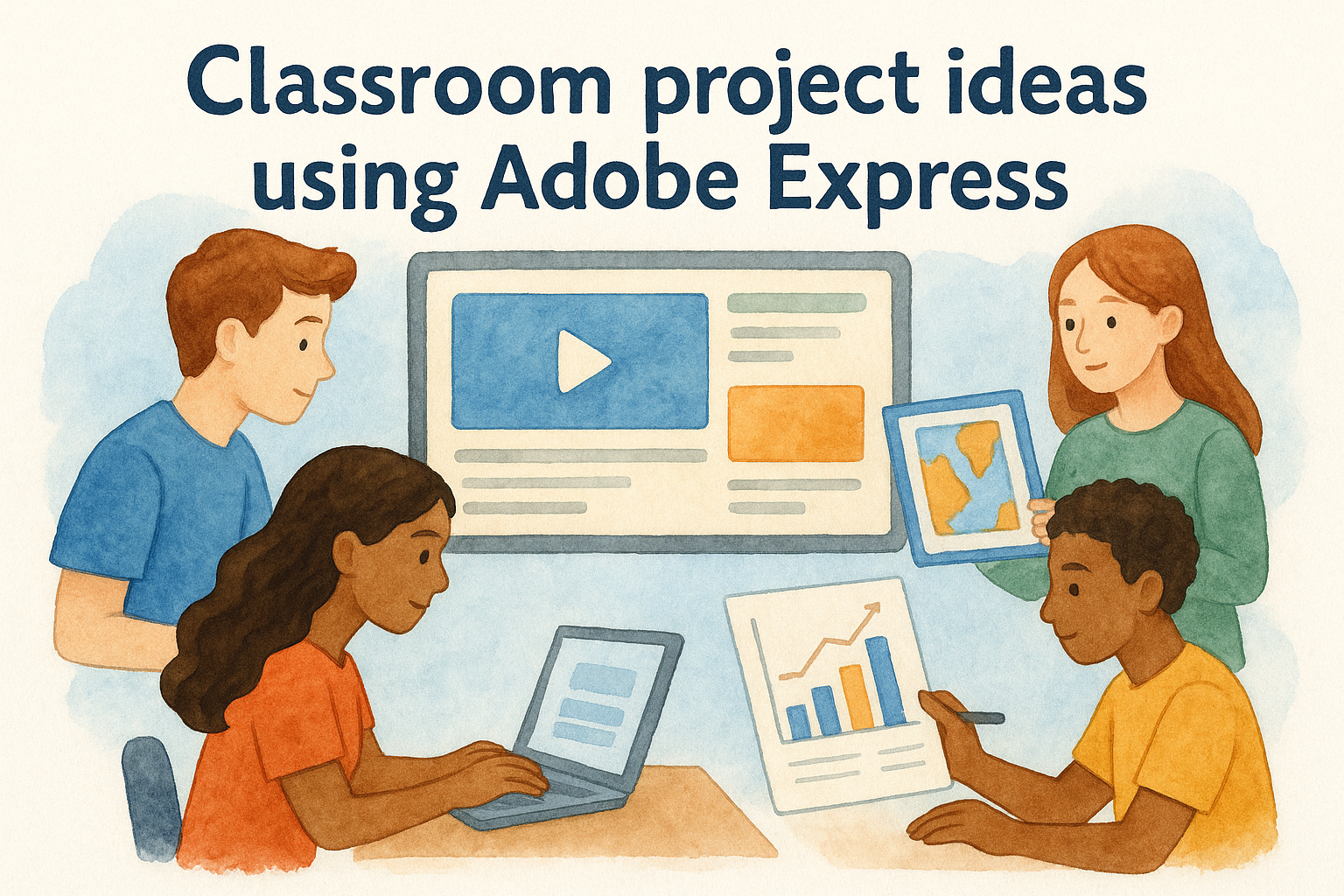
Classroom project ideas using Adobe Express
Once your class has accounts set up, the next question is what to actually assign. Adobe Express for education works across subjects, not just English class projects, so you can pull it into science labs, history units, and even math presentations without reinventing your lesson plans.
English and literature assignments
Give students a book trailer assignment for To Kill a Mockingbird or Lord of the Flies instead of another written summary. They pick key scenes, add narration, and drop in royalty-free music, which turns a plot recap into an actual creative task.
- Character analysis infographics with pulled quotes
- Visual essays that pair short text blocks with images
- Mock book covers for independent reading assignments
- Podcast-style literary analysis using the built-in audio editor
Cross-subject projects worth trying
Science classes can build lab report infographics that explain a hypothesis and results in one clean visual instead of a five-paragraph writeup. History teachers can assign timeline graphics for major events, and math teachers can have students design step-by-step process posters for solving equations.
A project that asks students to design something usually gets more effort than one that just asks them to write.
Start with one assignment type before rolling it out district-wide, since students need a class period just to explore the templates.
Adobe Express vs Creative Cloud: which one do you need
Teachers sometimes assume Adobe Express is a stripped-down demo of the “real” software, but that’s not quite right. Adobe Express for education is built for quick, template-driven projects, while Creative Cloud apps like Photoshop and Premiere Pro handle deep, layer-by-layer editing that most classroom projects never need.
What each one actually does
Consider what your students are producing before you pick a tool. Most K-12 assignments call for fast turnaround work, not professional-grade file manipulation.
| Need | Best Tool |
|---|---|
| Book trailer, poster, infographic | Adobe Express |
| Advanced photo retouching | Photoshop (Creative Cloud) |
| Multi-track video editing | Premiere Pro (Creative Cloud) |
| Quick class project turnaround | Adobe Express |
If your students finish an assignment in one class period, they don’t need Creative Cloud.
When Creative Cloud makes sense
High school media or film electives sometimes outgrow the templates in Express. That’s when a discounted Creative Cloud license through your district’s education pricing might make sense, but for general classroom use across subjects, Express covers what most teachers actually assign.
Bringing it into your classroom
Adobe Express for education isn’t a tool you need to master over a summer. Sign up with your school email, sync your roster through Google Classroom or Clever, and hand students their first template-based assignment by next week. The free access tier covers everything most classrooms need, and you only look at Creative Cloud once students outgrow templates entirely.
Start small. Pick one unit, maybe a book trailer for your next novel study, and let students explore the interface before you expect polished results. Classroom buy-in grows fast once kids realize they can make something that looks professional without fighting software they’ve never seen before.
If you’re looking for more practical tools like this one, along with lesson plans and AI resources built specifically for teachers, The Cautiously Optimistic Teacher has you covered.