
Google Forms Formative Assessment: How To Get Fast Feedback
You just taught a lesson you spent hours preparing, but you have no idea if your students actually understood it. Sound familiar? Getting real-time insight into student understanding shouldn’t require a stack of papers and a weekend of grading. That’s where Google Forms formative assessment comes in, a free, flexible tool most teachers already have access to but few use to its full potential.
At The Cautiously Optimistic Teacher, we’re always looking for ways to help educators work smarter without adding more to their plates. Google Forms checks that box. With the right setup, you can gather meaningful student data in minutes, adjust your instruction on the fly, and give targeted feedback before misconceptions take root.
In this guide, you’ll learn exactly how to build effective formative assessments in Google Forms, from choosing the right question types to analyzing responses quickly, so you can spend less time guessing and more time teaching with confidence.
What makes Google Forms great for formative checks
Google Forms fits into a formative assessment workflow without forcing you to learn a new platform. Most schools already use Google Workspace for Education, which means your students can access a form from any device with no app downloads or extra accounts required. That low barrier to entry is exactly what makes it a practical tool for quick, daily checks rather than a special-occasion assessment.
It connects to tools you already use
Because Forms sits inside the same ecosystem as Google Classroom and Google Drive, you can push an assessment to your class in seconds and find every response automatically saved and organized. You don’t need to copy-paste data or juggle separate files. Everything stays in one place, which saves you real time on both setup and follow-up.
The tighter your tool ecosystem, the less time you spend on logistics and the more time you spend on actual instruction.
The quiz feature handles grading for you
When you enable quiz mode in Google Forms, the platform grades multiple-choice, checkbox, and short-answer questions automatically. You set the correct answers and point values once, and Google does the rest. For a google forms formative assessment, this means you can walk away from a five-minute exit ticket with a full class breakdown of who got it right and who didn’t, before the period even ends.
You see class-wide patterns at a glance
Forms presents response data as summary charts and graphs the moment students start submitting. You can spot which question tripped up most of your class without sorting through individual papers. That visual overview helps you make a fast, informed decision about whether to re-teach, adjust your next lesson, or move forward with confidence.

Step 1. Plan the skill and success criteria
Before you open Google Forms, decide exactly what skill you’re checking and what a correct response looks like. Skipping this step is the most common reason formative assessments produce data you can’t act on. When you know your target in advance, every question you write connects directly to instruction.
Nail down one specific skill
The most effective google forms formative assessment focuses on a single, measurable skill rather than covering everything from the week. For example, instead of asking general comprehension questions about a chapter, ask students to identify the author’s central argument in one paragraph. Narrow focus gives you cleaner data and faster decisions.
One focused question answered by 30 students gives you more actionable data than ten vague questions answered by the same group.
Define what success looks like before you build
Write your success criteria before you touch the form. Ask yourself: what does a correct response include, and what does a partial response look like? Here is a quick planning template:
| Planning Element | Example |
|---|---|
| Skill being assessed | Identifying text evidence |
| Success criteria | Student cites a direct quote with page number |
| Partial understanding | Student restates the idea without a quote |
This table keeps your form focused and your feedback targeted.
Step 2. Build the form for quick, clear responses
Once you know your skill and success criteria, open Google Forms and start with a clean, simple structure. Your goal is a form students can complete in three to five minutes, so keep the question count low and the language direct. Aim for two to four questions maximum, and title the form with the date and topic so you can locate it quickly later.
The shorter your form, the higher your completion rate and the faster you get usable data.
Choose question types that match your goal
Multiple-choice and short-answer questions work best for most formative checks. Use multiple-choice when you want to catch specific misconceptions across the class, and use short-answer when you need students to show their reasoning. Dropdown questions work well for ranking or ordering tasks. Avoid paragraph-style responses if speed is your priority, since longer answers slow down both grading and student completion.
Keep the layout clean and student-friendly
Label each question clearly and avoid double-barreled questions that ask two things at once. A question like "Did you understand the reading and could you identify the theme?" gives you unreliable data because students answer two questions in one. Write one question per row, test one skill per form, and your google forms formative assessment will produce results you can act on the same day.
Step 3. Turn it into a quiz and add feedback
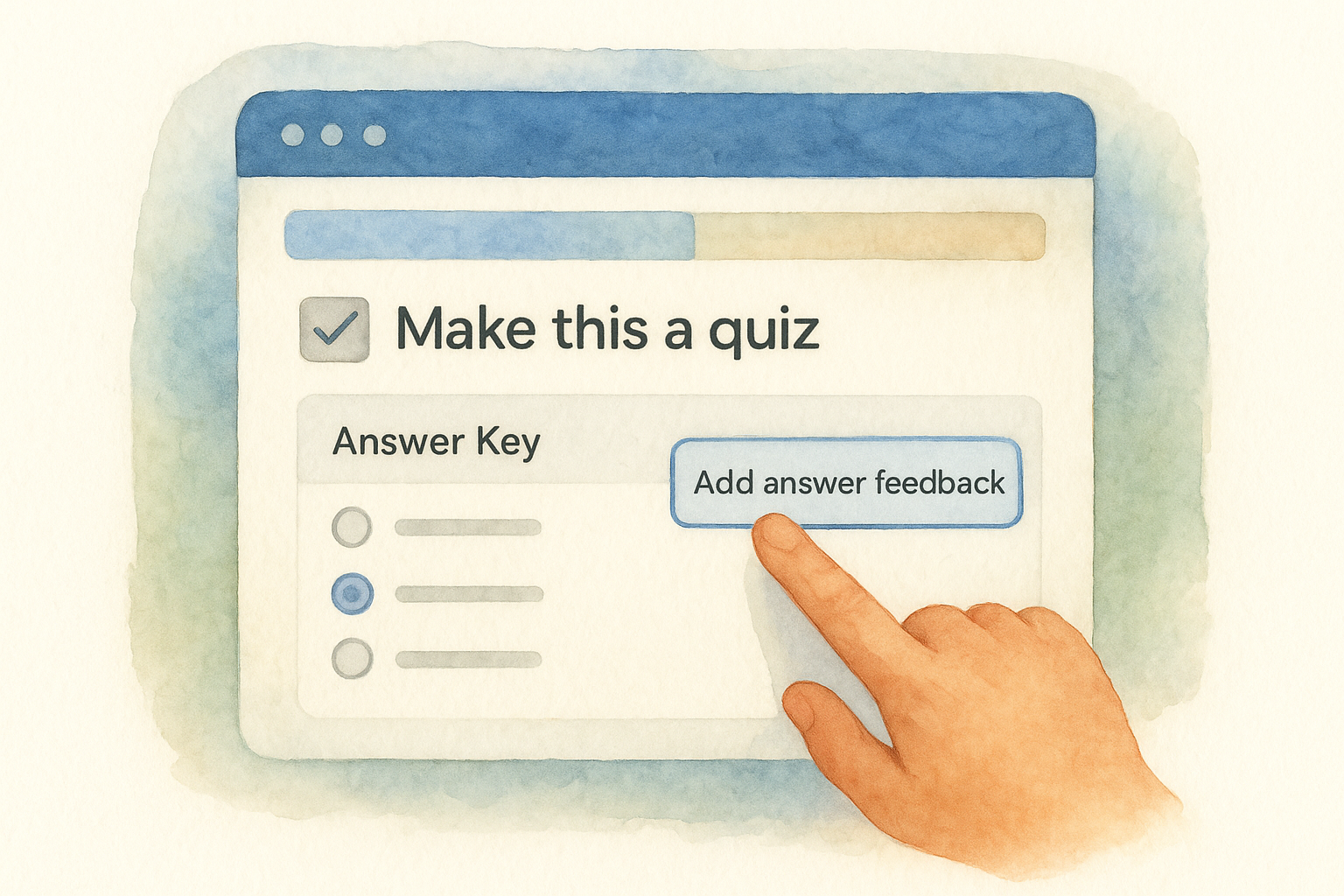
Enabling quiz mode turns your google forms formative assessment from a simple data collector into a tool that gives students immediate, actionable feedback without any extra work from you. Open the form, click the Settings tab, and toggle "Make this a quiz" on. From there, you assign point values and set correct answers directly inside each question.
Enable quiz mode and set answer keys
Once quiz mode is on, click each question and select "Answer Key" at the bottom left. Choose the correct response, assign a point value, and move to the next question. For short-answer questions, list every acceptable variation so the auto-grader catches them all.
Getting answer keys right the first time saves you from manually overriding scores later.
Here is a quick checklist to confirm your quiz is ready before you share it:
- Correct answer marked for every question
- Point values assigned consistently
- "Release score" set to immediately after submission
Write feedback students actually read
Under each answer key, Google Forms gives you a "Add answer feedback" option for both correct and incorrect responses. Use the incorrect feedback field to write one targeted sentence that redirects the student, such as "Reread paragraph two for a clue." Keep it short and specific so students act on it rather than ignore it.
Step 4. Analyze results and act the same day
Once students submit, open the Responses tab in your form and click "Summary." This view gives you an instant breakdown of how your class performed on every question. For your google forms formative assessment to drive instruction, you need to read this data before your next class session and make a concrete decision based on what you see.
Read the summary tab first
The summary tab shows bar charts for multiple-choice questions and lists individual short-answer responses. Look for any question where more than 30% of students chose the wrong answer. That threshold signals a gap worth addressing directly, not a minor slip to ignore.
If the majority of your class missed the same question, the problem is more likely your instruction than their effort.
Group students by response and adjust
Use the individual responses view to sort students into three groups: those who got it, those who partially got it, and those who need significant support. A simple action plan looks like this:
| Group | Response Pattern | Next Step |
|---|---|---|
| Got it | Correct with explanation | Move forward or extend |
| Partial | Correct answer, weak reasoning | Small group clarification |
| Needs support | Incorrect answer | Re-teach before next lesson |
This table keeps your follow-up targeted and prevents you from re-teaching the whole class when only a small group needs it.
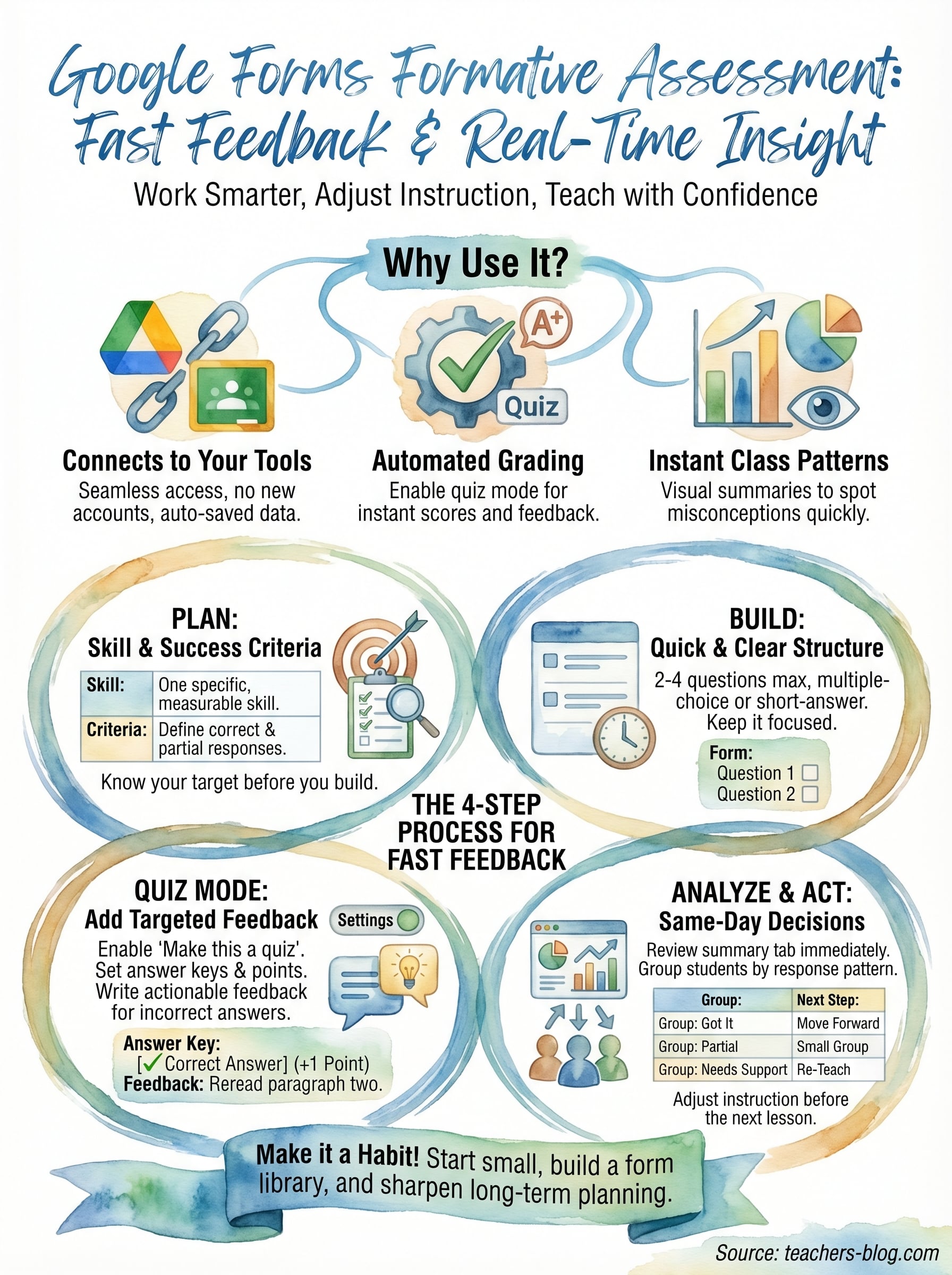
Next steps for faster feedback
You now have a complete process for running a google forms formative assessment from planning through follow-up. The real payoff comes when this workflow becomes a habit rather than a one-time experiment. Start small by building one focused form for your next lesson’s exit ticket. Use two questions, enable quiz mode, and check the summary tab before you leave the building that day.
From there, build a small library of forms you can reuse and adjust each unit. Save each form to a dedicated Google Drive folder labeled by skill or standard so you can pull them up quickly when you need them. Once you run three or four cycles, you’ll start to see patterns in where your students consistently struggle, and that information makes your long-term instructional planning sharper.
For more practical strategies like this one, visit The Cautiously Optimistic Teacher and explore the full resource library built specifically for educators.